
For advertisers who want to expand their business in a specific small or large area, Google Ads is a great tool. However, it’s crucial to comprehend how to choose and carry out each step strategically before beginning the process. Let’s get started.
Whenever we start setting up our campaign, we will get all of the options. Here in the campaign setting.
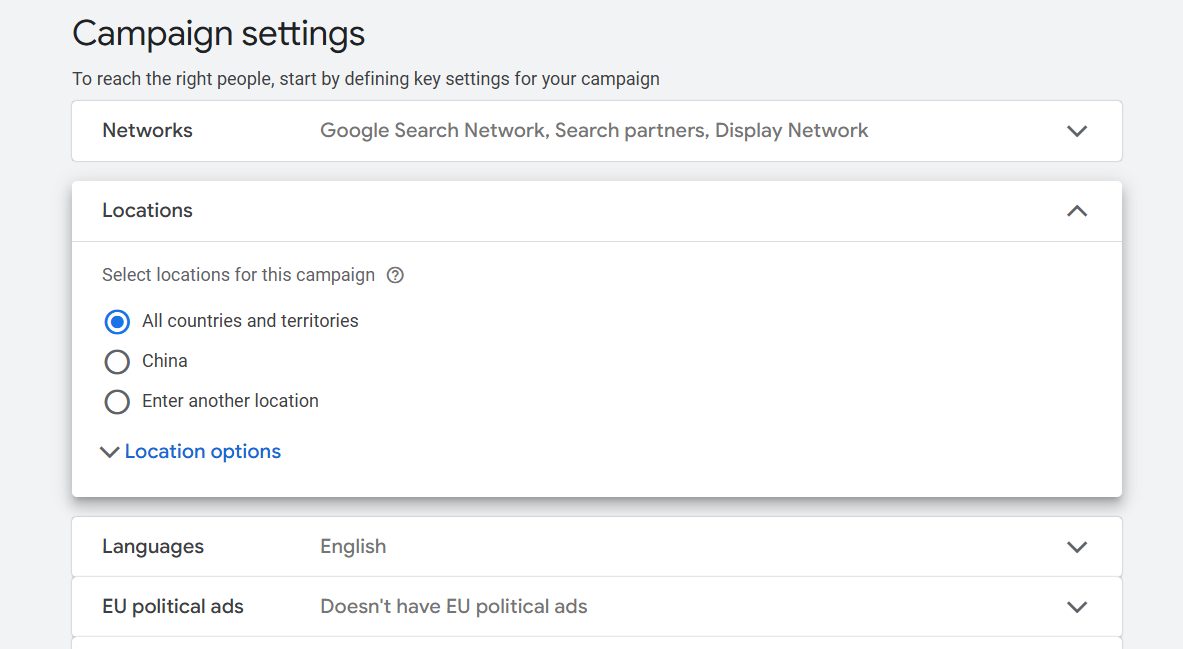
From here, before talking about the location, let’s take one overview from networks.
Networks
This section allows you to select the platform where you want your ads to be displayed, giving you the flexibility to choose the ideal locations for your ads.
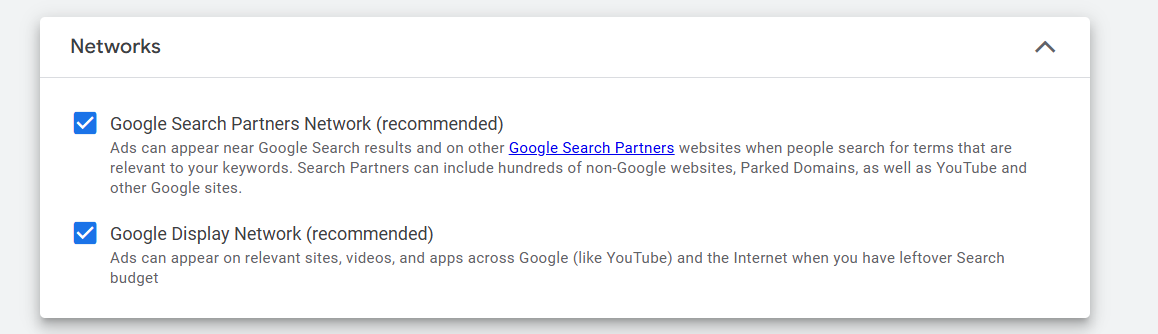
You can select where you would like your advertisements to appear on these two networks. Your ads will appear on partner websites within Google’s vast network if you choose these options. Due to Google’s extensive network of partnerships, your ads can reach a wider audience on both Google-owned websites, such as YouTube, and other external websites that are a part of the Google Ads ecosystem.
Location
This is the place where you can select your targeted location.
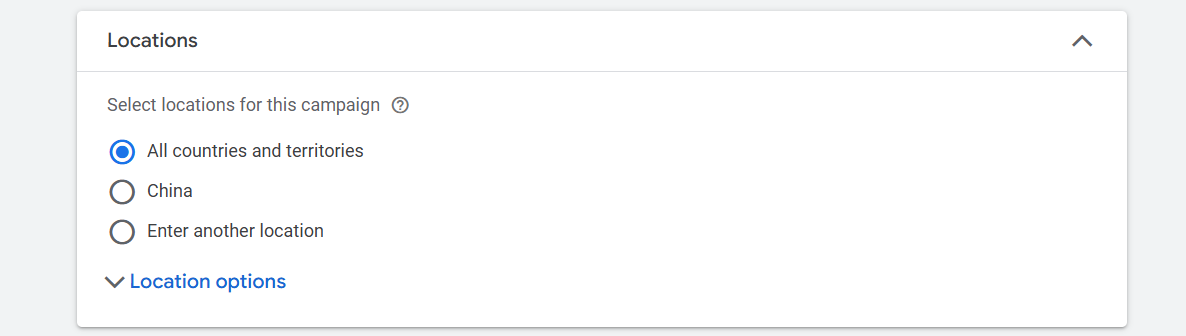
From here, with the first option, you can run your Google Ads all over the world where Google is available.
But if you don’t want to do that and you want to select some other location in detail, then you have to select the “Enter Another Location” option.
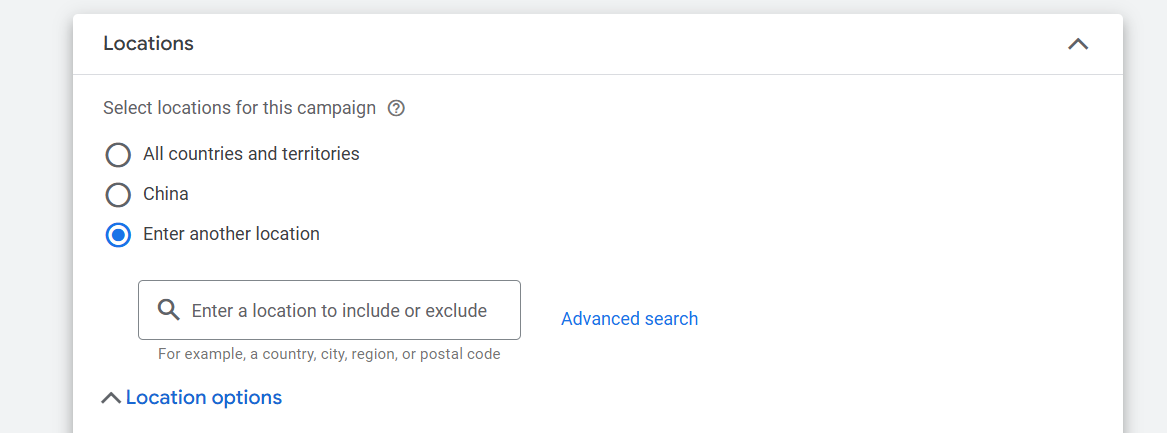
Here in the place, you can find your location by normally using the country, city, or region name; also, with the postal code, you can find your targeted location.
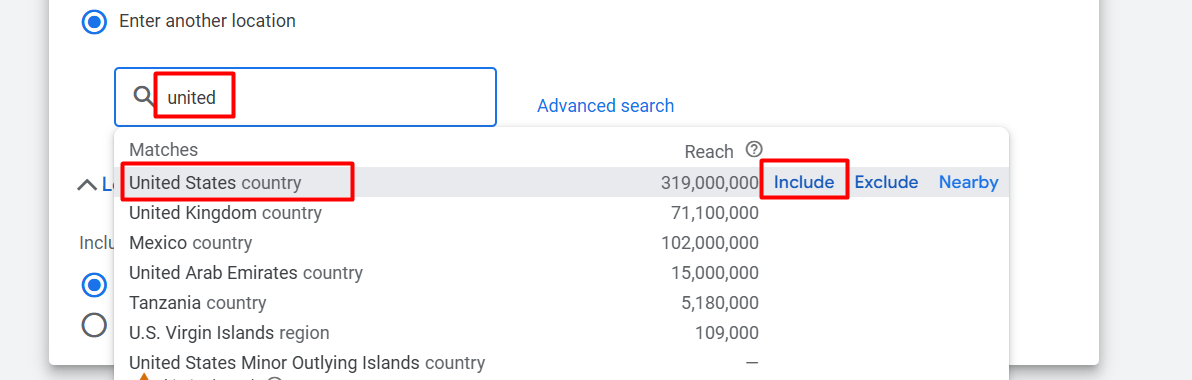
In the same way, you can search your location name. After exactly going to the location, if you want to add the location to your list, then normally just click on the “Include” section.
Now you are thinking that it is okay we got our targeted country, but from this country I want to “exclude” one location. Then after selecting the country, city, or region, “Include” it in your list. Then now go for the next location, search it, and exclude it.
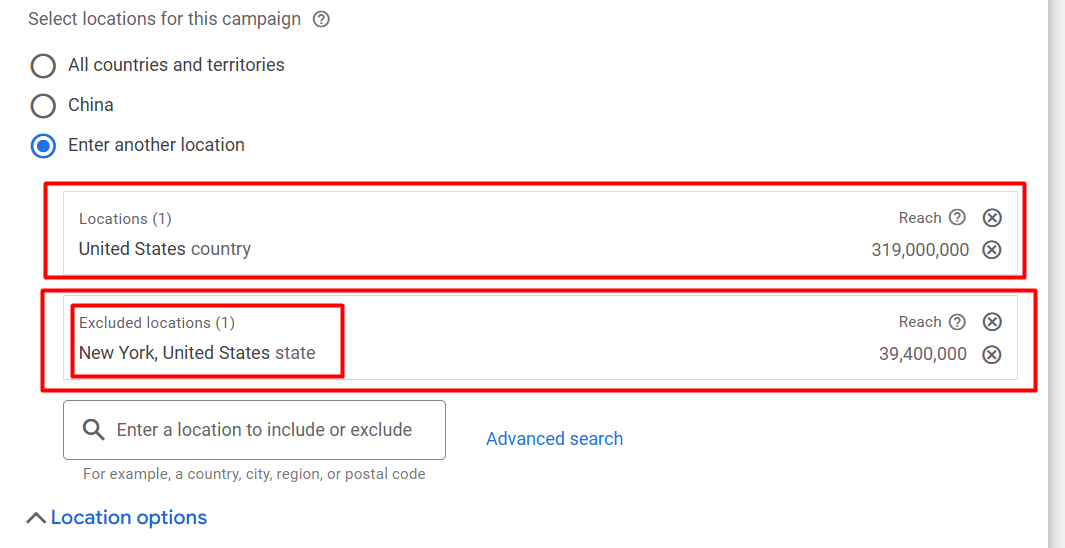
Here you can see from the United States that New York isn’t useful for us, so we just excluded the location.
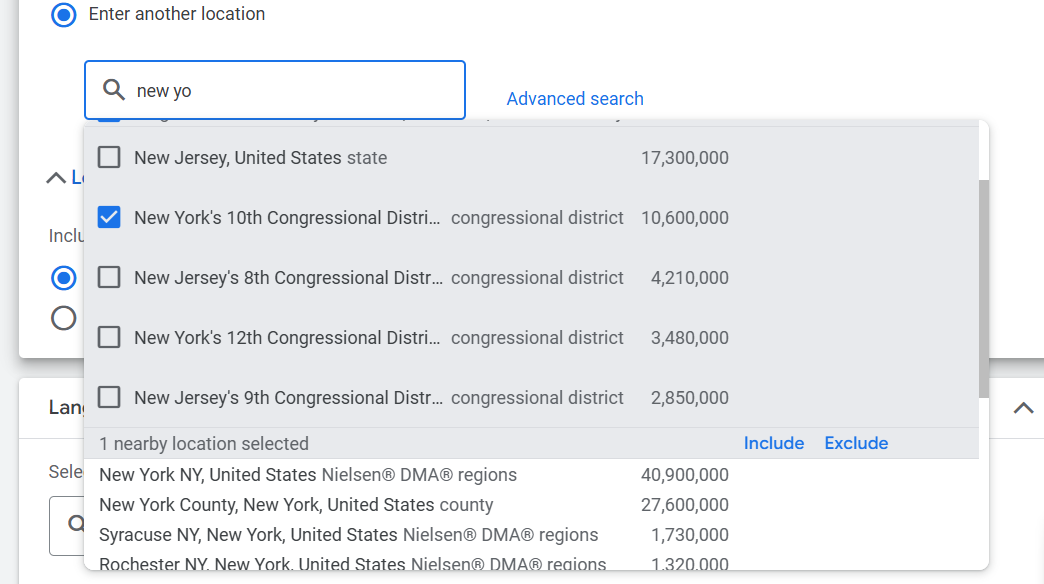
Nearby: Also, with the Nearby Search option, you can search all of the locations that are nearby your location. Then, as per your need, you can “Include” or “Exclude” those locations.
Advanced Search
After that, now we think we have a lot of city, country, or region names or postal codes. What we can do is do it in an easy way. From here, to make it easy, we have to select the “Advanced Search” option.
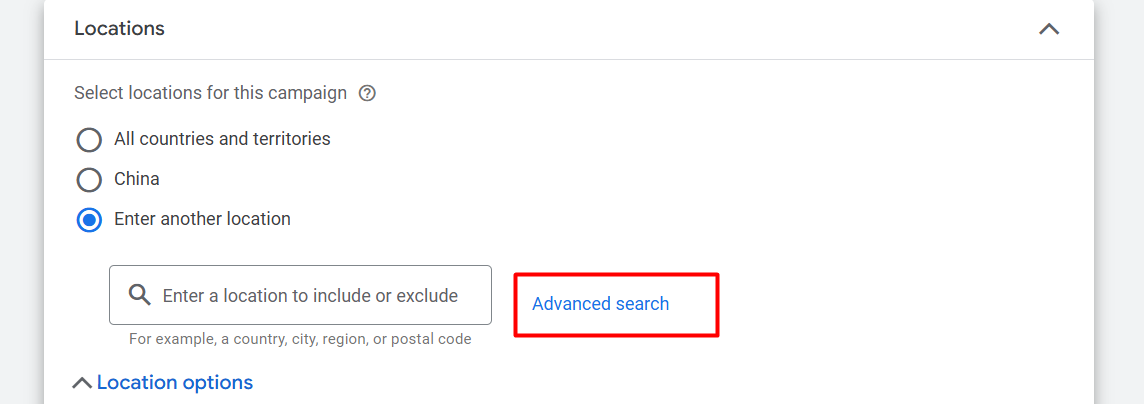
Before using the “Advanced Search,” first create a list about your country, city, region, or postal code. Here in the section we can upload them so easily in a time.
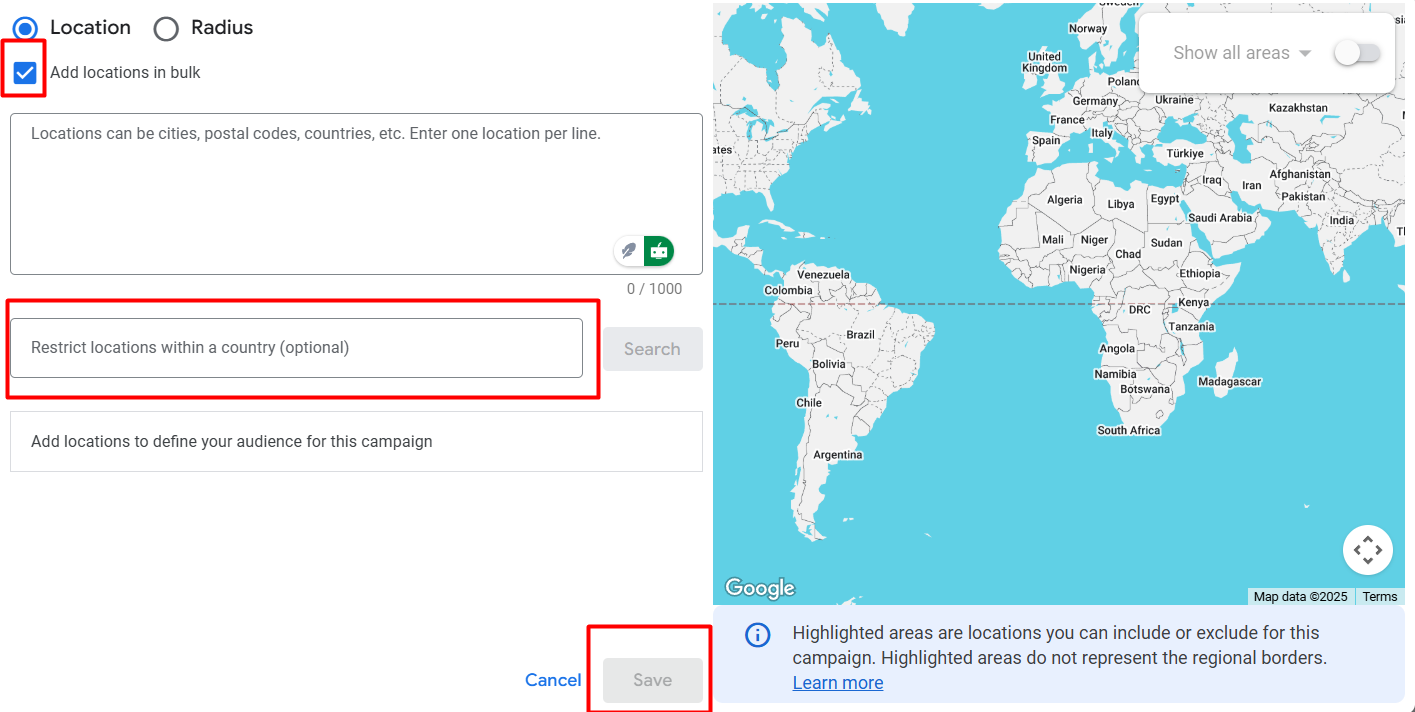
After clicking on the “Advanced Section” here in this place, you can add your targeted location name or the postal code in a time. Then you will get the detailed list about your location. In the next location you can also select the restricted locations if you want; otherwise, it’s optional.
Radius: Think you have a local business or service like a gym, restaurant, etc. So for you, all over the county, region, or city will not always be a great decision. Because sometimes our business is based on some nearby location.
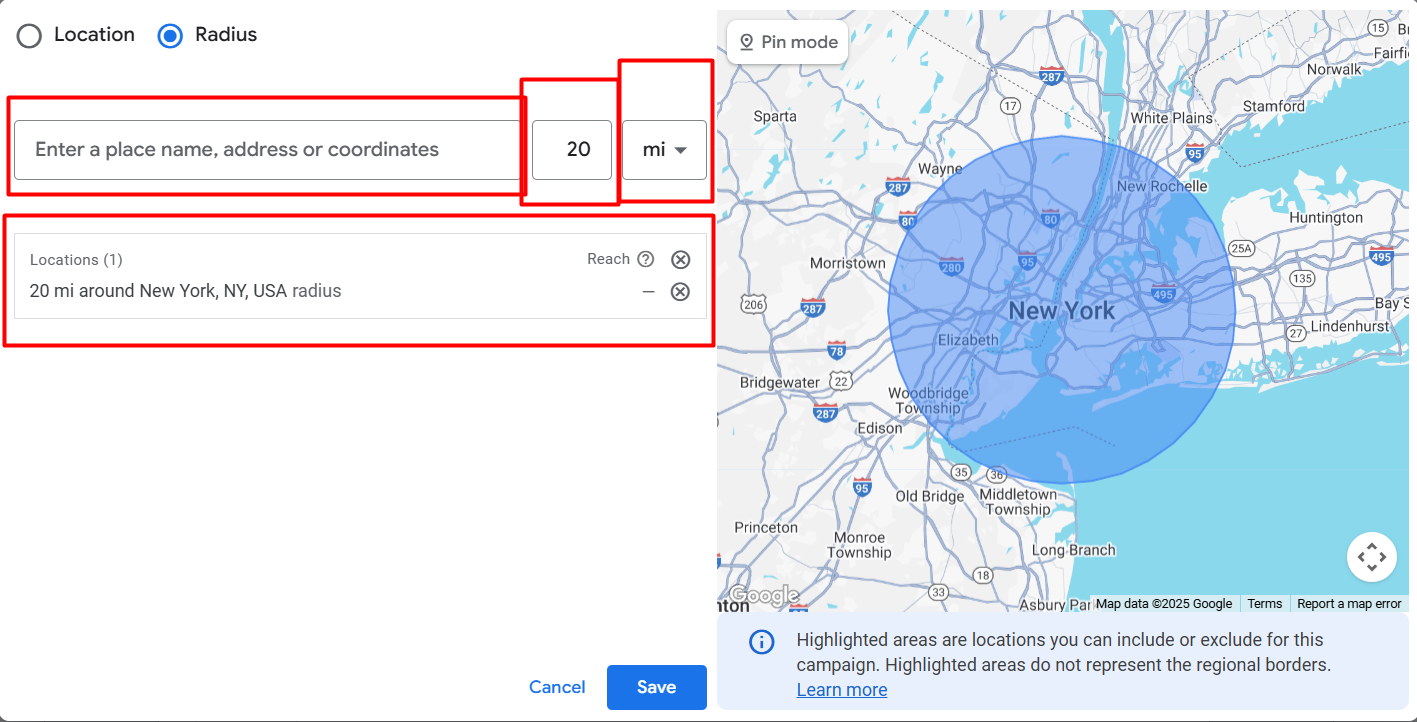
Here in the first you can enter your target location, and in the next box you can type the radius of how much it should be. In the next, you can select if it should be in miles or in km. So with this option you can pick your targeted location easily for your local business or service.
Also here in the advanced section you can select location by using the “Pin Mode.” With this mode, every time when you hover on some location, it will give you the option to include it with your location list.
Location Option

It refers to individuals who are physically present in a particular city, nation, or region, or who have recently visited the included locations.
Also, It refers to people who may not be physically present at the location but have expressed interest in it by visiting websites associated with it or by searching for related terms.
And if you select the second location, then your ad will be shown to those who are physically present in a particular city, nation, or region, or who have recently visited the included locations.
That’s why before selecting this option, we should understand which type of people we want to share our ads with. If we want targeted people from the target place, then the second one is great. The other wish is that if we select the first one, then if someone finds the offer like this—the best offer on this location—then Google will also show them your ads.
And you can lose your money because sometimes if they are not from your targeted location, it can be hard for them to take your goods.
Sometimes with the second option you can get traffic from another location because the traffic can live in the targeted location, or they were there, and now they are outside of this location for their need.
Language
In this modern time in a city, we can see a lot of different types of people with different types of language. That’s why it’s also urgent to select the language that your traffic uses in their day-to-day work.
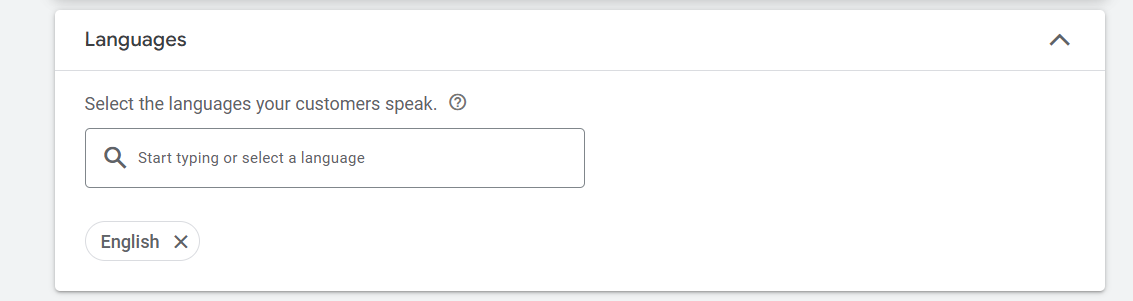
From this section you can select the language. Sometimes we can see that some communities talk to them in their own language, but in the device they use English or something else. That’s why before selecting the language, we should deeply get the information about the language in their device.
Ad Rotation

Ad rotation in Google Ads is the feature that allows Google to show different versions of your ads to see which one performs best, then automatically prioritize the best-performing ads.
Think of it like having multiple ads in an ad group. If you select the first option, Google will optimize by favoring the ads that perform best over time.
On the other hand, if you select the second option, Google will rotate all ads equally, without prioritizing the best performers, and will focus on optimizing the copy.
Start and End Date
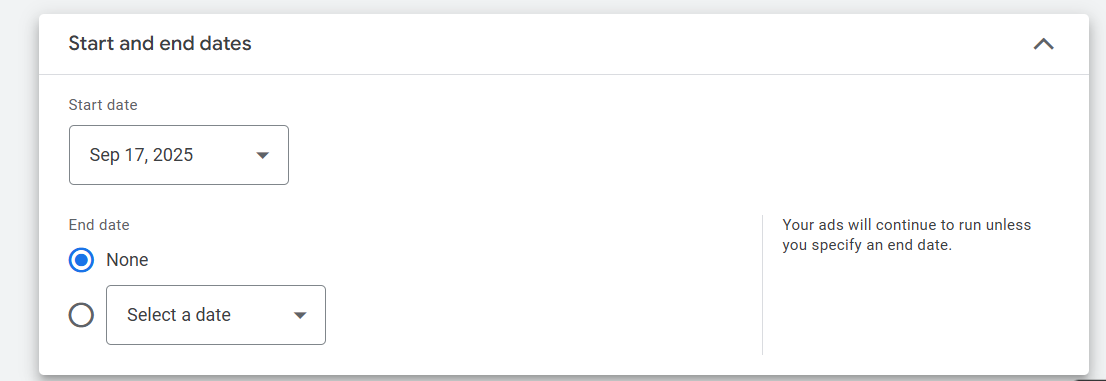
From here you can select your start and end date, or if you don’t have it for any reason, then in the end date you can select none.
Ad Schedule
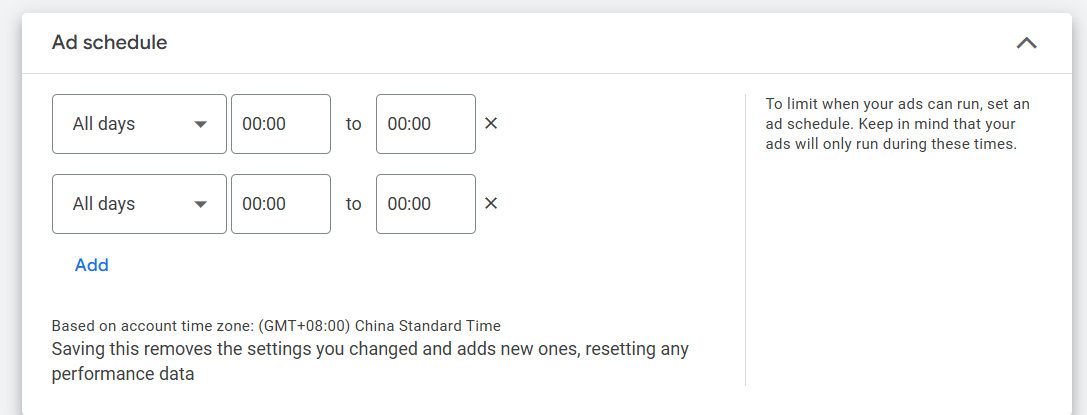
If you want to run your ad in the scheduled process, then you can use this option. But yes, if you want to select the scheduling option, then first check in which time zone your account is now using.
Here in the picture you can check out this account time zone, which is related to “China.” So if you want to run an ad in the USA, then definitely you will have to know the difference between your time zone and the USA time zone.








