
As e-commerce business owners or service providers, we often face numerous challenges in managing and optimizing online performance. Among these, one of the biggest problems in tracking and analyzing is the issue of duplicate events.
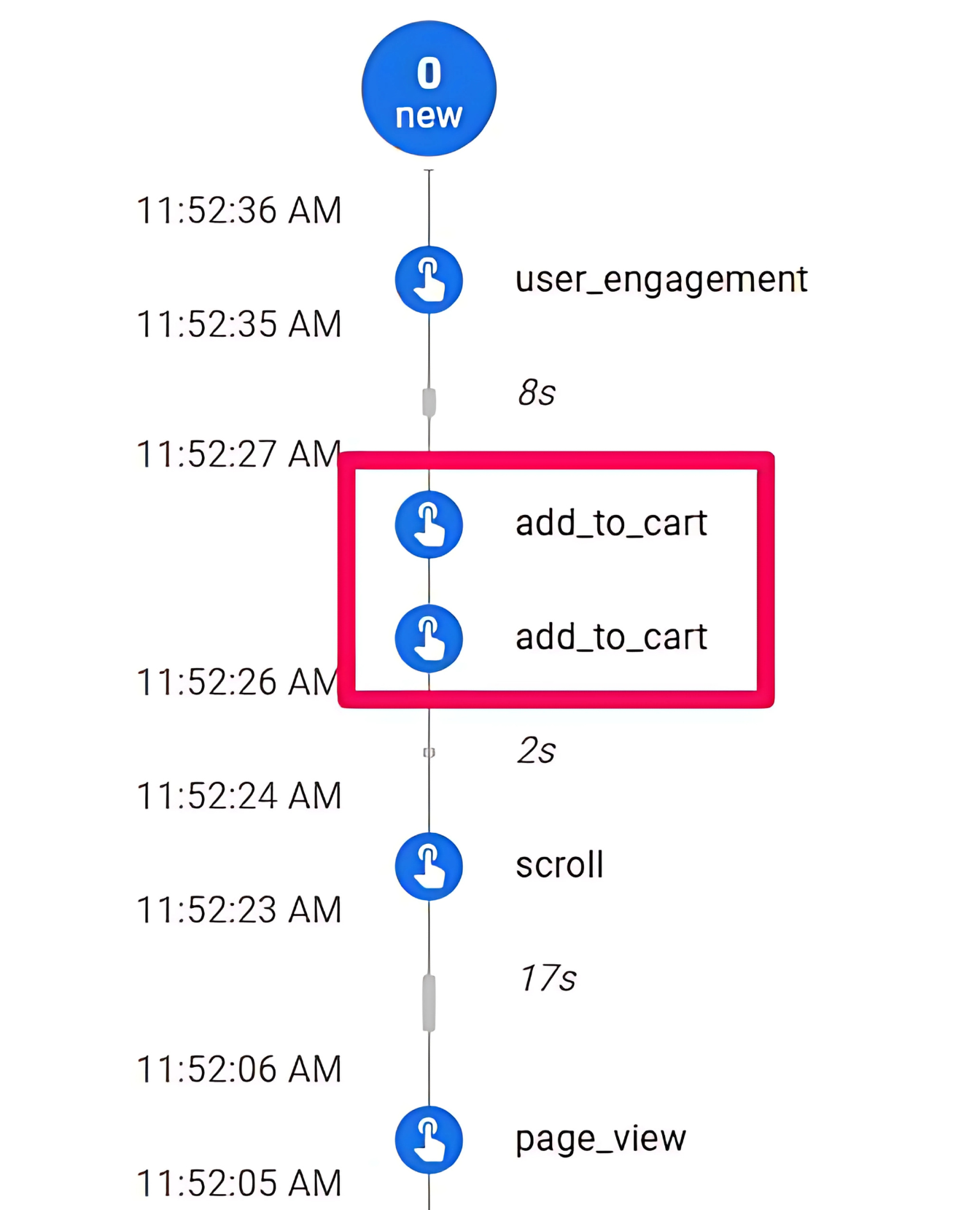
To successfully grow a business or service, understanding user behavior, traffic patterns, and analyzing accurate data is crucial. However, when recurring events are logged, misleading reports can be generated, negatively impacting decision-making. This not only affects marketing strategies but can also lead to wasted advertising spending and flawed business insights.
In today’s article, we will discuss the issue of recurring event tracking in detail and explore why solving this problem is crucial for the success of e-commerce businesses or online services.
Yes, we now understand that recurring event tracking is a serious problem for any enterprise that relies on accurate analytics. When this happens, two common scenarios typically emerge:
1. Recording duplicate events on the same page : Sometimes, due to technical factors, the same event may be triggered multiple times on a single page.
2. Events triggered when the page is refreshed : In many cases, a new event is automatically pushed whenever a user refreshes the page dataLayer, and Google Tag Manager (GTM) records it as a new event.
Both scenarios present significant problems—especially in critical events like “purchases.” Imagine if analytics showed the same order was being counted as a purchase multiple times: this would lead to inflated revenue reports, incorrect ROAS calculations, wasted advertising spending, and distorted data upon which decision-making relies.
Let’s start with the first scenario: duplicate events are logged on the same page. This problem can be caused by a variety of reasons, and if left unresolved, it will affect the accuracy of the reports.
The following are the most common reasons why the same event might be triggered multiple times on a single page due to technical factors :
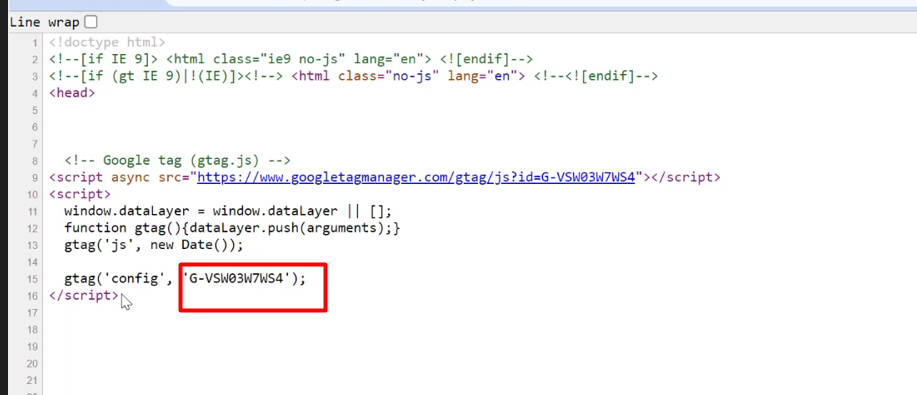
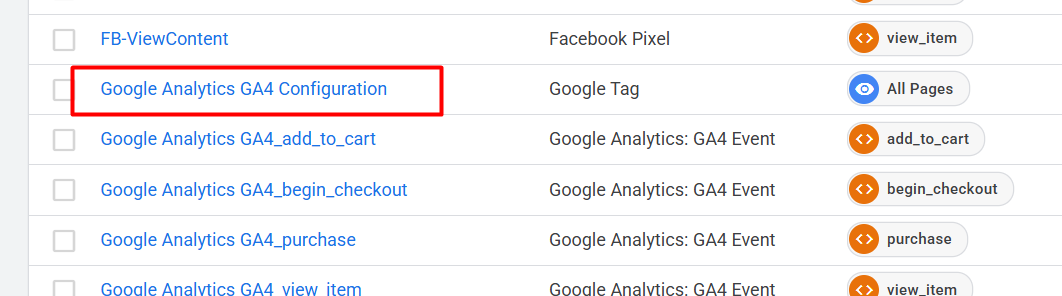
<1> GA4 was installed twice (GTM + backend code)
-
Sometimes, businesses set up GA4 through Google Tag Manager (GTM) and also install the GA4 code directly in the website backend.
-
As a result, the same event will be triggered twice—once from GTM and once from the hard-coded GA4 tag.
<2> Backend issues for custom websites
-
If your website is custom-developed, backend logic errors may unexpectedly push the same event multiple times
dataLayer.
-
This can cause events to be logged repeatedly.
<3> Events were created in both GTM and GA4.
-
Another common mistake is to send the same event via GTM first, and then recreate the event in GA4 using the “Create Event” function.
-
This setting will cause GA4 to log events twice.
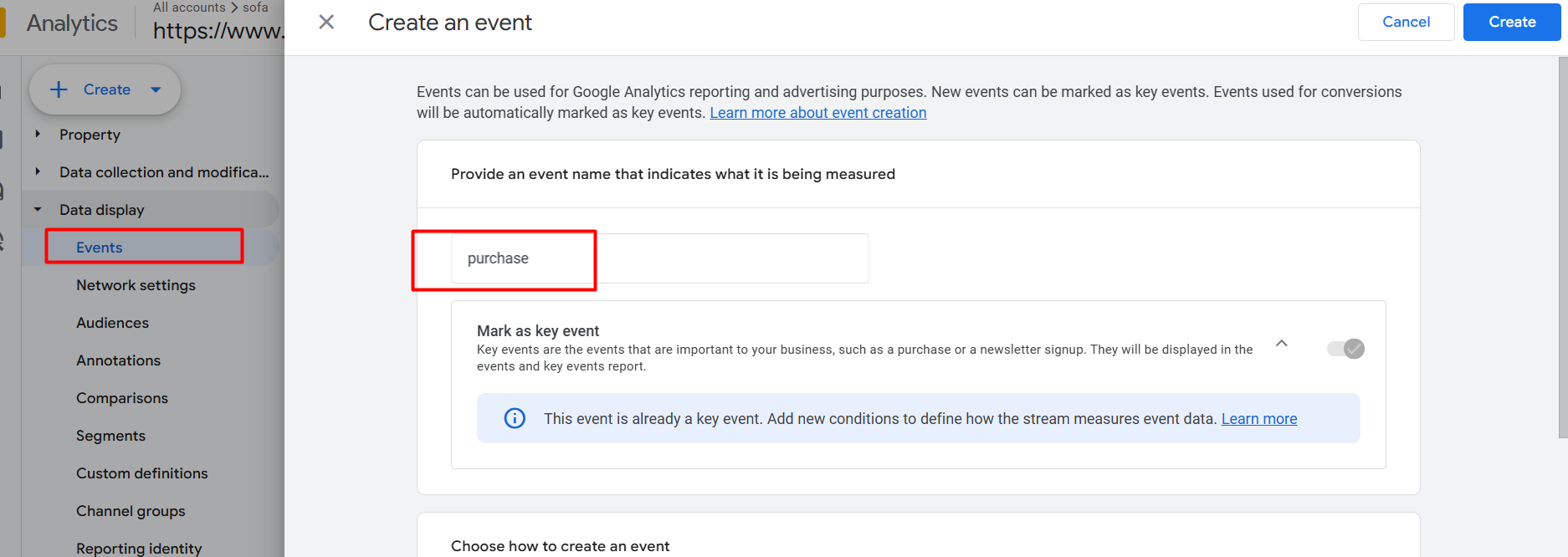
<4> Plugins or third-party applications
-
If you are using third-party plugins or applications (such as e-commerce plugins for Shopify, WordPress, WooCommerce, etc.), they may already be sending certain events.
-
When you configure the same event in GTM, it will cause the event to be duplicated.
To resolve duplicate events on the same page, each issue needs to be investigated and fixed one by one.
<1> First, if your GA4 is already installed via GTM, please remove the GA4 code from the website backend.
<2> For custom websites where duplicates occur due to backend logic, please have your developers ensure that events are pushed only once.
<3> If you have created the same event in both GA4 and GTM, delete the event in GA4 and keep GTM as the primary source.
Most problems require manual resolution using the methods described above. However, in cases where technical issues or plugins still trigger recurring events , GTM’s filters or conditions can be used to prevent these recurring events. This is because GTM can handle technical operations.
<4> Use GTM filters or conditions to prevent recurring events.
If you encounter duplicate events in “Add to Cart” or “Purchase,” open Google Tag Manager, select the relevant tag, and scroll down to the “Advanced settings” section. Here, adjust the tag triggering options to prevent the tag from triggering multiple times.
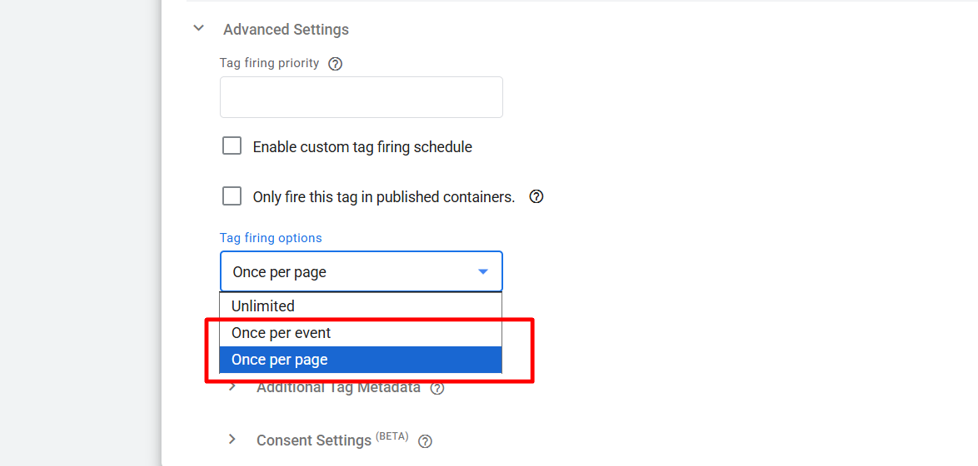
By default, “Once per event” means the tag is triggered every time an event occurs. Changing it to “Once per page” ensures that the tag is triggered only once per page load, regardless of how many times the same event occurs in the dataLayer.
Fixed page refresh triggered events
Duplicate events caused by page refreshes are another significant issue, especially for “purchase” events. Even after fixing the duplicate issue on the same page, refreshing the page may still trigger the event again, leading to inaccurate data. To prevent this, we need to enable GTM to detect if a page has been refreshed and prevent duplicate events. This can be achieved using a custom solution within GTM.
The operation steps are as follows:
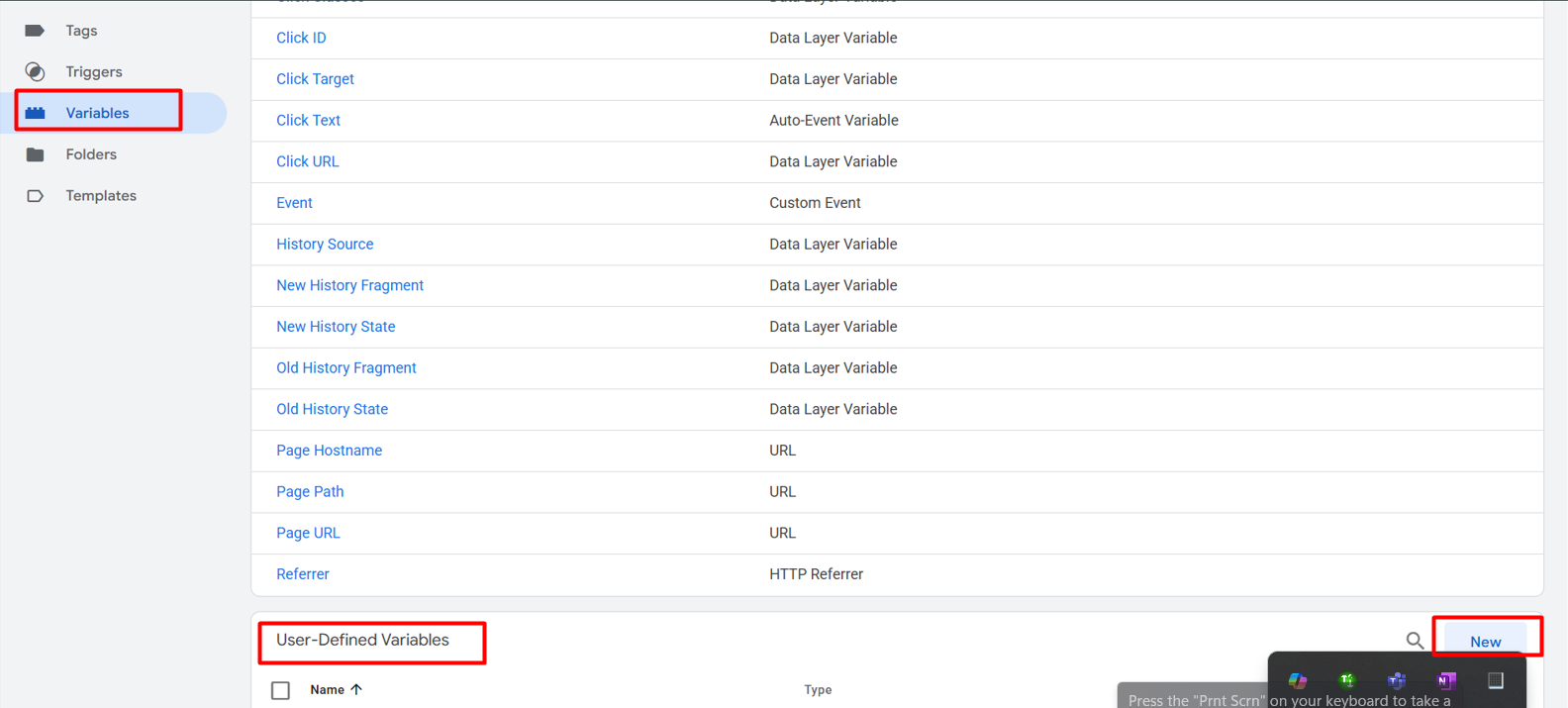
Enter GTM → Click “Variables.” → Create a new user-defined variable → Paste the code
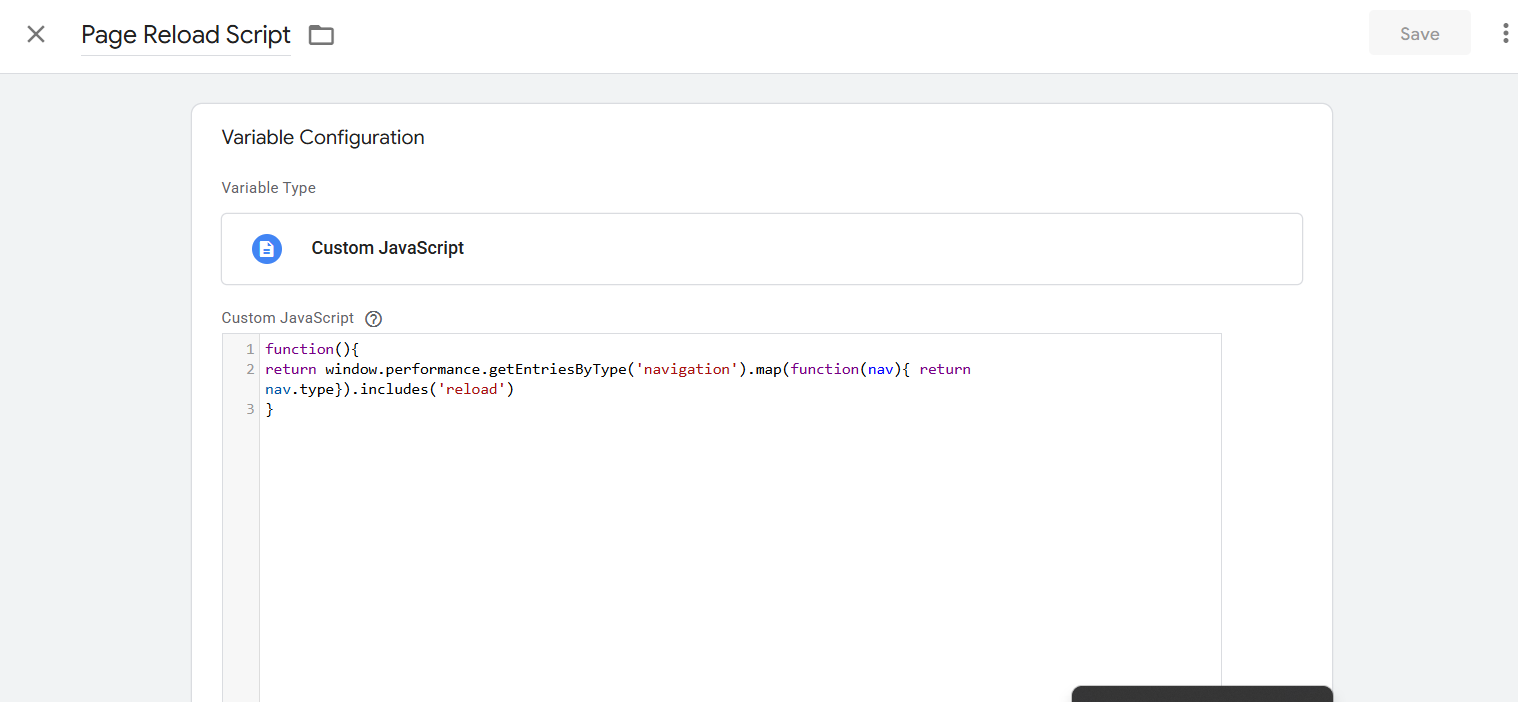
function(){
return window.performance.getEntriesByType('navigation').map(function(nav){ return nav.type}).includes('reload')
}
Now change the trigger settings → Select “Some Custom Events” from “All Custom Events” → Select the variable you created and set the conditions.
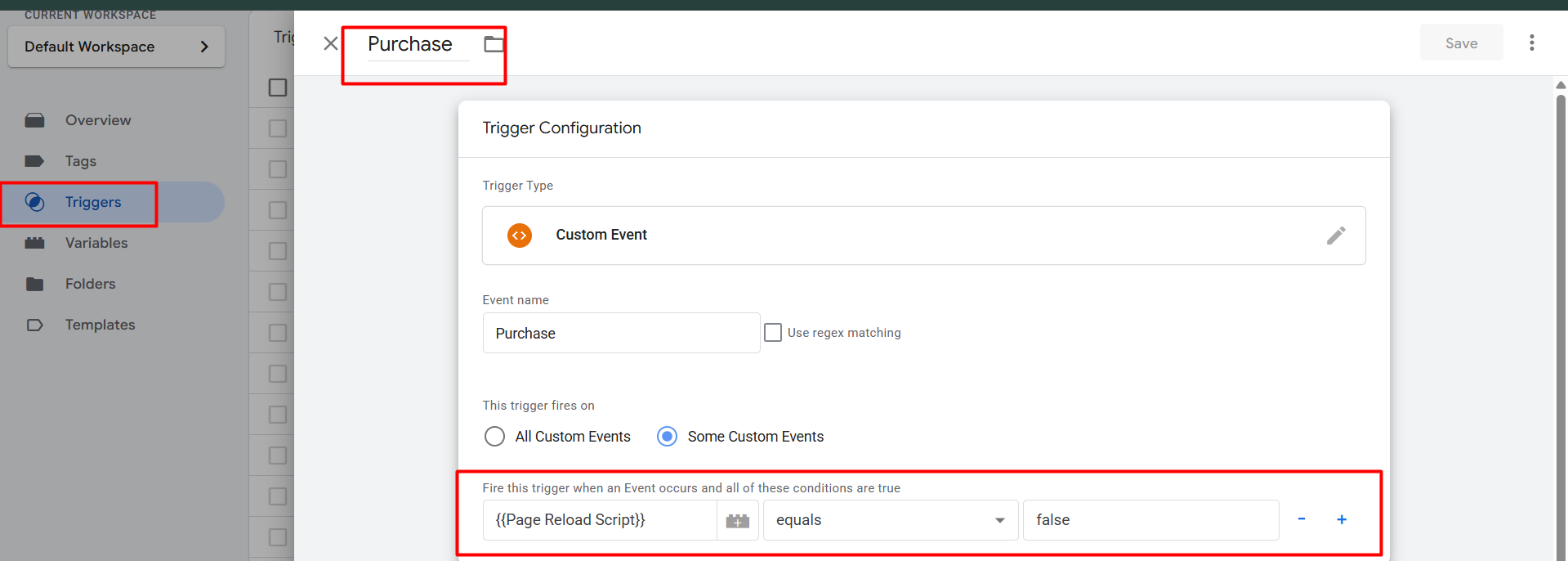
Working principle:
-
Check if the page loads as a refresh.
-
If it’s a refresh, it can prevent GTM from triggering the event again.
-
Essentially, it’s window.performance.getEntriesByType(‘navigation’)
It will return the page load type: “reload”, “navigate”, “back_forward”, etc.
Thank you for your support. Please feel free to contact us if you encounter any problems or have any questions.








