

Dynamic location insertion is a really great way to insert location dynamically in the ad copy according to the traffic search.
This feature automatically integrates a relevant geographical reference directly into your ad text, clearly indicating a location where your product or service is available.
For instance, you can use it to generate highly personalized headlines such as
- Expert Plumbers Near Palo Alto.
- Home Cleaning Service Near Palo Alto.
- Delivery Service Near Las Vegas
By leveraging location insertion, you can make your ads significantly more appealing and relevant to users searching for services in their current area or a specific market.
This guide details the functionality of location insertion for responsive search ads within the Google Ads platform, along with step-by-step setup instructions.
These things are really great because of the way we can insert every single location dynamically. We can set this up city-, state-, and country-wise.
Imagine you operate a plumbing service that covers the entire city of Las Vegas. When writing your ad copy, manually inserting every single neighborhood or service area into your headlines would be impractical and impossible to scale.
Instead of trying to cover every location individually, you can use location insertion. This technique allows you to dynamically and instantly tailor your responsive search ad text to your customer’s specific location, ensuring your ads are highly relevant—all with just one line of ad copy.
Good Side of Dynamic Location Insertion
By automatically localizing your ads according to the customer’s physical location or areas of interest, location insertion provides customized messaging. This immediately increases the relevance and interest of your advertisement copy for the viewer.
Efficiency is the main advantage. Using a straightforward, dynamic field, location insertion enables you to scale your ad customization to any city, state, or nation, eliminating the need to manage intricate ad customizer files with thousands of rows for each city or state. Time and administrative work are greatly reduced as a result.
Set Up Dynamic Location Insertion
To set up this location insertion, first go to your ad copy and in the headline type “{” the third bracket. After typing the third bracket, all these options will be in front of you.
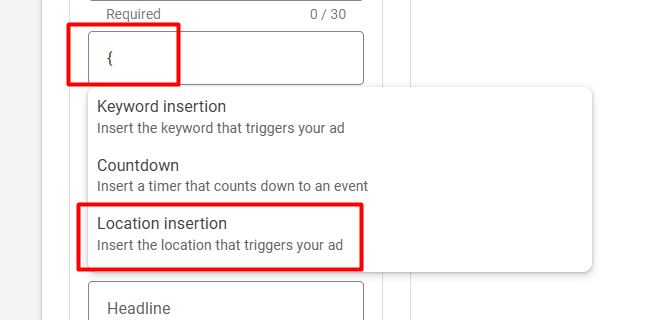
Now from here select the last option. Then you will get this view.
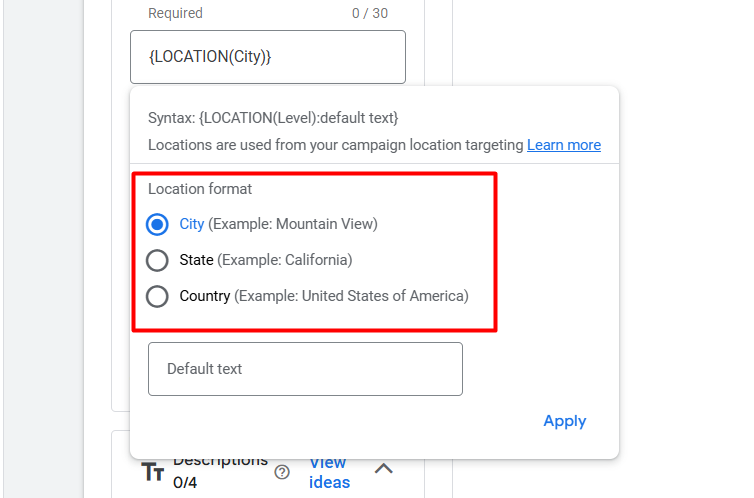
When setting up Location Insertion, you need to select the appropriate geographic level for customization.
- If your services are focused within a state (or region), selecting the City option is ideal, as it provides the most localized and relevant ad text for your customers.
- If your business operates across an entire country, then choosing the state/province level for insertion is the better approach to cover all markets effectively.
- And finally, if your reach is worldwide, you should definitely select the Country option to customize your ads globally.
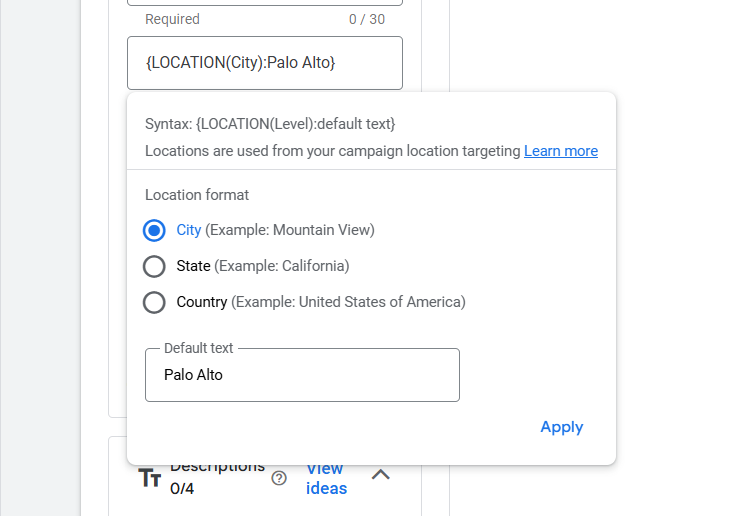
Crucially, always remember to include default text when setting up Location Insertion.
The default text serves as a backup. If, for any technical reason, Google Ads is unable to dynamically insert the relevant location (city, state, or country) into your ad copy, the system will use this pre-written default text instead.
When choosing your default text, select a broad but relevant term. For example, if you serve an entire state, using the state name as the default is an excellent fallback option to ensure your ad remains accurate and relevant, even when the dynamic insertion fails.
Dont Forget
- Don’t forget that your location in Dynamic Location Insertion will try to replace this with the location in your ad group.
- Don’t create a double headline for location insertion.
- You need at least 3 headlines without location insertion, or you can use default text.
- Since Responsive Search Ads randomize text order, you must use at least three headlines to pin (lock) a location-specific headline to a fixed position.
- Keep the headline short to leave enough room for location names. Because sometimes the location name can be long, so be careful to use anything on the line.
- Align location insertion with campaign targeting.
Great, now enjoy your Google Ads journey and get a good amount of CTA.








