
In this article, I’ll explain Google Ads App Promotion campaigns, how to set them up properly, what to be careful about, and which settings usually deliver the best results.
Do you know about app promotion ads?
Google App Promotion Ads are designed to help you reach new users and drive app installs or in-app actions.
These ads introduce your app to people who may not be familiar with it yet and encourage them to take the next step. Since many users spend a significant amount of time on platforms like YouTube, Discover, Search, and the Google Display Network, Google uses these placements to show app ads where users are most likely to engage.
App promotion campaigns are fully automated, combining different ad formats and placements while using Google’s machine learning to find users who are most likely to install your app or complete key in-app actions.
Let’s set up the campaign

So, let’s move into the Ads account and start setting up the ads. First, click on the ‘New’ button.
Object
In Google Ads, an objective simply means the result you want to achieve from a campaign.
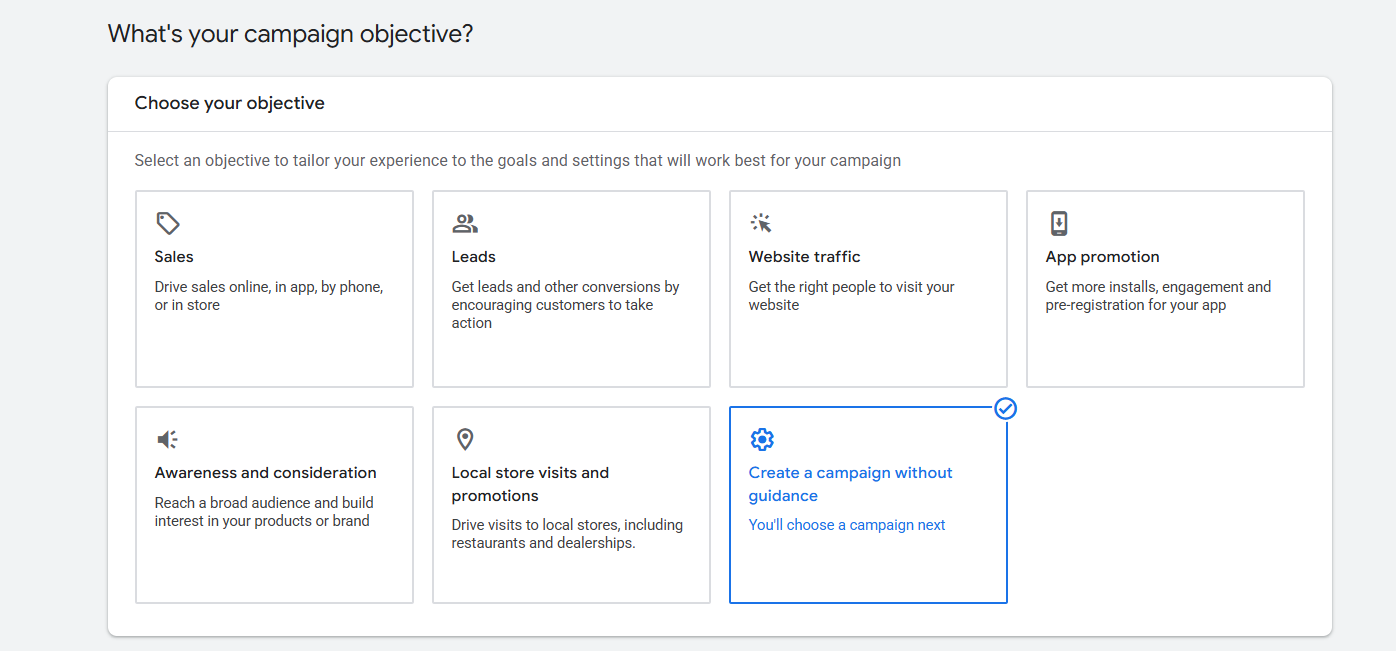
From here you have to select the object. Here you can see which one we select at the time. But if you don’t know too much about the object and campaign type, then you can read this article and go to the next.
Explanation of campaign object and campaign type
Campaign Type
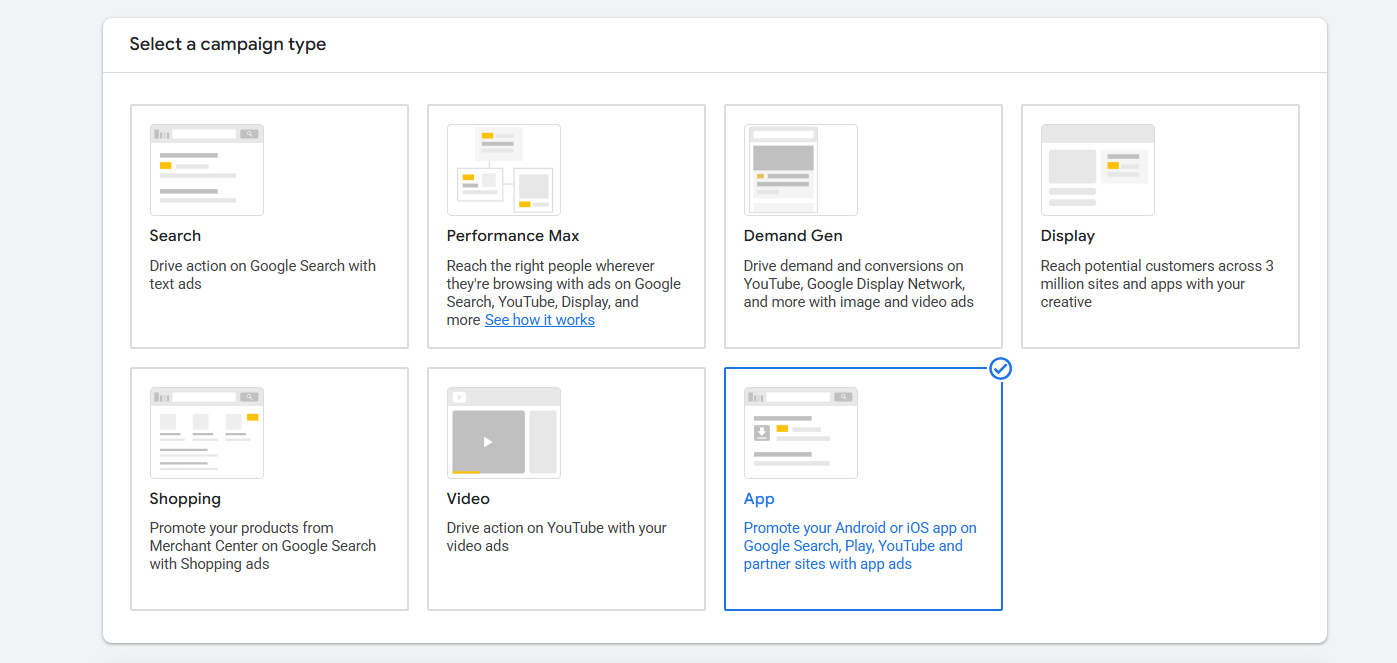
Because we are working on the app promotion, please select the app as your campaign type. Now let’s go to the next option.
Campaign Subtype
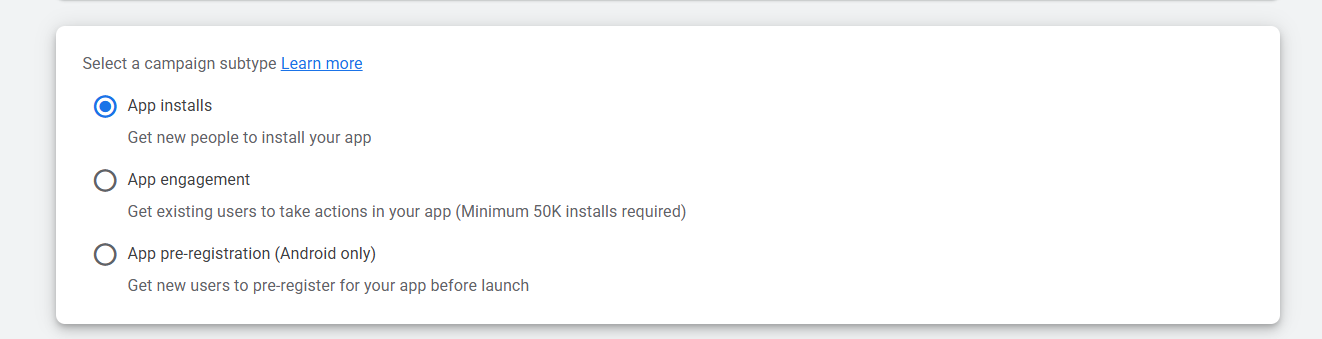
At the time, we have to select the campaign subtype. Here you can see three different subtype for our campaign.
- App Installs
- App engagement
- App pre-registration (Android only)
App Installs: If your target is to get more installs for your app, then this one is perfect for you.
App engagement: If you want to increase the engagement with your apps, then this one will be a great option for you. But before choosing this option, the required installs for your app are 50k.
App pre-registration: This campaign type is designed only for Android apps. If you’re planning to launch your app soon, you can use this campaign to warm up your audience in advance so that, right after launch, users are more likely to install the app.
But at the time we are going through “App installs.”
Apps Platform
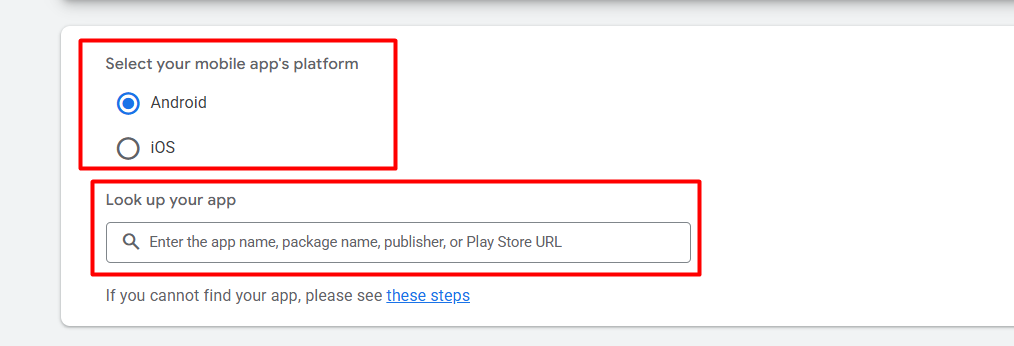
From here you have to select on which platform your app is now running. We select “Android.” After selecting the platform in the next section, we can search for our app name. So do it, and let’s go for the next option. In the next option you have to write down one name for this campaign.
Campaign Setting
Campaign setting is a really great and important place. Because this is the place from where we will set up a lot of things for our campaign. As in location, language, and more.
Locations
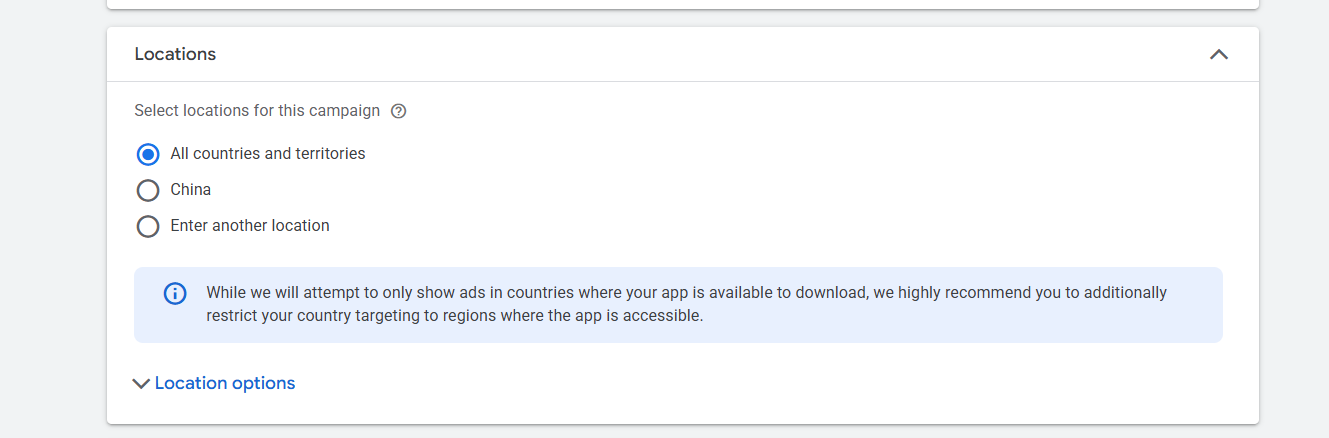
To run your ads, I hope you already think about one location. So from here you can select in which location you want to run your campaign. But if you don’t know about location & language targeting in detail, then you can read this article.
Explanation of location and language.
Language
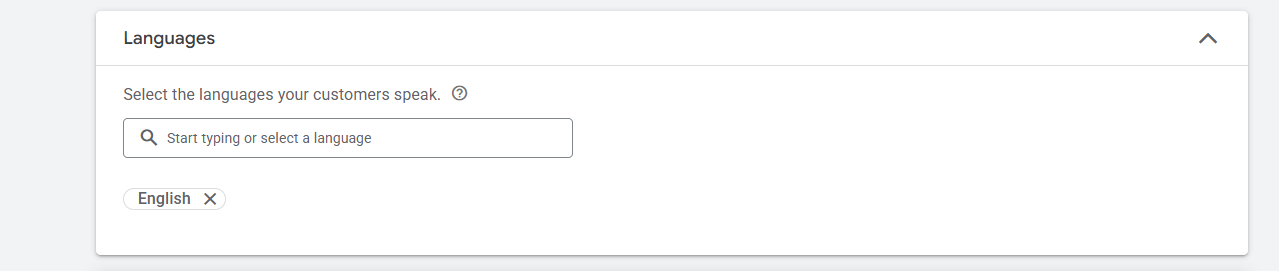
From the place, you can select your targeted audience language. Sometimes they are speaking language, and the device language can be different, so be careful.
View-through conversion optimization

A view-through conversion happens when someone sees your ad but doesn’t click it and later takes an action—such as installing an app, signing up, or making a purchase—on their own. So you want to use this option; enable the option. Because it can be a great opportunity for you.
EU political ads
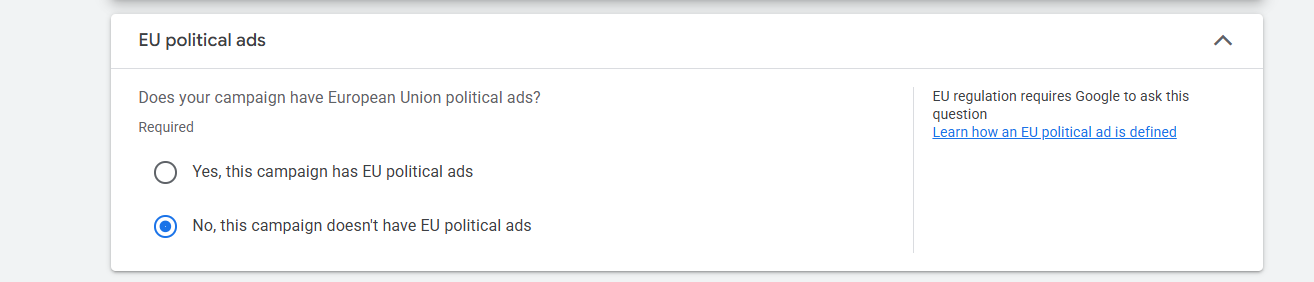
If you are running political ads under the European Union, then select the “yes” option from this section. Otherwise, select the “no” option.
More Settings
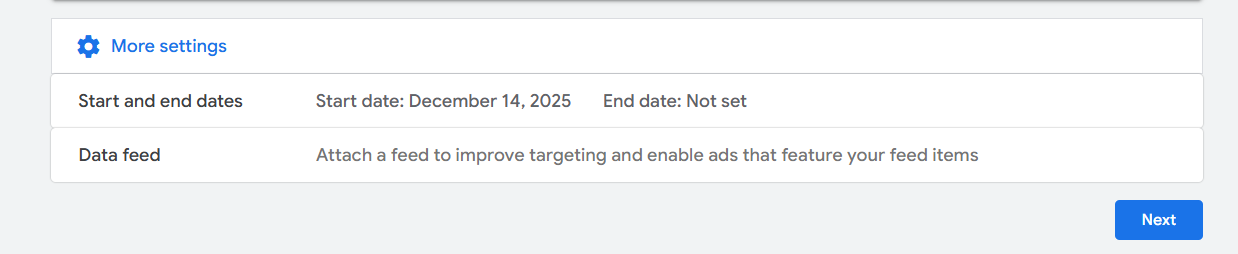
Start and end dates: This is the place where you can select the start and the end dates for your campaign.
Data Feed: A data feed is like giving Google extra information about your app or content so it can show more relevant ads to the right users.
Budget & Bidding
In this section we will be able to set up our budget and bidding. So let’s explore this section also, one by one, everything.
Budget

This is the place where you will write down how much you would like to pay for everyday campaigns.
Bidding
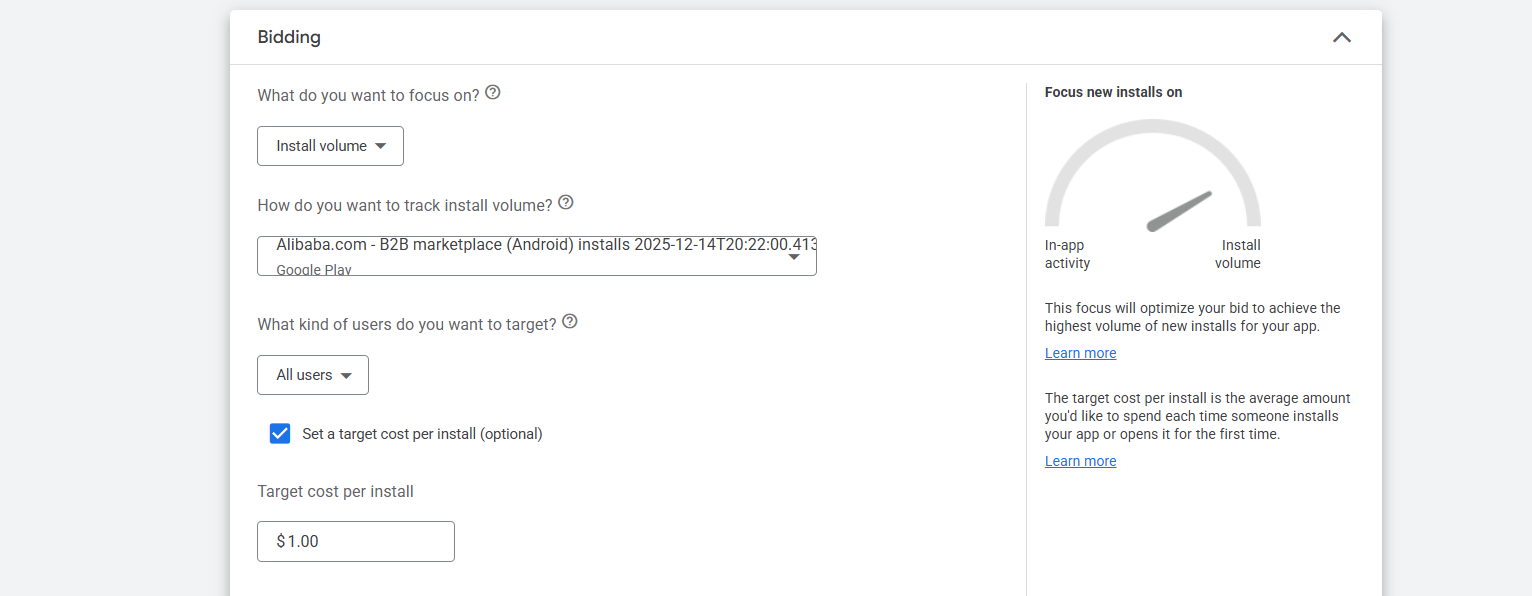
Here in the first position we select “Install volume” as our bidding. Bidding means what is our target. We want to get a lot of installs for our app; that’s why we select this one. Here in the place we will get two more options, but those will be eligible to use in the time of app engagement.
Next place means how our installation will be tracked. Here you can see through the Google Play Store the data will be calculated.
In the next “what kind of users do you want to target?” We select “All users.” Because we will be happy if every type of person installs our ads. In the place we will get one more option, but those are useable for engagement.
Now in the last option, “Set a target cost per install.” Here in this option you can enter the amount that you would like to pay Google per install of your app.
Ad Group
An ad group is where you organize related ads and assets together so Google can show the most relevant message to the right audience.
Headline
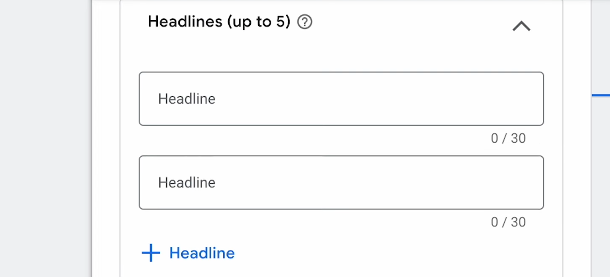
At first you have to add some headlines; you can add a maximum of 5 different headlines here. Every headline should be under 30 characters.
Description
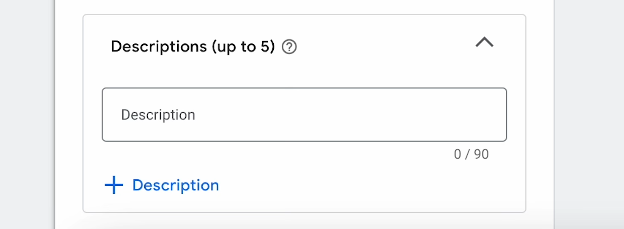
In the same way, you have to write down a description also. But here, don’t forget that here also you can write down a maximum of 5 descriptions under 90 characters. If you don’t know how to write down the great headline and description, then you can read this article.
The right way of writing a headline and description.
After that you have to upload some images and videos. Because your ads will show in the Google Display Network and also in the form of video.
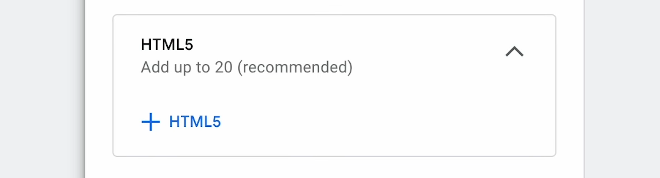
Like the images and videos here, you can also upload up to 20 HTML5.
Review
After completing every single thing, you can go to the next review section. Where you can check every single thing that you did in your total campaign. So from there, check everything one by one. After that, if you think that everything is well and also Google is not showing any error, then you can run your ads.








