
Google Ads is an online advertising platform that lets companies place their ads on YouTube, Google search results, and other partner websites. It assists companies of all sizes in reaching a specific audience with their goods and services, increasing website traffic and brand awareness.
What Makes Google Ads Beneficial?
Reaching potential clients at a reasonable price is possible with Google Ads. You can set a flexible budget with it, and you only have to pay when someone clicks on your advertisement (pay-per-click). Thanks to the platform’s highly targeted advertising capabilities, you can make sure that the right people see your ads at the right time based on their location, interests, and search history. Because of this, Google Ads is the best way to raise brand awareness, generate leads, and increase website traffic.
The Advantages of Google Ads for Your Company.
With Google Ads, you can quickly see measurable results. Whether you’re a local business looking to attract customers in your area or a global brand looking to reach a wider audience, Google Ads helps you accomplish your goals. You can track performance, adjust your ads, and enhance your campaigns for better results with the platform’s extensive reporting. By using audience targeting and data-driven insights, you can successfully grow your business and boost your return on investment.
Let’s create the Google Ads Account step by step
You can either click this link: “https://ads.google.com/intl/en/home/” or search for “Google Ads account” on Google. Click the “Start” button to begin once you’re on the page.
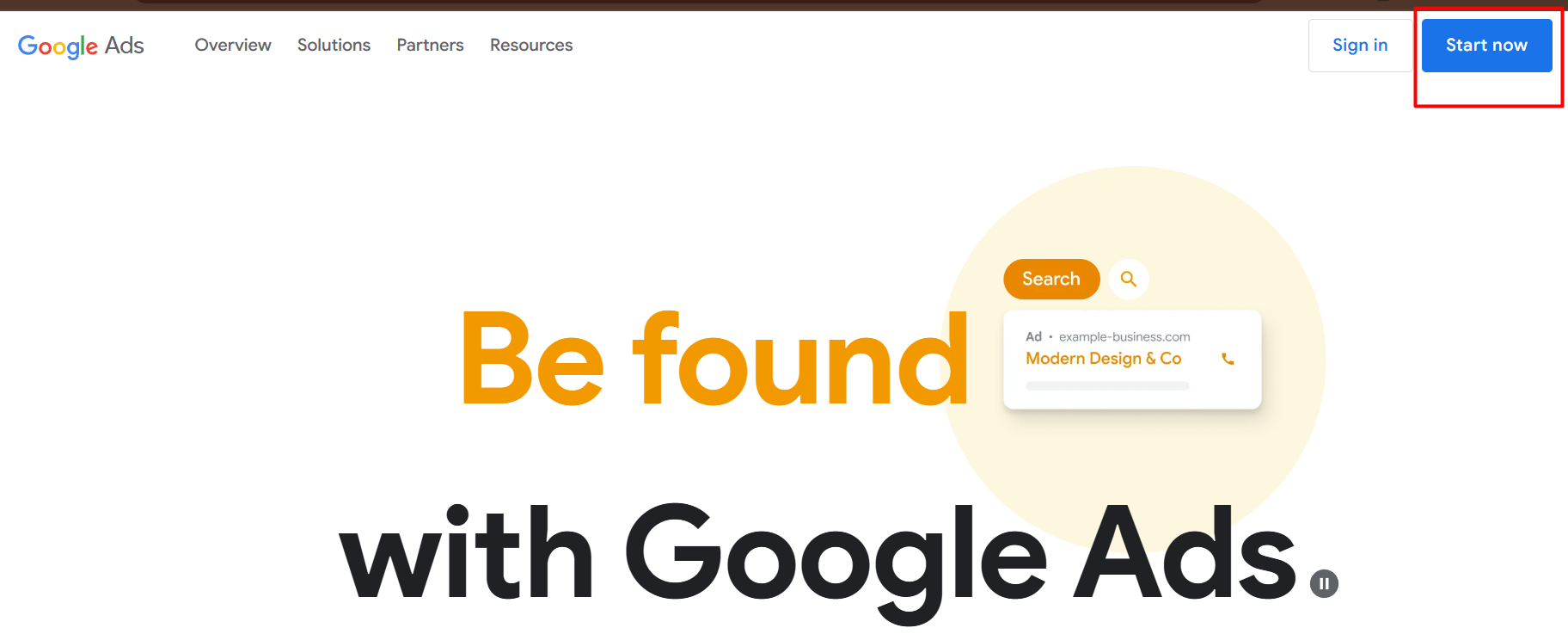
When you click “Start,” you’ll go to a page where Google will ask you to start a new campaign. To move on, just click the button.
When you click the button, you’ll be taken to a page where you can type in the name of your business in the right place. Put the URL of your website in the “Website link” box. You can use any link for now if you don’t have one yet.
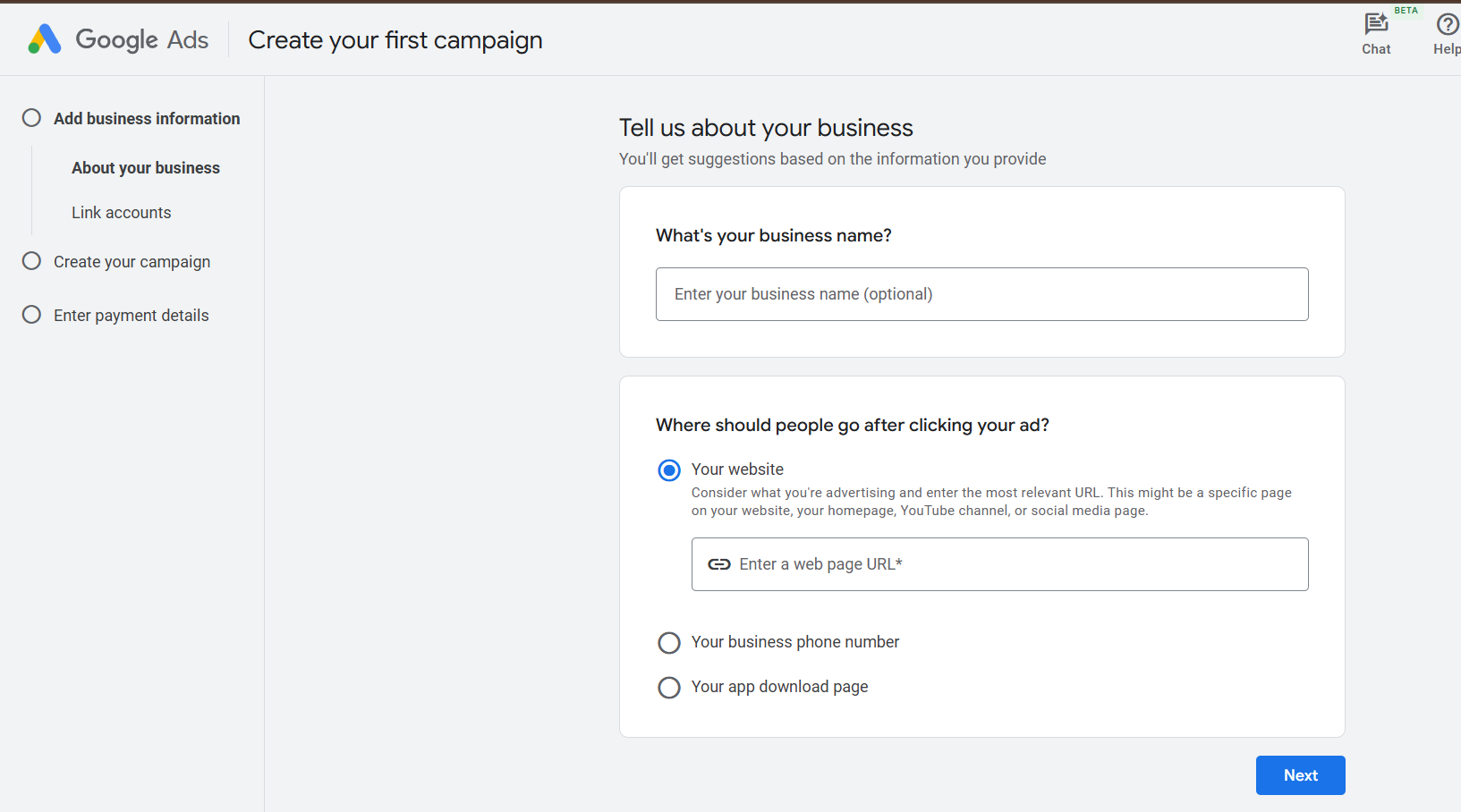
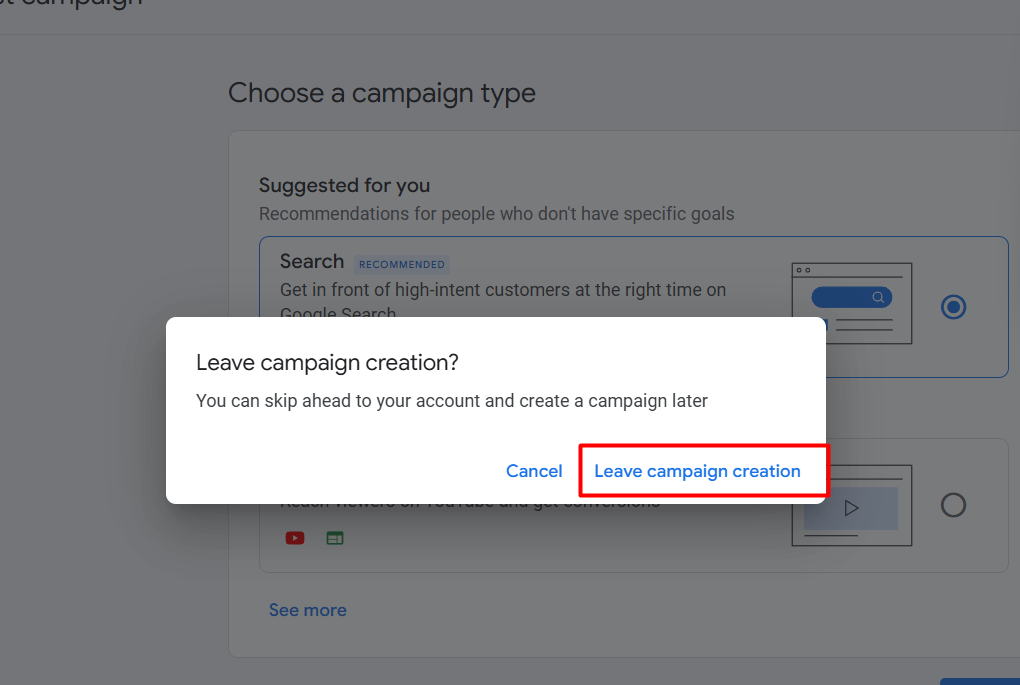
Then select ‘Next.’ Click ‘Skip’ on each of the following pages. The ‘Leave Campaign Creation’ button will eventually appear; click it to move on to the following page.
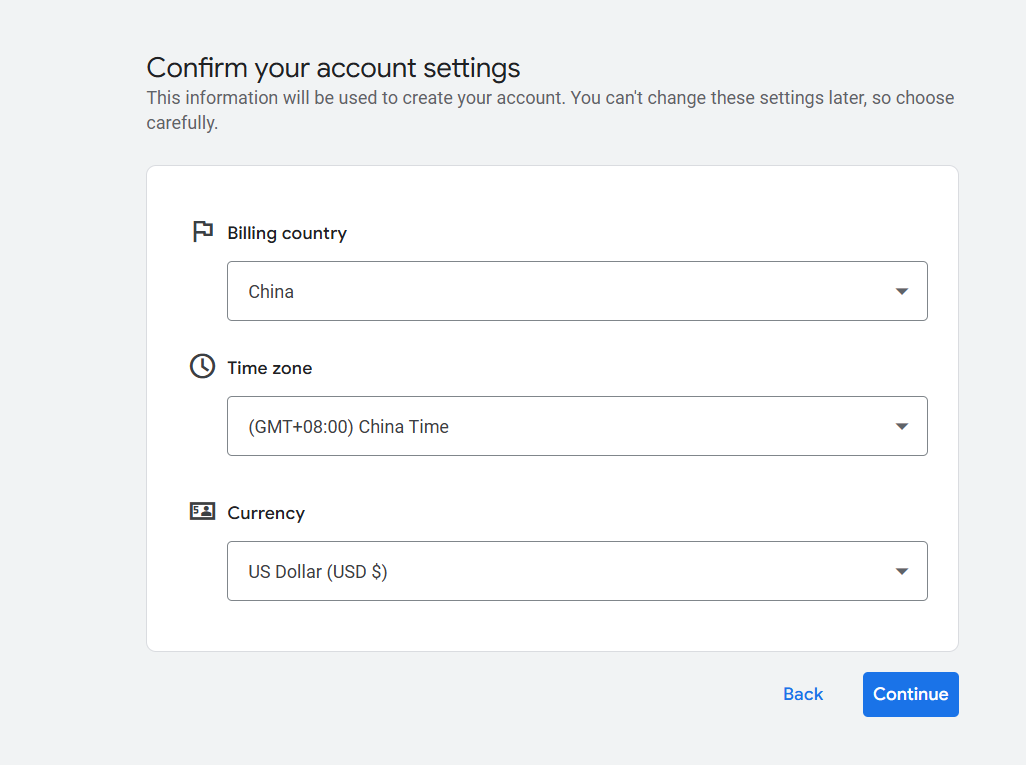
Here, complete the setting according to your country’s time zone and the currency, and continue.
Now here on this page, create your payments profile and save.
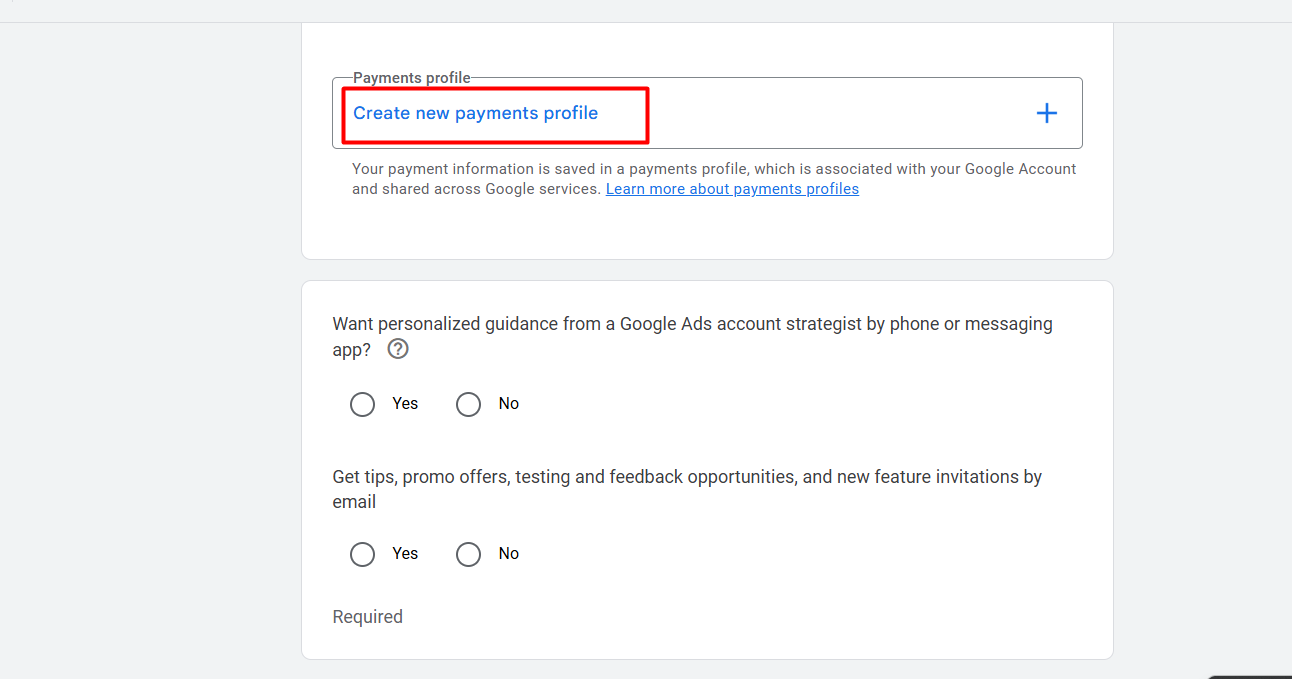
Now in the next term, add your payment method and continue.
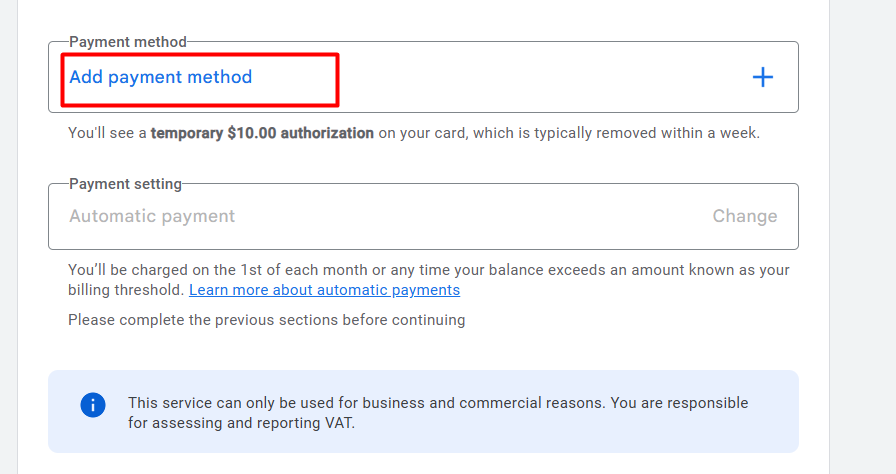
And finally, our Google Ads account creation is done.
How to Share Your Google Ads Account Access with Your Team
Well done! Your Google Ads account has been successfully created. You will frequently need to grant your marketing team access if you are in charge of Google Ads. It’s a crucial step in teamwork. Let’s go over how to allow other people to access your Google Ads account.
Select ‘Access and Security’ after navigating to the Admin section on the left sidebar. Then, to add new access, click the ‘+’ button.
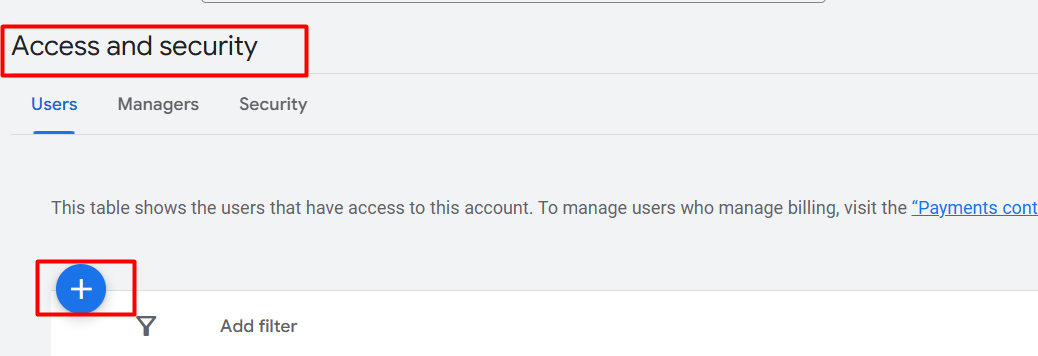
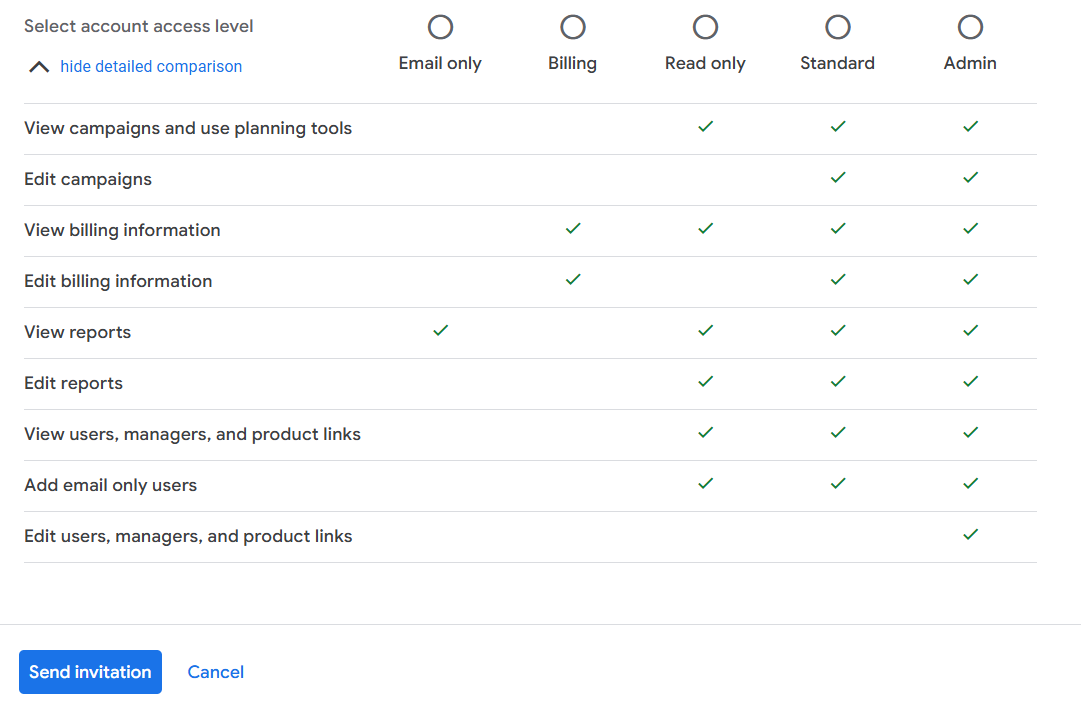
On the new page, you’ll find a field to enter an email address. Please enter the email here. Next, you’ll see the ‘Access Expires’ option, where you can set an expiration date for the access. Lastly, in the ‘Access Level’ section, select the appropriate access level you wish to grant.
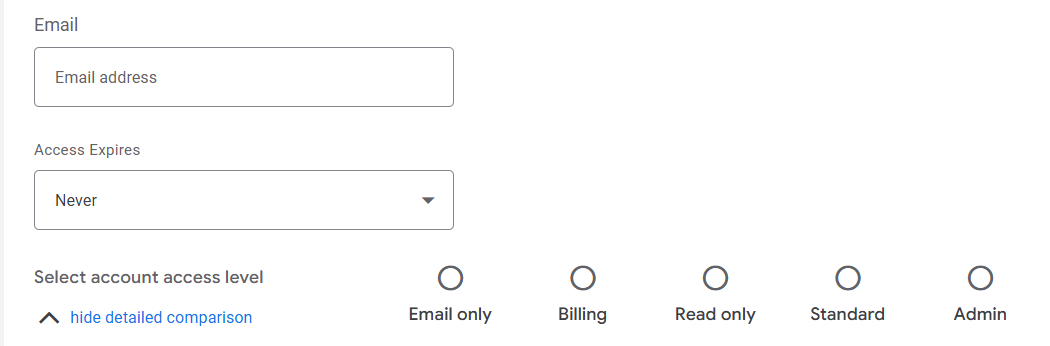
In the image below, you can see the different access levels and their respective permissions. Once you’ve selected the appropriate level, simply send the invitation.
Let’s take an overview of the Google Ads dashboard
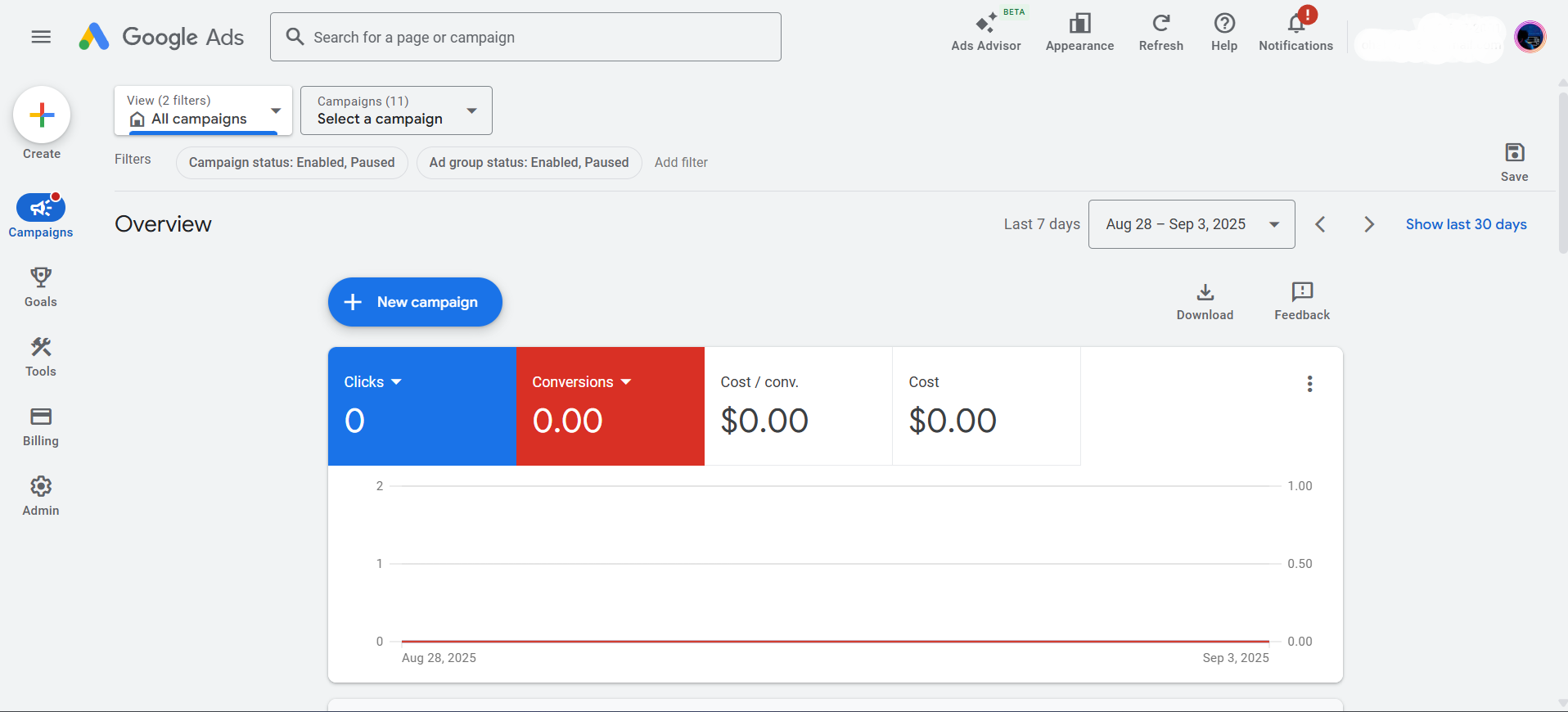
This dashboard will appear when your Google Ads account has been successfully created. Let’s now quickly go over the overview. The ‘Campaigns’ section will be our first stop.
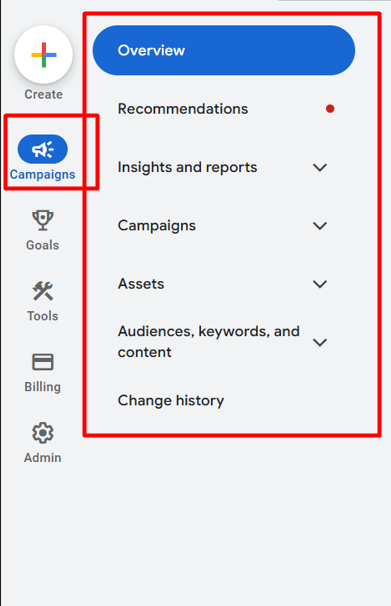
Campaigns
The Campaigns section in Google Ads is where you manage all your advertising campaigns. It’s the central place where you create, monitor, and adjust your campaigns to achieve your advertising goals.
Overview: This is your primary dashboard, where you can view important updates and a broad overview of the performance of your account.
Recommendations: You can use the advice in this section to enhance the effectiveness of your campaigns or accounts.
Insights and Reports: You can see comprehensive reports on the effectiveness of your campaigns here. Data on clicks, impressions, conversions, and other metrics will be displayed to you.
Campaigns: You can design and manage your advertising campaigns here. You can monitor their performance, start new ones, or make adjustments.
Assets: All of the media and resources (such as pictures or videos) that you use in your campaigns can be managed here.
Targeted audiences, keywords, and any content related to your campaigns can all be arranged and managed with the aid of this section.
Change History: This lets you see how the account or campaigns have changed over time. You can keep track of what was altered and when.
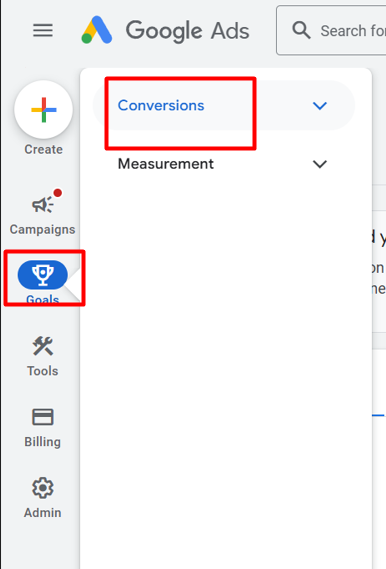
Goals
The Goals section in Google Ads is all about tracking and measuring the success of your campaigns based on the objectives you’ve set. Here’s a quick look at the options:
Conversions: This is where you monitor particular actions users take on your website, such as completing a form or making a purchase, after interacting with your advertisements. To gauge how well your advertisements are generating these actions, you can set goals.
Measurement: You can set up and control campaign tracking in this section. It enables you to gauge how well your advertisements are accomplishing the objectives you have set.
Tools
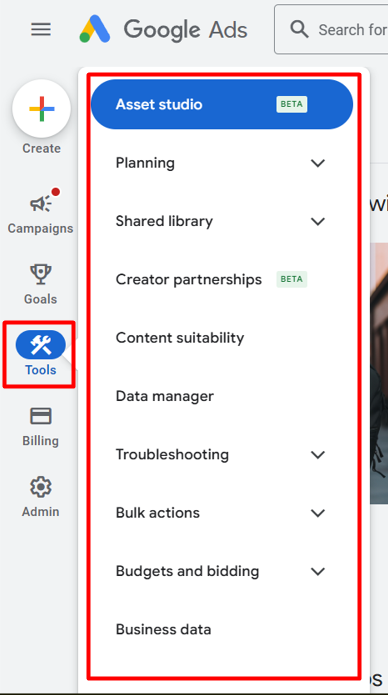
Google Ads’ Tools section serves as your advanced management toolbox. It offers tools for organizing, developing, debugging, and refining your campaigns in addition to managing the delivery and measurement of your advertisements. With each subcategory, you can do the following:
Asset Studio: Create and manage your ad visuals (images, videos) for campaigns.
Planning: Use insights to forecast and plan your campaigns.
Shared Library: Keep and repurpose campaign materials, such as bidding tactics and audiences.
Creator Partnerships: Work together to create advertisements (in beta) with content creators.
Content Suitability: Control the placement and style of your advertisements across various kinds of content.
Data Manager: Arrange and oversee the data feeds for your campaigns.
Troubleshooting: Find and address problems with your campaigns or advertisements.
Bulk Actions: Modify several advertisements or campaigns simultaneously.
Budgeting and Bidding: Establish appropriate bidding tactics and keep spending under control.
Business Data: To generate customized advertisements, upload and manage unique data, such as product lists.
Billing
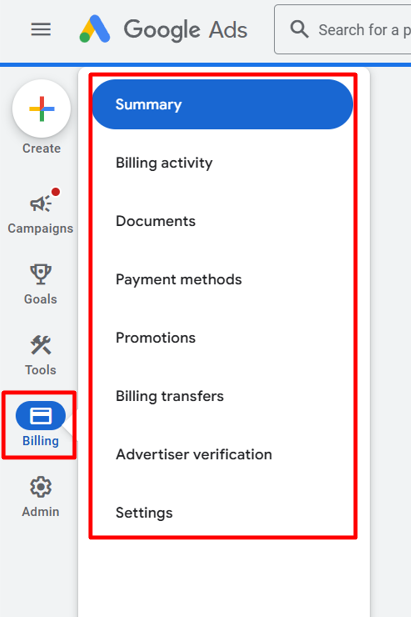
The main section is where everything related to payments and transactions for your Google Ads account is managed.
Summary: An overview of your billing details, such as the amount you have spent or owe, is given here.
Billing activity: A thorough record of all of your previous billing transactions, including any charges or payments, is displayed.
Documents: Your Google Ads payment invoices or receipts are in this section.
Payment methods: This is where you can add or control the bank accounts or credit cards that you use to pay for your Google Ads account.
Promotions: This is where you’ll find any available discounts or promotional credits.
Transferring billing responsibilities, such as when you need to modify the way your account is billed, is handled here.
Advertiser verification: To make sure your ads adhere to Google’s guidelines, this section helps you confirm your company’s information.
Settings: You have the ability to modify your billing preferences, including notification settings and billing address.
Admin
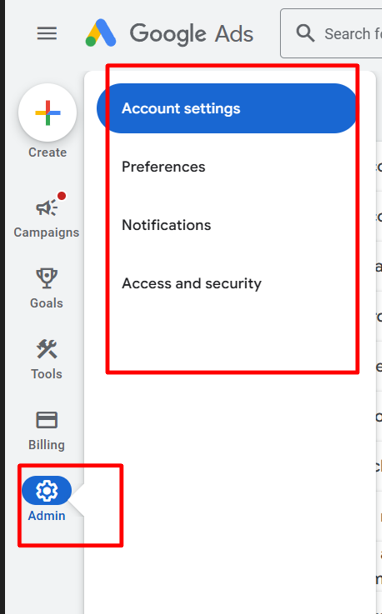
This is essentially the control center for account settings. If you’re the account owner or have admin permissions, you’ll use this section to manage everything related to your account’s settings, preferences, user access, and security.
Account settings: This is where you can change your account name or link other Google services to your Google Ads account.
Preferences: This lets you change the language, currency, and time zone settings that apply to your account.
Notifications: You have control over how and when Google Ads will alert you to changes in your account, like campaign updates or reminders about bills.
Access and security: In this section, you can control who has access to your account (other users’ permissions) and improve account security by implementing two-factor authentication, for example.
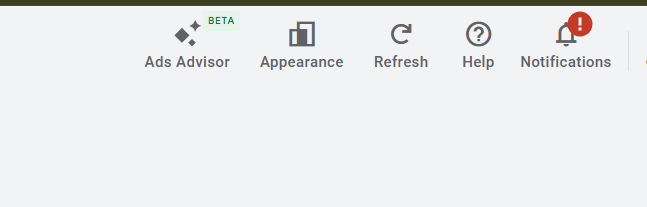
Ads Advisor: This tool probably offers advice or information regarding ads. It might assist you in improving or optimizing your platform advertisements to boost their efficacy.
Appearance: You can alter the interface’s visual appearance with this option. It may allow you to change fonts, colors, and other design elements, as well as choose themes (light/dark mode).
Refresh: This button brings in the most recent data by reloading the current page or content.
Help: You can access support resources by clicking on this icon. If you’re experiencing issues with the platform, it may contain user manuals, frequently asked questions, or contact information.
Notifications: You are informed of any new messages or updates by the bell icon. The red notification icon indicates that there is an important message or update that you should check or be aware of.
Complete the security setup for your Google AdWords.
Great, we already completed the overview, and we even know how to share our access with someone else. At the moment it’s really urgent to set up our security, and it’s really urgent to have strong security in your AdWords. So let’s do it.
In the overview we already know about every single section easily, so at the time we have to go to the “Admin” section, and in the admin section we have to select the “Access and security” option.
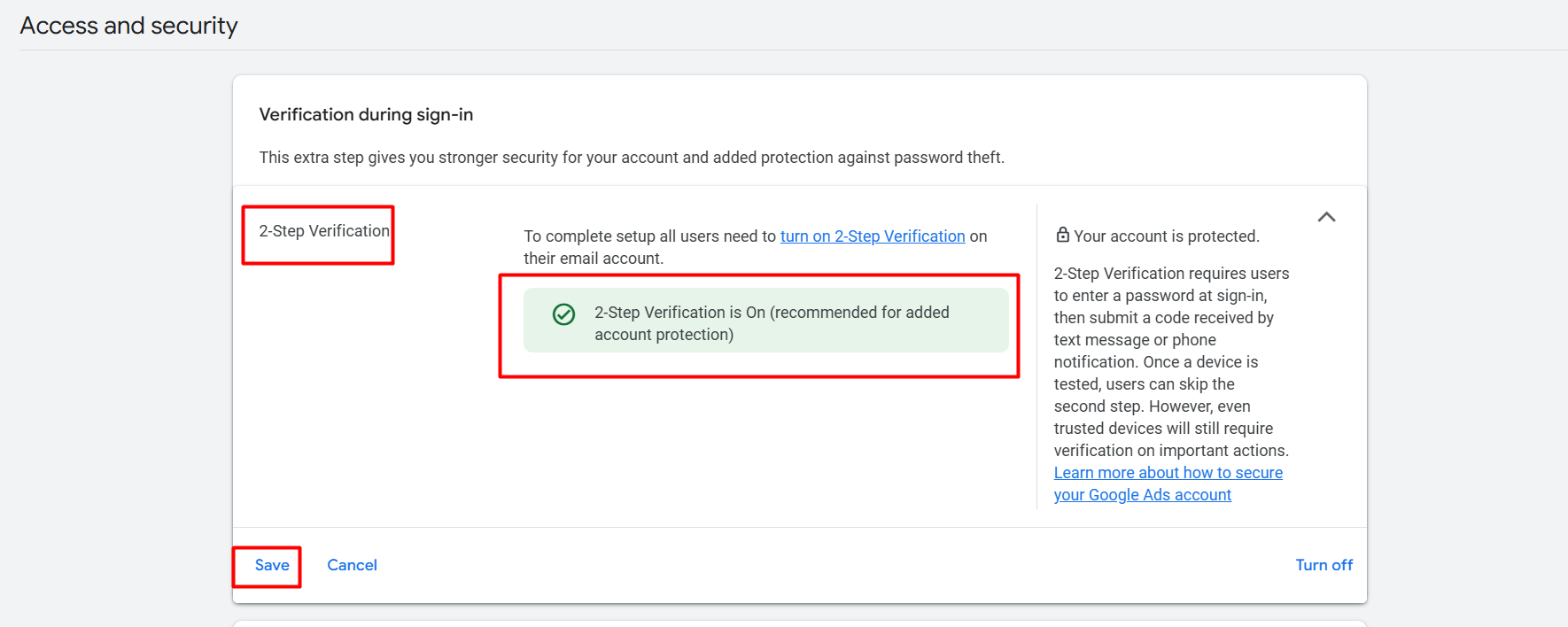
To get strong security in your Google AdWords, you have to select and complete the “2-step” verification.








