
Hey, if you’re looking to brainstorm ideas or raise awareness about your product among your target audience, YouTube video ads can be one of the best ways to go about it. With over a billion active users each month worldwide, YouTube offers a huge platform to get your message in front of the right people.
It’s a great way to showcase your vision, service, or product and get people talking about what you offer. So, let’s dive into how to set up your Google YouTube ads and start making an impact!
Set up Youtube Video ads
To set up the YouTube video ads, let’s start from the beginning. At first, to start the campaign, create a new campaign.

After that, your next view will be for object selection.
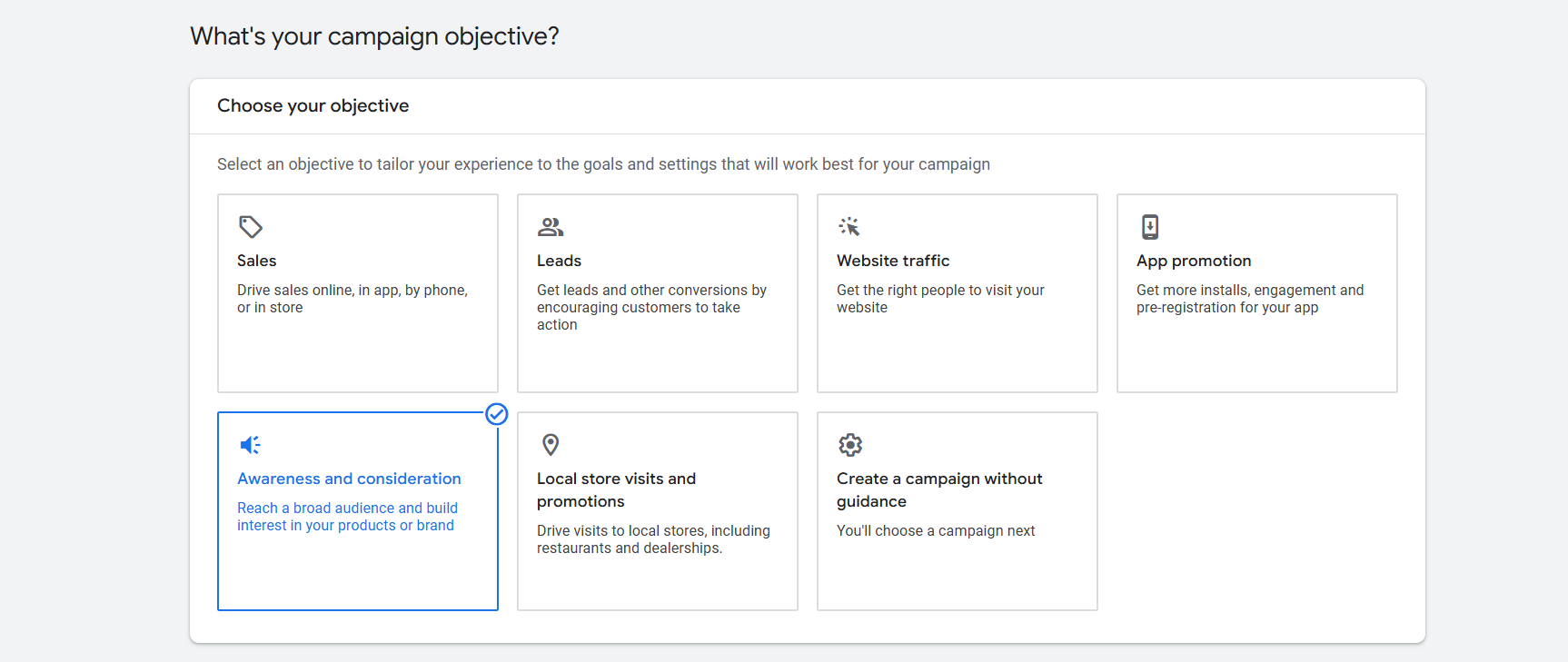
From here now you have to select the object. If you don’t know about the object in detail, then you can read this article. Google Ads object and campaign type.
Choose an awareness and consideration goal
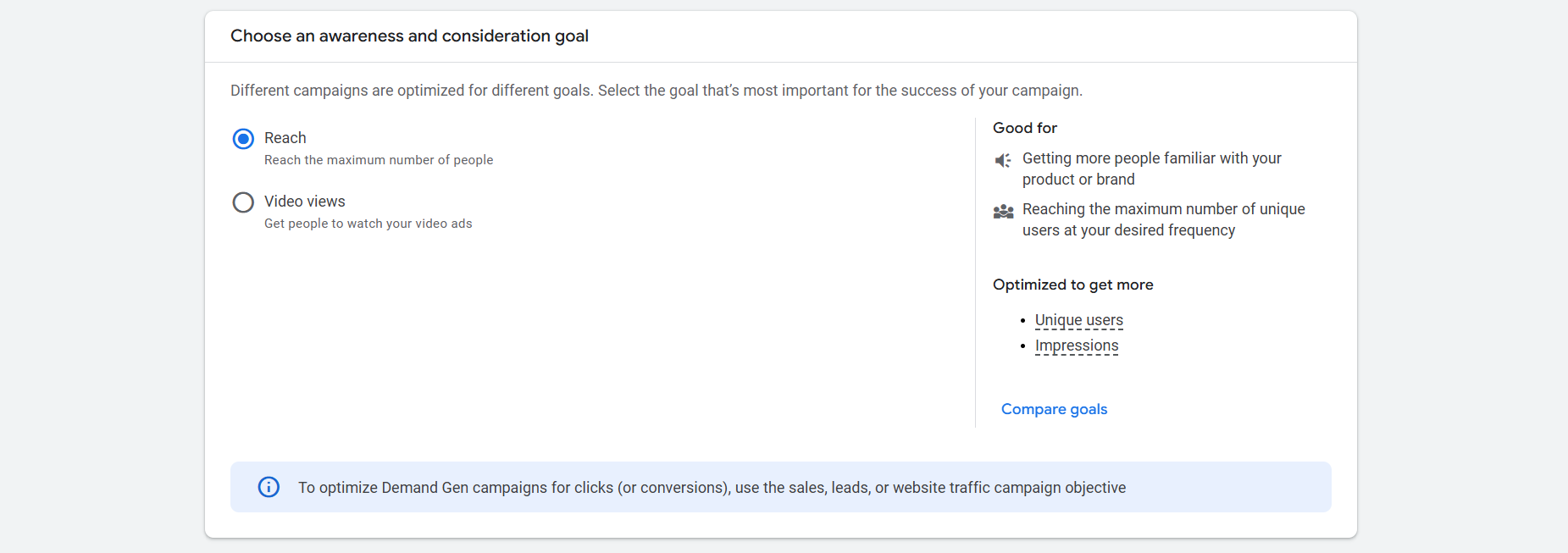
At this point from here, you have to choose one option from these two options. Before selecting any option, you have to understand the work of these two options, and also you have to think about which option is actually supportive for you.
Reach: If you choose this option, then Google will try to reach more and more new people with your ads. To familiarize them with your goods.
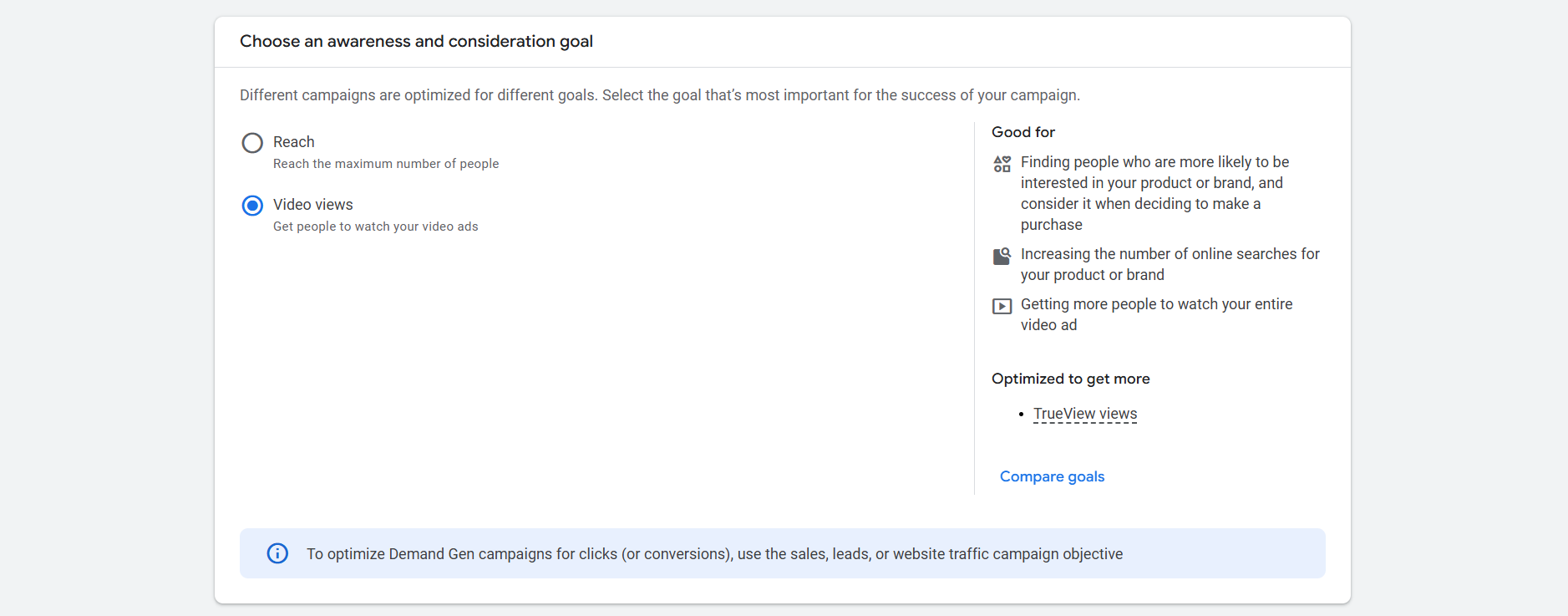
Video Views: Selecting this option allows Google to display your ads to individuals who have shown interest in similar topics, maximizing the frequency with which they see your ads. Rather than focusing on attracting new audiences, the goal here is to reinforce your message by targeting those already interested in your products or services.
That means if we want to show our ads to the interested person a lot of times, then the video views option is great. But if the target is to capture a lot of unique people, then the video reach option will be great.
That’s why combining both options, whether using the same content or creating new content, can be an effective strategy.
By doing so, Google will help you reach a diverse audience, while the Video Views option ensures that your ads are shown repeatedly to those who have already shown interest in your products. This approach works particularly well for both awareness campaigns and remarketing efforts.
Select Campaign Type
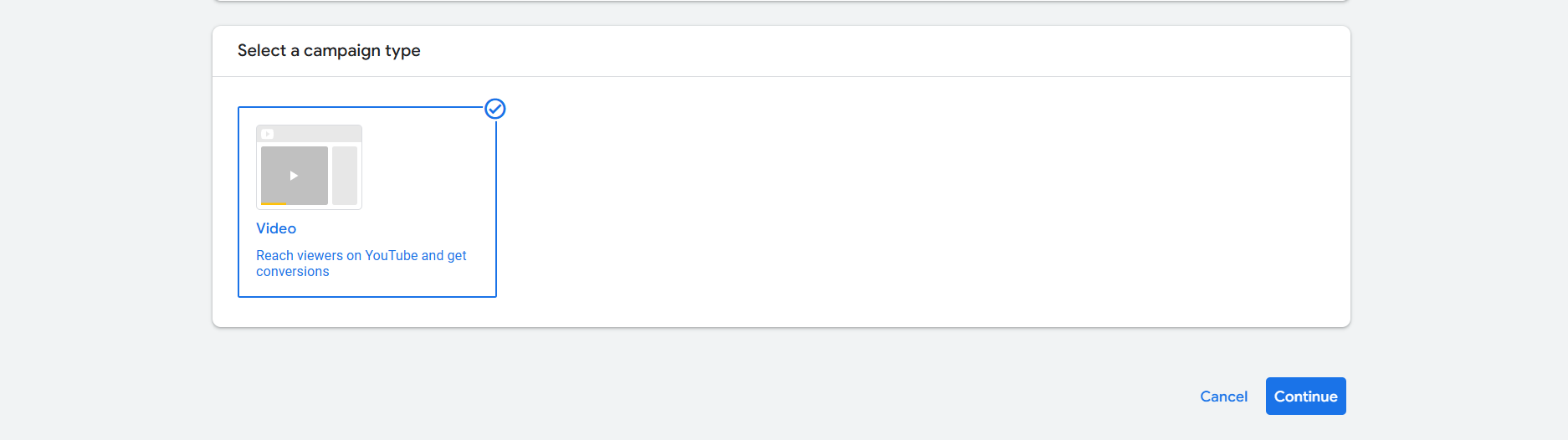
After completing every step, now you are in the step where you have to choose the campaign type.
Campaign settings
Campaign Name

Ad formats
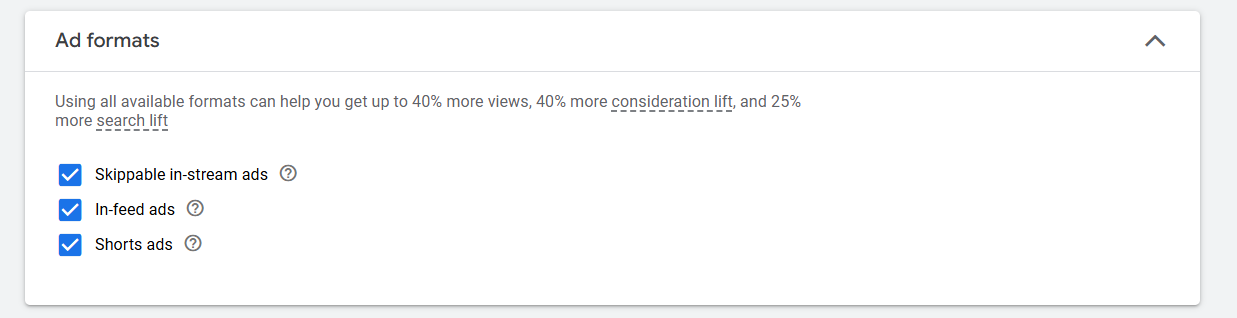
Skippable in-stream ads: When we choose this option, our ads will be shown to the targeted audience, and they will have the ability to skip the ad after 5 seconds.
Non-skippable: When we select this option, our ads will be shown to the targeted audience, and they won’t have the option to skip them. These ads must run for at least 15 seconds, and a 30-second duration applies when viewed on connected TVs.
In-feed ads: If we choose this option, then our ads will be shown in the YouTube feed. As on YouTube’s homepage, in search results, and alongside videos that are being watched.
Short ads: If you want to show your ads on YouTube Shorts, then select this option also.
Bid Strategy
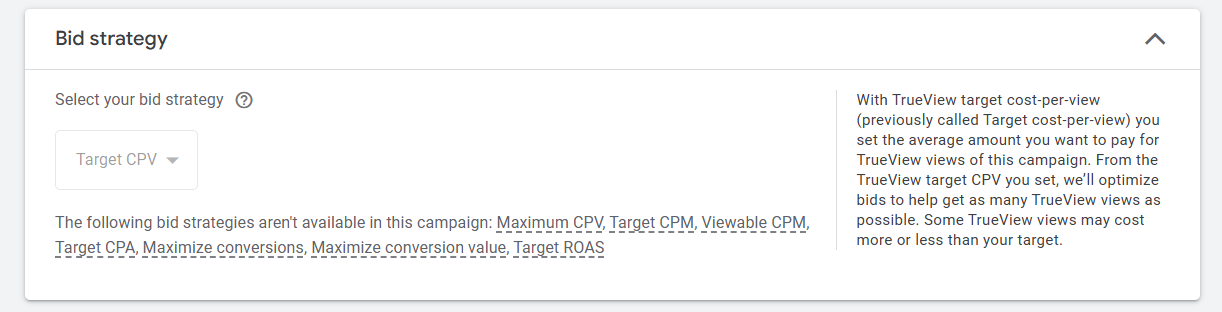
From the bidding we select what is our target or what is our focus that we want to get. Here the bidding strategy “Target CPV” means “Cost Per View.” It’s not changeable.
Budget and Dates
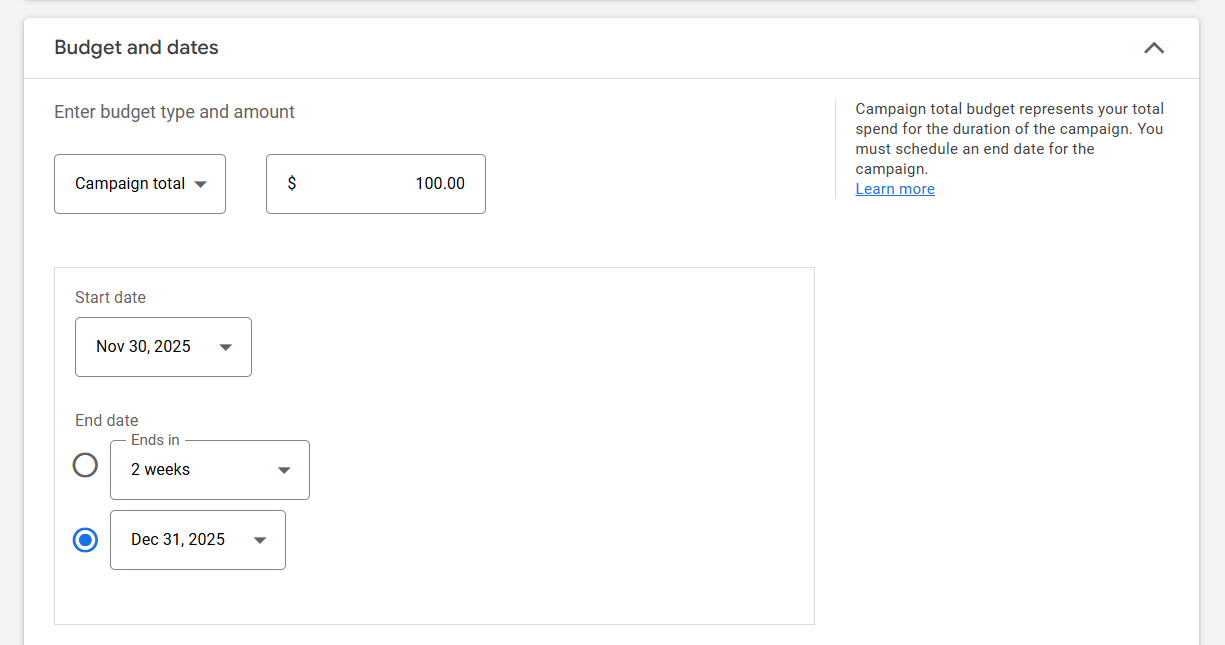
This is where you can set up your campaign budget and schedule, including the start and end dates. There are two ways to set the budget. The first option is Daily Budget, which specifies the amount Google can spend each day. The second option is Campaign Total Budget, where you set a total amount for the entire campaign, and Google will manage spending accordingly throughout the campaign’s duration.
Networks
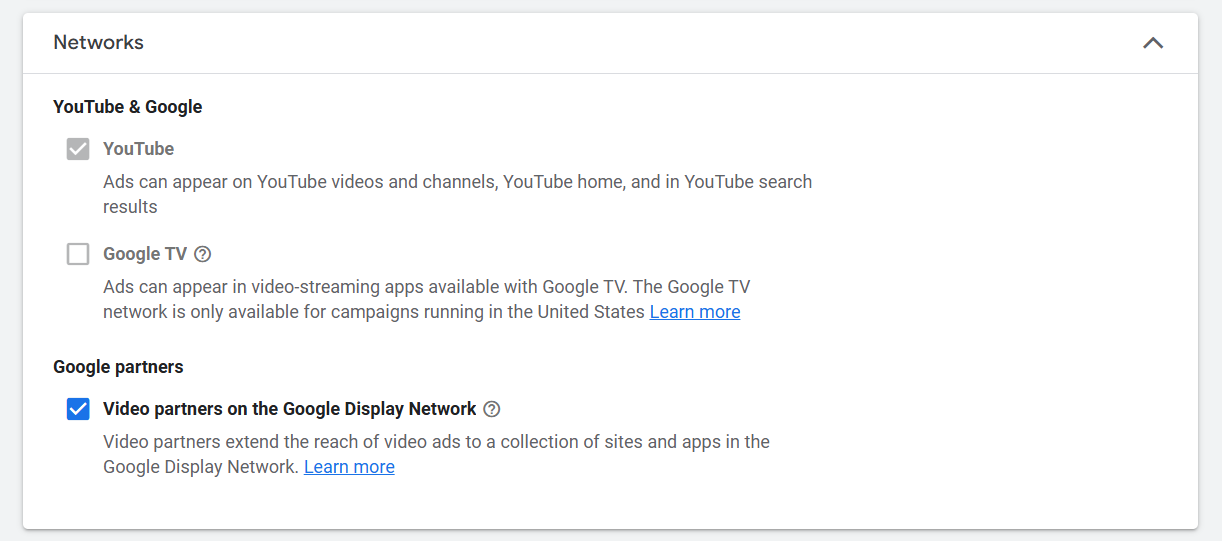
This is where you can choose where your ads will be shown. You have the option to display your ads on video partners within the Google Display Network, which is created through Google AdSense and AdMob. If you want your ads to appear on this network, simply select the option. If not, you can leave it unchecked.
Location
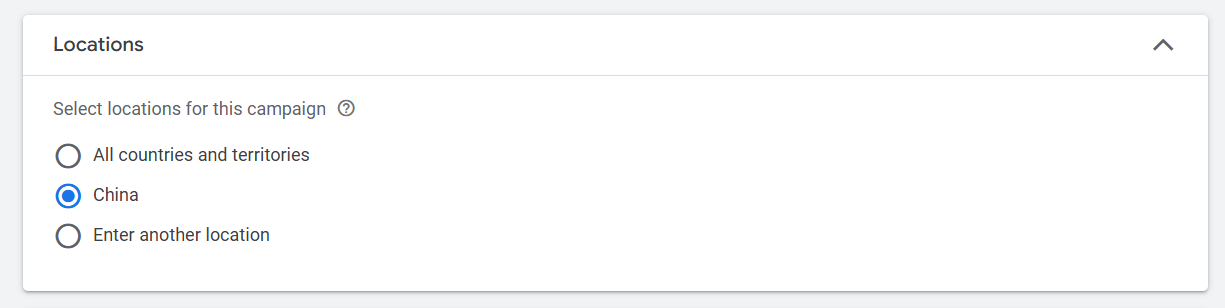
The option you will have is about location. From here you can select your targeted location where you want to run your ads. If you want to know more details about location, then you can read this article. Location explanation.
Language
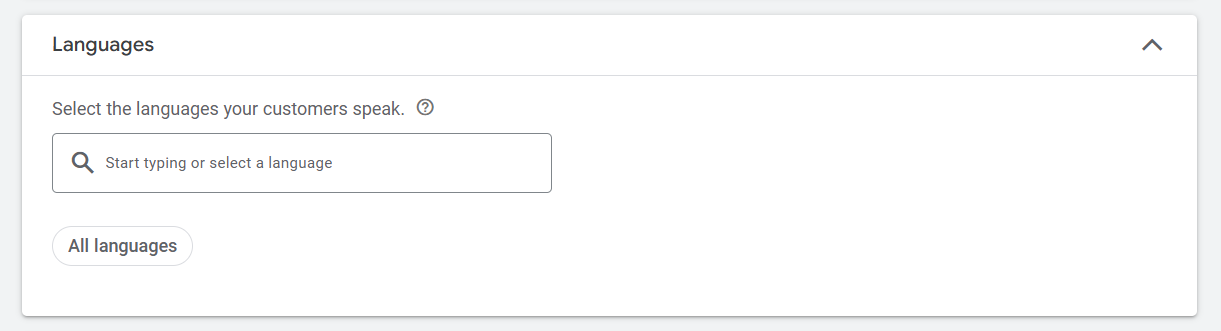
From here you can select the language that your customer uses to speak. But sometimes you have to understand the devious language of your customer. Because for some continents the spoken language and the device language can be different. As an example, if your targeted business zone is India, there you can see that a lot of different languages are used to talk, but in their devices, the language used is English.
So every time before selecting the language, don’t forget to think about the language used on your customer’s device.
EU Political ads
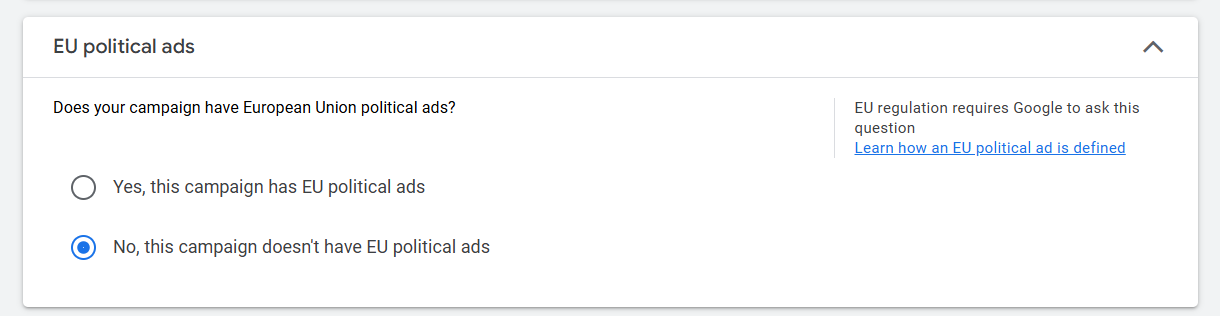
If you are running political ads, then don’t forget to select the “yes” option. Otherwise, if you are not running political ads under the European Union or you are not running the political ads, then you can select the “No” option.
Related videos
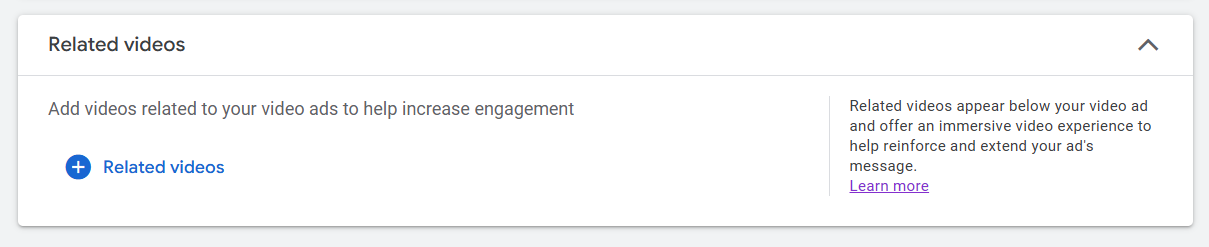
When your ad is playing on YouTube, you can display a list of related videos below it. These videos help support and expand your message beyond the main ad. Here is one example; you can see it’s from Google official documents about “Related videos.”

Additional Settings
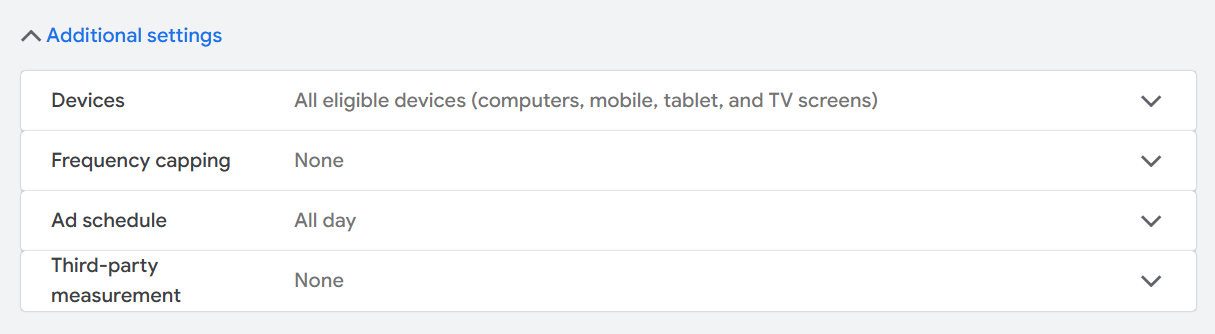
Device: From here you can select on which devices you want to show your ads.
Ad Schedule: From here you can now set up in a day how many times or just when the ad should run in your targeted location.
Frequency Capping
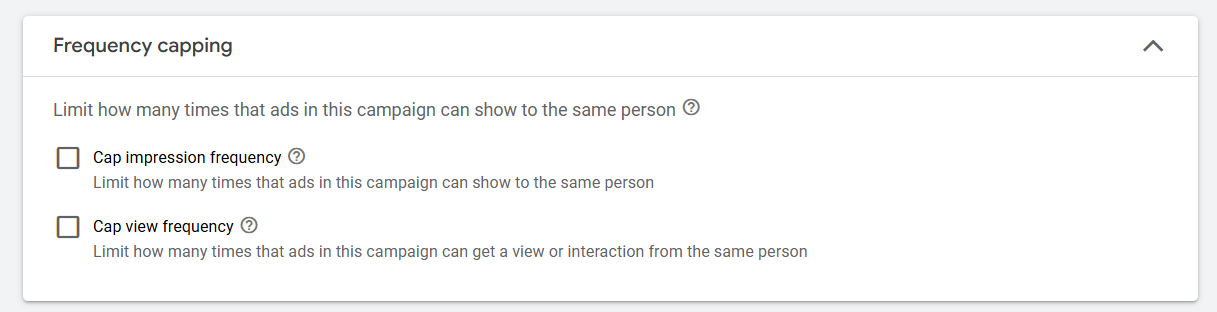
Through the option, you can limit how many times that ads in this campaign can show to the same person.
Create your ad group
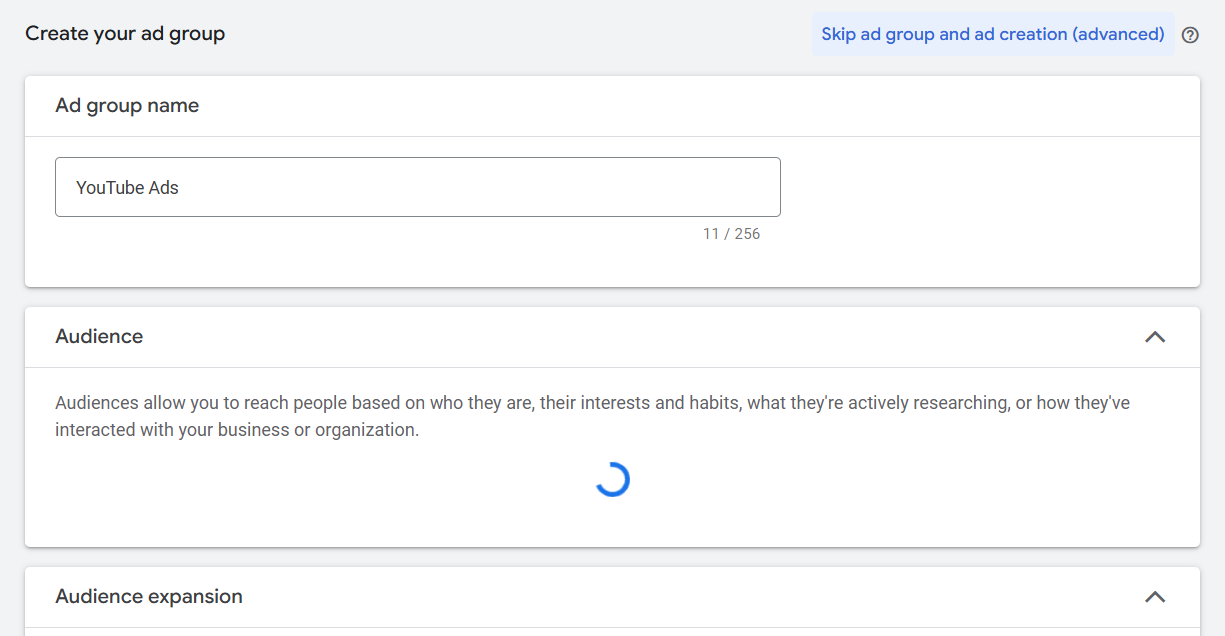
In your ad group, after placing the name of your ad group, now you have to set up a custom audience. If you don’t know about the audience section setup, you can read this article for a detailed explanation. Then start the audience creation. Audience Creation for YouTube video ads.
ADS
At this point, you have to select your video with which you want to run your YouTube ads. Google told us that videos longer than 3 minutes don’t usually perform as well as shorter videos. So don’t forget about it. But yes, it’s not mandatory that your video should be 3 minutes.
Also, it will be great if you select one in horizontal format for regular video and another one for YouTube Shorts in vertical format. You can upload up to 5 videos.
Final URL

At the position, place your final URL. Which page should be visible at first after clicking on the link, do you think?
Display URL

A display URL is the web address shown in an ad, giving users an idea of where they’ll land after clicking.
For example, if your ad promotes a laptop, the display URL might show ‘www.example.com/laptops,’ helping users know they’ll be directed to the laptop section of your website.
Call To Action
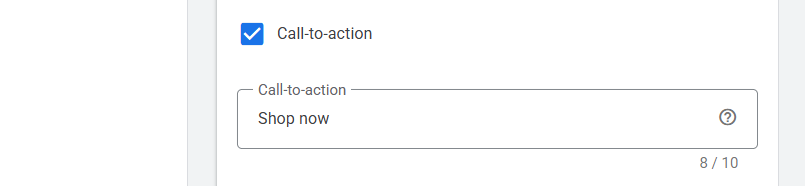
Now select your CTA button. In the box you will get a lot of options.
Headline & Description
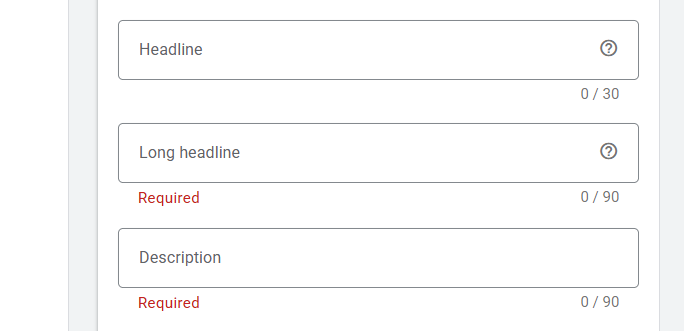
Now at this point, you have to write one headline under 30 characters. One long headline under 90 characters and one description under 90 characters. If you don’t know about how to write a good, effective headline, then you can follow the article. Write the headline and description for your Google Ads.
Bid
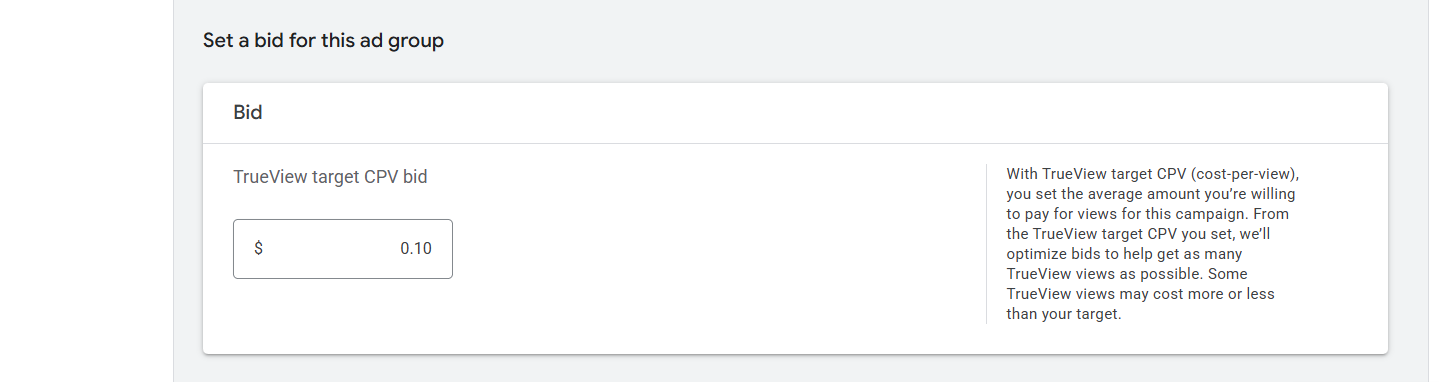
With TrueView target CPV (cost-per-view), you decide how much you’re willing to pay on average for each view in your campaign. With the amount Google will adjust bids to get you as many views as possible. Some views might cost more or less than what you set.
Review & Publish
In the review section, check everything one by one before publishing your campaign. Because in the review section you will be able to see every single thing that you did in your campaign. So every time, don’t forget to check your review page before publishing the campaign.








