

Create Google Ads remarketing audiences. Remarketing campaign creation for a specific target audience is a really important key to success with Google Ads. Because if you don’t do it perfectly, then you can lose a large amount of your potential customers.
Through retargeting, you can easily create separate audience lists by dividing our website visitors or audience into different categories for your Google ads. Then as a result, you can later reach those users with your new offers or slogans in many different ways, through the channels of display or YouTube marketing.
This is especially helpful in reminding customers about our brand again and getting them interested in your goods.
So that’s why it’s important to create a perfect retargeting audience list to ensure your marketing targets through your Google Ads campaign. Today, in this article, we’ll discuss in detail how you can create Google Ads remarketing audiences step by step. Also, the main fact is we’ll explain two different ways to create a retargeting audience here:
- From a Google Ads account.
- From GA4.
Let’s start from the beginning to know how you can create Google Ads remarketing audiences.
First, we can create the remarketing audience lists directly through our Google Ads account. It is possible to create a specific list of those who have visited our website primarily because of Google ads. So let’s see how to create the list step-by-step using a Google Ads account.
Connect Google Ads remarketing tag
By the way, it is very important to have the remarketing tag setup completed on your website before creating a remarketing audience.
If your website is a regular site, then you can easily complete the remarketing tag setup task using Google Tag Manager (GTM).
Now to connect the remarketing tag to your website, first log in to your Google Tag Manager (GTM) account. Then create a new tag by clicking on the ‘New Tag’ option. Go to Tag Configuration and select ‘Google Tag’ as the ‘tag type.’
Then, paste the ‘Tag ID’ from your Google Ads account in the specified box. Don’t forget that this ‘Tag ID’ and the ‘Conversion ID’ of your Google Ads are basically the same.
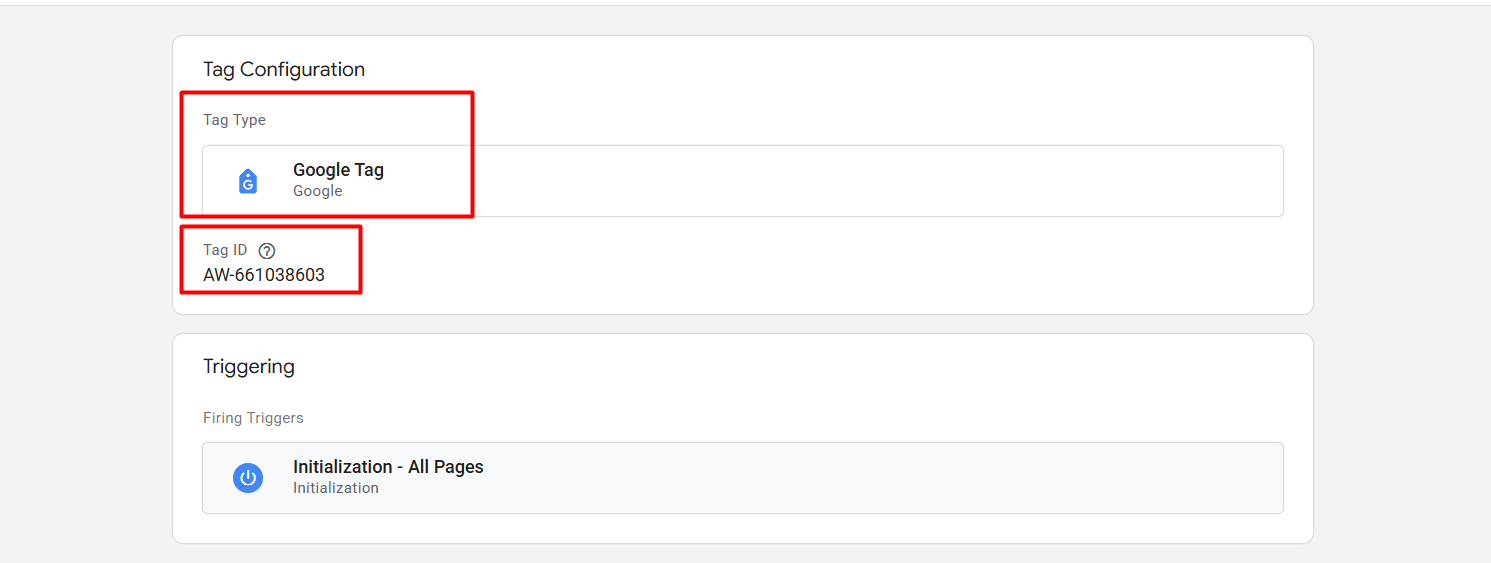
Finally, go to the ‘Triggering’ section and select ‘All Pages’ to save and publish the tag. To understand the matter more clearly, see the screenshot below.
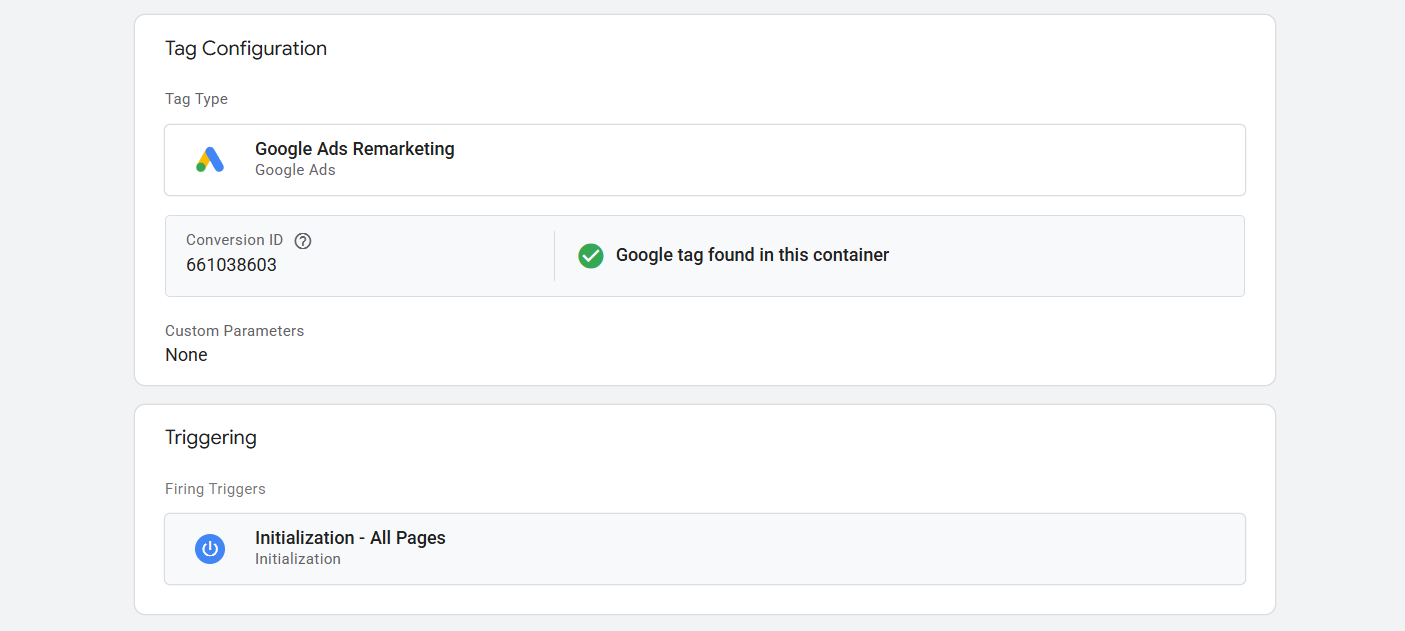
Now again, create one more new tag and complete it in the same way to connect the Google Ads remarketing tag with your website.
But if you are an owner of an e-commerce business, then you have to do more than that, so before creating the remarketing audience, check our previous article on this topic to complete your tag setup or to re-check the total setup. Google Ads Dynamic Remarketing Tag Setup For Retail
Create the Google Ads remarketing audiences
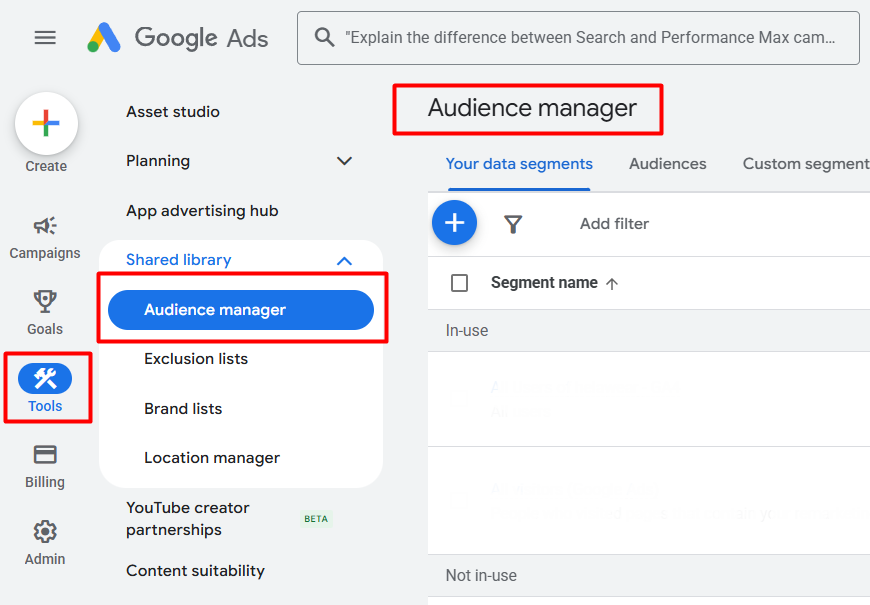
To create the remarketing audience list, first enter your Google Ads account, then from there click on the “Tools” section, and then from the “Shared Library” select “Audience Manager” to do the rest of the work.
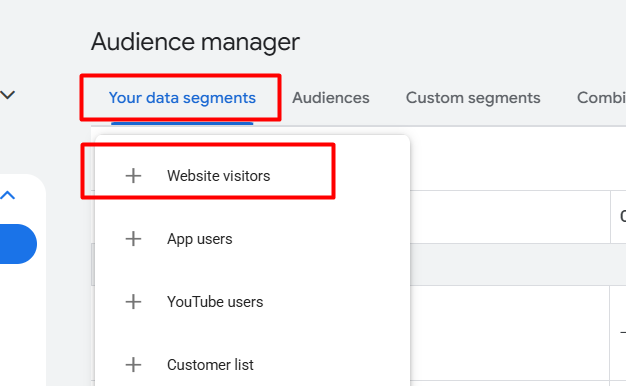
Now after clicking on the plus icon, you will get all of these options. From here select the first one, “Website visitors.” Because at the time we were going to create the remarketing audience based on the website visitors.
Under this audience manager, if you want to know another type of audience and the way of creating it, then you can read this previous article.

After entering this, your first job is to write down the segment name.
Action in the setting
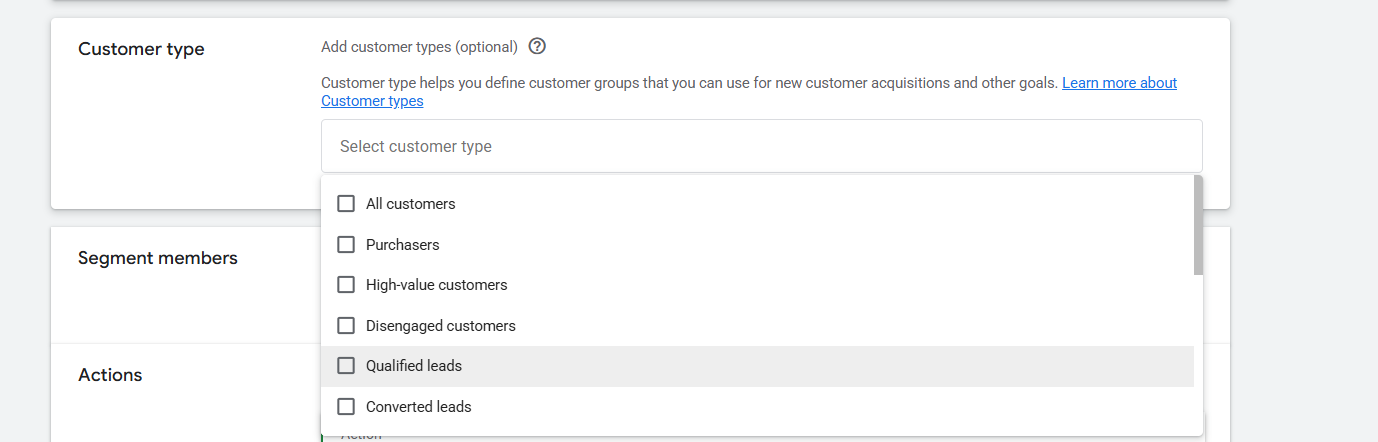
Then in the customer type section, you can select your customer type. What type of customer do you want to target? By the way, it’s optional; you can leave it alone if your target is all customers.
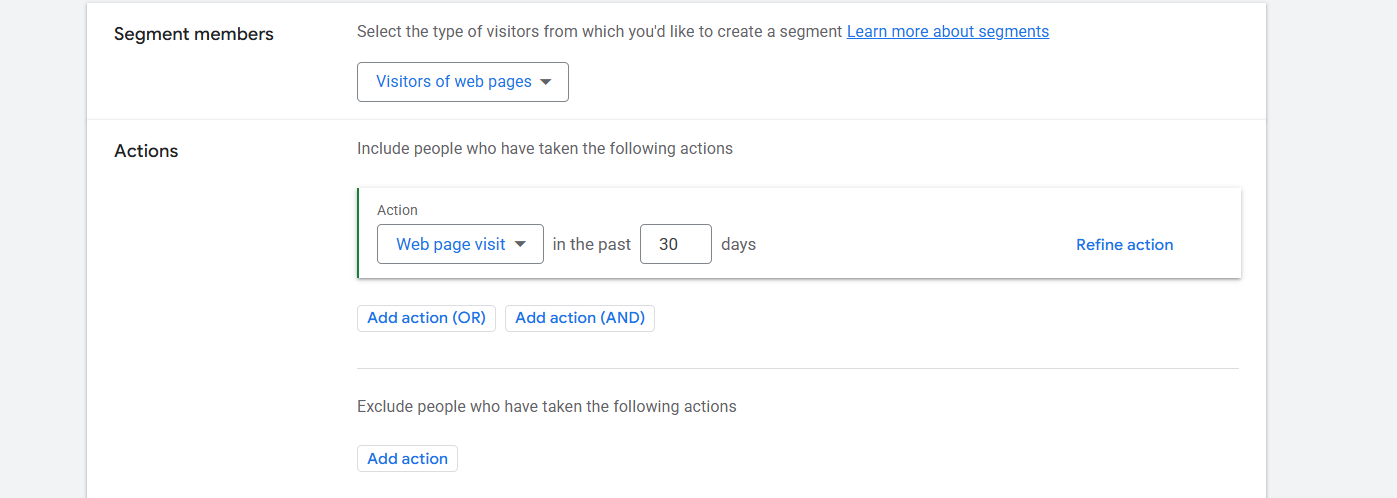
Now it’s time to set up the condition. From here you can do it. In the picture you can see segment members, and there the selected thing is “visitors of web pages.” That’s mean, according to the web page. Now we are going to create the condition.
Also, if you want to create a condition according to the different event, then you can also select it from there.
Now let’s look at the action section.

Here our present condition is web page visitors in the past 30 days. But if you want to edit the condition, then click on the refine action.

You can notice here in the picture how I created a new condition. I’m creating a list of all the audiences who have visited our targeted specific page in the last 30 days. You can follow the same procedure to create your desired audience list.
‘OR’ and ‘AND’ actions
Also, in the picture you can see two different options in the image called ‘OR’ and ‘AND.’ These options are mainly what we used to create advanced conditions.
With ‘AND’ logic, you can create conditions where a visitor must visit two specific pages. For example, if you want to create a list of audiences who have visited both ‘Page A’ and ‘Page B,’ you need to use ‘AND.’
On the other hand, with ‘OR’ logic, you can create conditions where a visitor will be included in the audience list only if they visit either Page A or Page B.

Now the last one is the exclude function. Through this you can create one condition to remove some kind of audience from your list.

Here you can see the last logic, “Exclude,” through which I have set a new condition. Through this, I am instructing Google to remove from my current audience list those users who have visited this particular page in the last 30 days.
This is usually what we do when we do not want to show ads again to any targeted customers who have already converted, or there can be different reasons. See the screenshot to understand the matter more clearly.
Pre-fill options

Here, if you select the first option, then Google will automatically populate the audience list using your data from the last 30 days.
But if you select the second option (Start with an empty segment), then your audience list will start from scratch, and only those who meet the conditions from today will be added to this list.
Great, now save the segment. In the same way, you can create more different types of segments for your Google Ads remarketing campaign.
In this way, you can create different types of remarketing audience lists by setting conditions.
For example, you can create a list of people who have completed a specific event.
Also, you can also use the ‘AND’ or ‘exclude’ logic to create an audience list of people who have completed a specific event but not another.
Remarketing Audience creation Through GA4
We have already completed the total process of creating different types of audience lists for remarketing through the Google Ads platform. However, one thing important to remember is that the Google Ads platform usually records data of those visitors who entered your website through Google Ads.
This is the place where GA4 brings a huge advantage to us. Because GA4 does not record data from only one specific channel; it collects data from all sources or channels of the website. As a result, if you use GA4’s audience list, it is possible to get much more audience data here compared to Google Ads.
For this reason, if we create our audience list in GA4 and use it in Google Ads campaigns, it will be able to provide us with a much larger database and effective remarketing audience.
Connect GA4 & Google Ads accounts
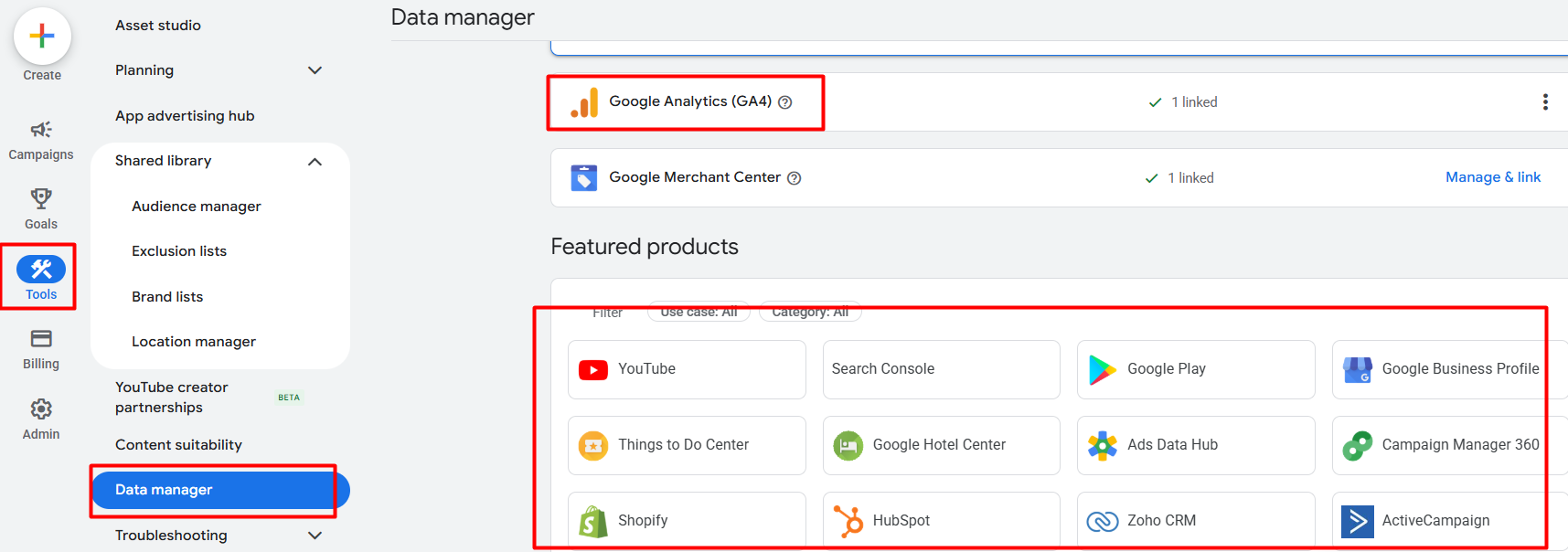
In the “Data Manager,” you will get the option to connect your Google Ads account with your GA4.

Also, if your GA4 and Google Ads accounts belong to the same email, then you can do it easily from the GA4 admin section also.
Let’s create the audience in GA4 for remarketing.
If you want to create an audience list for your Google Ads, then first you will have to enter your admin section from GA4.
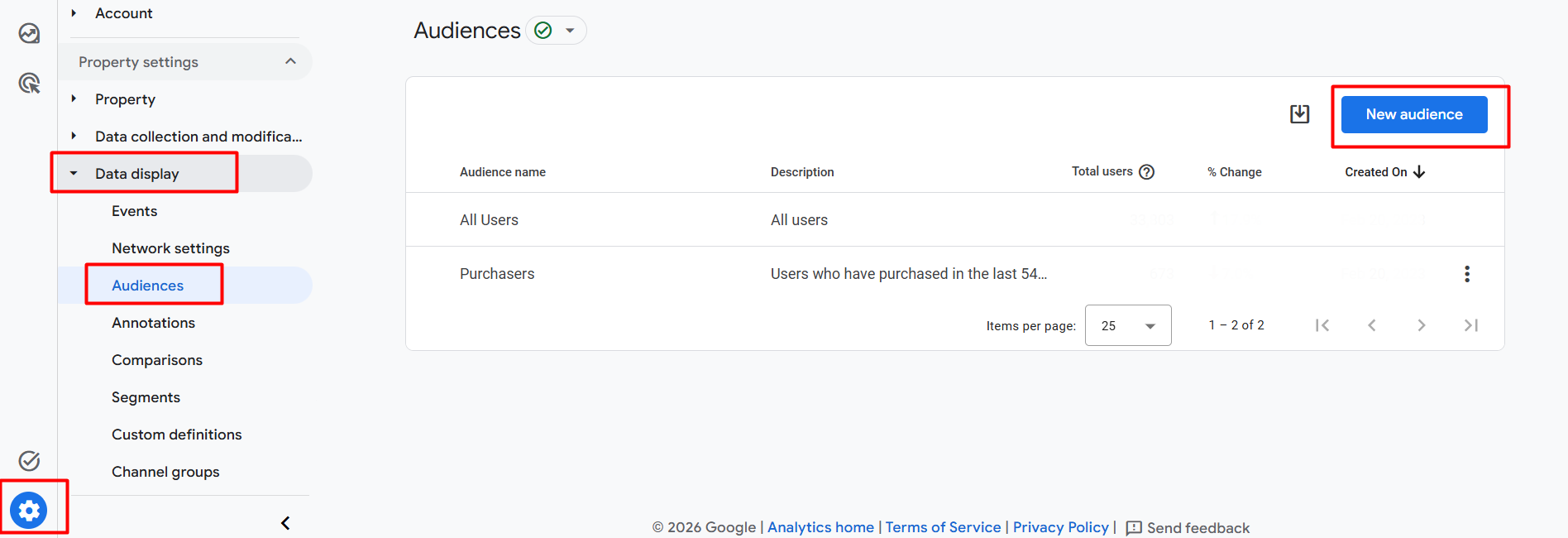
To create an audience in GA4 for your Google ads, first go to the Admin section. Then find the ‘Data Display’ option and click on ‘Audiences’ below it.
So when the main window for creating an audience list opens, click on the ‘New audience’ button on the top right to complete the next steps. See the screenshot below for a better understanding.

Here you will see that there are many ways to create an audience list. GA4 suggests several built-in audience lists also for you, which you can use directly.
However, if you have any special requirements, you can also create an audience list completely on your own using the ‘Create a custom audience’ option. See the screenshot below to clarify the matter further.
Create a custom audience

This is your first interface after entering the custom section. This first section will allow you to create a specific list of your target audience.
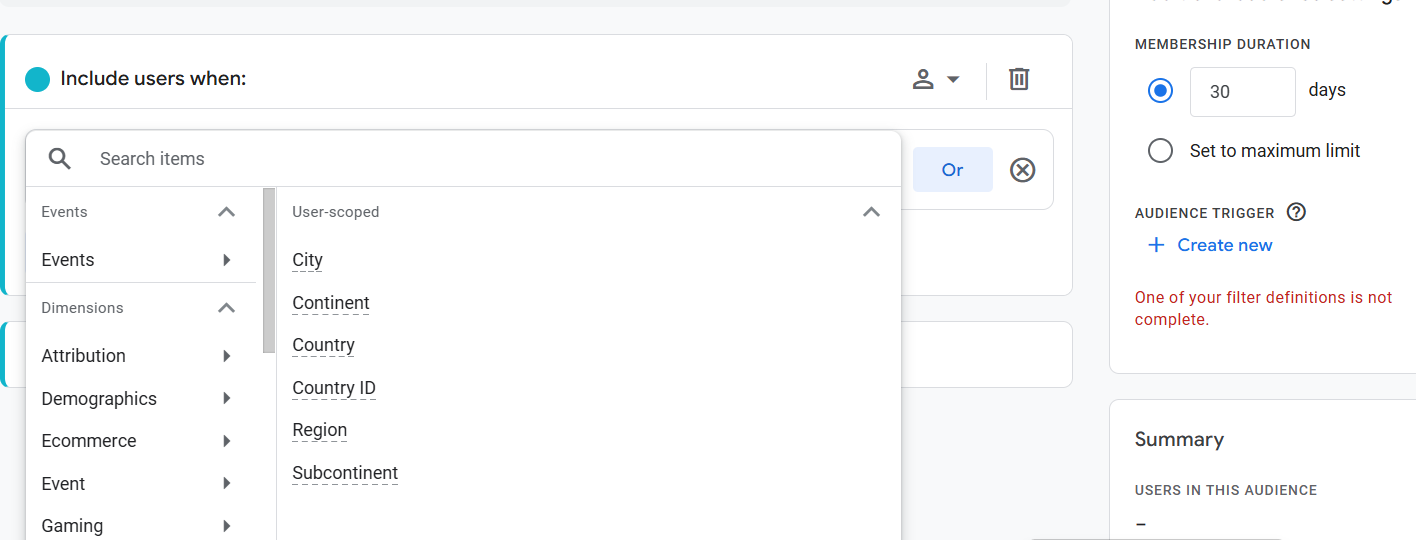
Here you can see different ways to target your audience perfectly. So before starting the audience creation, don’t forget to check them perfectly.

Here you can see it. My first targeted audience list includes all visitors who have completed the ‘view_item’ event on our website in the last 30 days. Let’s use the “And” logic.
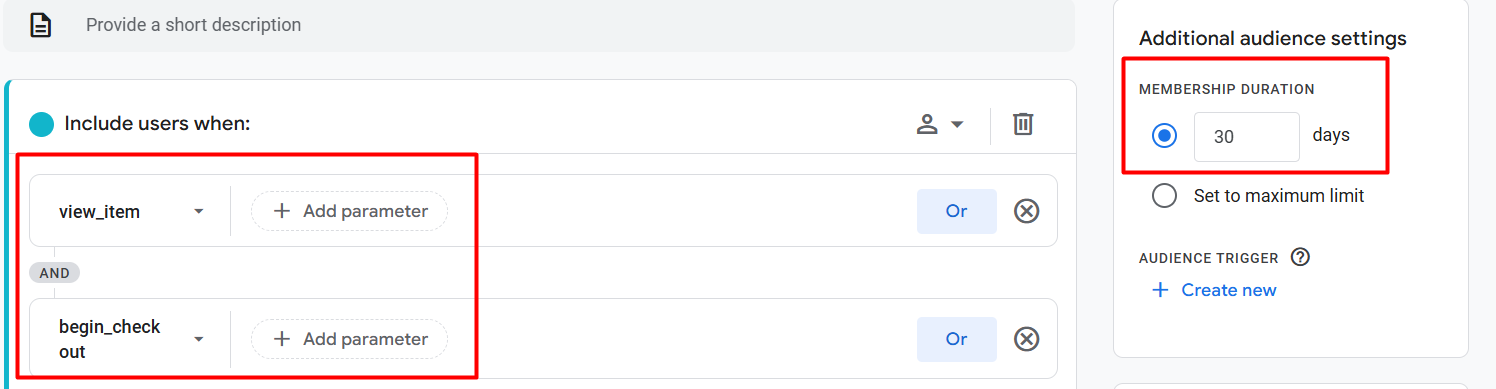
Now here you can notice that I have created a new condition using ‘AND’ logic to create the audience list.
As a result, my list will now only include those visitors who have successfully completed both the ‘view_item’ and ‘checkout’ events. Now let’s explore the exclude section.
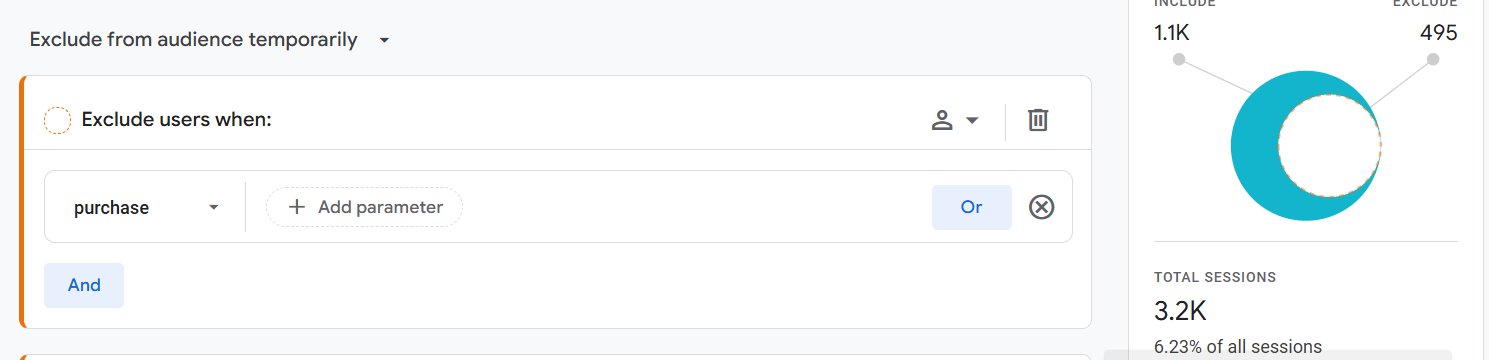
Now here you can see how I used the exclude section. Through this I exclude all of the audience who made a purchase event in the last 30 days.
If you want, you can create a more advanced condition here on the page. Think your goal is to create an audience list that includes all of the visitors who have viewed a product (view_item) or created a checkout (checkout) on your website in the last 30 days.
And at the same time, you want to include those who have not visited the website once in the last 7 days in this list.
And the last target is to exclude those who completed a purchase on your site in the 30-day duration.
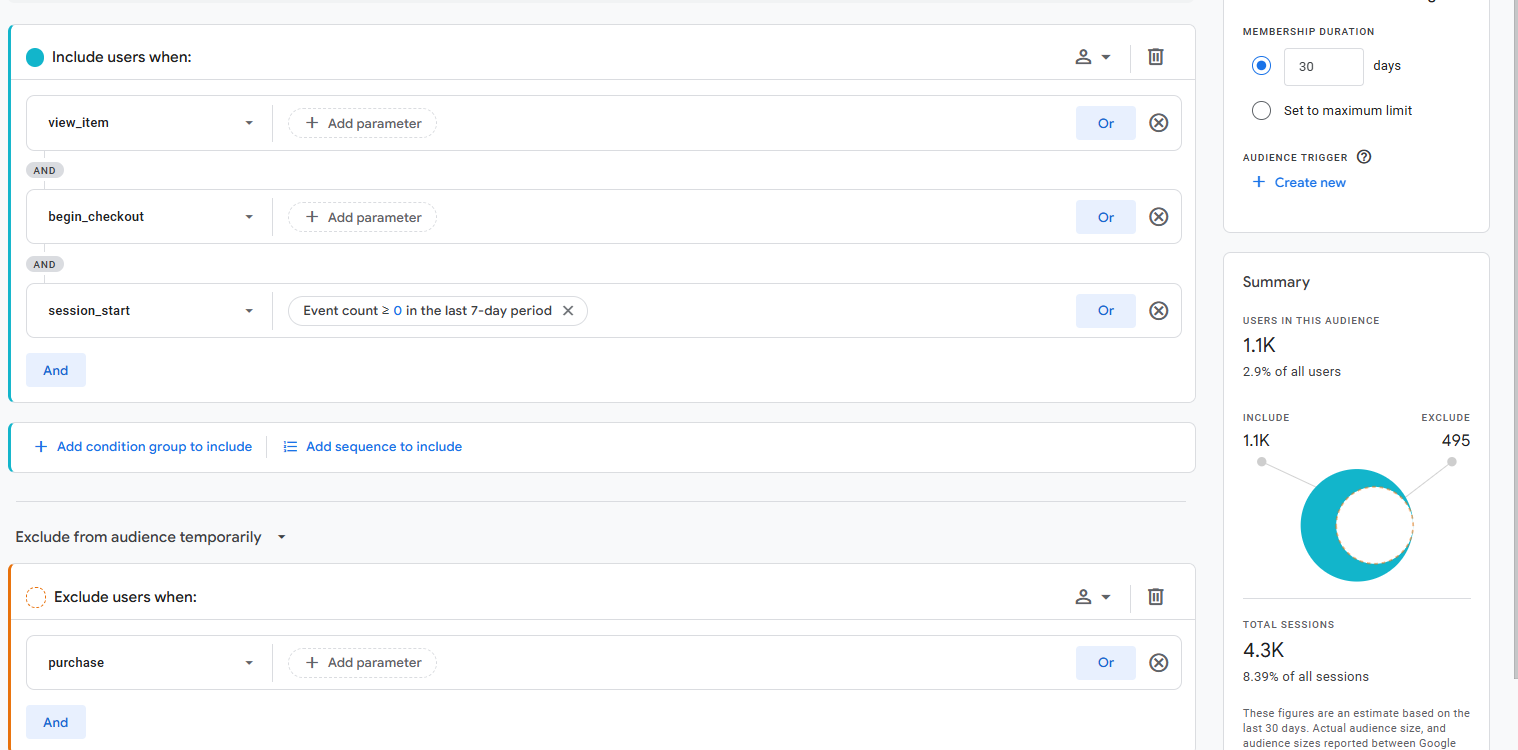
Here you can see how we complete the condition to create the audience list. In the same way, you can create more different conditions.
Suggested audiences to create Google Ads remarketing audiences

Also, don’t forget to check them. From here, you will also get more different types of predefined audience lists.

You can edit your audience list any time after creating it. So don’t worry.
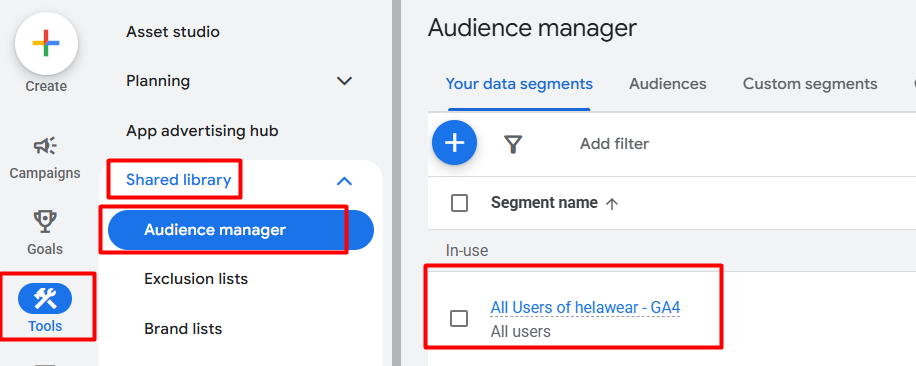
After completing the creation of your audience list here in the audience manager, you will be able to find them. But yes, for some time it could be late to appear here.
Last Words To create Google ads remarketing audiences
So, both the Google Ads platform and GA4 have their own unique ways of creating remarketing audiences for you. But if your target is to create effective, accurate, and big audience lists. Then create the list from GA4. Because GA4 has all channel data, not just those who came through the channel of Google Ads.
If you do it from GA4, then this will help you reach your desired customers and ensure better advertising results. Hopefully, this guide will help you set up your remarketing campaign more accurately.