

Today with this article we will start a series about Google Analytics 4. This series will present Google Analytics 4 in a completely new way for our current times. Today in this article we will discuss the GA4 introduction and some things:
- How does GA4 work?
- What are the main building blocks of GA4?
- We will see how you can connect GA4 to your website.
- What are the different methods for it?
- Which method is best for connecting GA4 to my website?
Introduction to GA4
So basically, the full version of GA4 is the Google Analytics Platform. The platform records all user behaviours, such as the type of event a user completes, the page they visit, how they navigate your site, how much time they spend on it, and which page they exit. If you want to analyse it, then you can use GA4. This platform is specifically designed to perform this type of work.
Without tracking, this platform also gives you a chance to analyse the data. That means, with the GA4, we can do two different works:
- Event Tracking.
- Data Analysis.
GA4 is more advanced than GA3 or Universal Analytics because it operates as a unified system. GA4 incorporates the user journey into its design. For example, consider a user who visits your website, then enters your app and completes some interaction. In this context, GA4 can identify that the same user visited both your website and your app. This functionality is the big feature of Google Analytics 4.
GA3 and Universal Analytics platforms lacked this feature, and GA4 conducted all their work under strict privacy and event-based conditions.
Privacy First
GA4 is designed to work with user consent; that means GA4 will track data just when the user gives permission. If users do not give consent, GA4 will not track their data, adhering to a privacy-first policy.
In 2026, the world is talking more and more about user consent. That’s why GA4 uses this term in all of its definitions and tries to highlight important points in bold. Also, that’s why GA4 called them, “We are a privacy-first analytics platform.”
Event-Based
| User Action | GA4 Event (Representation) |
| Page load | page_view |
| Scroll | scroll |
| Button click | click |
| Form submit | generate_lead |
| Video play | video_start |
| Purchase | purchase |
In GA4, everything is event-based; we highlight this because anyone who used GA3 or Universal Analytics would find that tracking the page view event was not possible at that time. In old GA3, page views were tracked as hits.
If we needed to track a lead event or any other interaction afterward, it could be implemented separately. However, the key concept here is unification—the ability to identify and analyze a single user as they navigate across different devices, browsers, and digital properties.
This unified approach can be configured to meet your specific requirements. For example, it allows you to track user behaviour more accurately across multiple platforms and ensures that all interactions are captured in a consistent manner.
By collecting and structuring data in this way, you can measure user activity using a standardized approach. As a result, the event becomes the central component of measurement, making it the most important element in the GA4 data model.
Even here, a page view is considered an event, and what makes it special is that all events come with significant context. Context means parameters, and every event has parameters.
So
For example, a purchase is an event. We got the product’s ID, currency, and value with the purchase. All of these are parameters associated with the purchase event.
The true significance of the event becomes clear when we examine the parameters. For example, you can consider a page view completed, but which specific page view are you referring to? How can you define this? When we study a page view’s parameters, like the page URL, you’ll understand that “this page view is from this specific page.”
After that, the picture will be clear in front of you. All page view events will provide you with this type of data, along with their parameters, to give you a clearer understanding. So in GA4, you will have to work around events. You need to see many more reports event-wise.
In this discussion about the Google Analytics platform, it is important to note that you can track various events, and based on these events, you can access numerous prebuilt reports. GA4 will help you create and use many custom reports.
Again
| User Action | GA4 Event (Representation) |
| Page load | page_view |
| Scroll | scroll |
| Button click | click |
| Form submit | generate_lead |
| Video play | video_start |
| Purchase | purchase |
One more example: when the page loads, we track it as a page_view event. When someone clicks any button on our site, we track it as a click.
Gradually you will understand the difference between standard events and custom events, which are essential for accurately measuring user interactions on our site. Additionally, you will gradually understand dimension metrics throughout this article series. But at the time we are just talking about:
- GA4 is an analytics tool.
- It helps you to track different events.
- You can create reports according to your requirements.
- You will understand what kind of user behaviour exists on your website.
Following this, you can make decisions from the perspective of future plans, marketing, and the web, such as optimising the user experience, targeting specific demographics, and improving conversion rates.
After that, if someone on your website completes the form submission, then GA4 (Google Analytics 4) will take it as a generate_lead, which means it recognises the action as a potential customer expressing interest. Future articles will describe these in more detail.
Google Analytics 4 Setup
When it comes to setting up Google Analytics 4, I feel ready to create an account. But remember that you have a website on which you need to set up Google Analytics 4. You can implement various methods for this purpose.
gtag.js and plugins or apps
According to GA4, we have many ways to configure the setup. The first option is that GA4 provides a script, which you can use in the header of every website to complete the setup. This procedure is the first method, and it works for any single CMS, no matter if it’s WordPress or a custom-made website.
Additionally, if you use a CMS, such as WordPress or Shopify, it offers features such as plugins or apps.
But if you are using this type of CMS, then for other CMS’s, you have to install the GA4 script directly. To place the script directly in this type of CMS, you need to edit the header.php file.
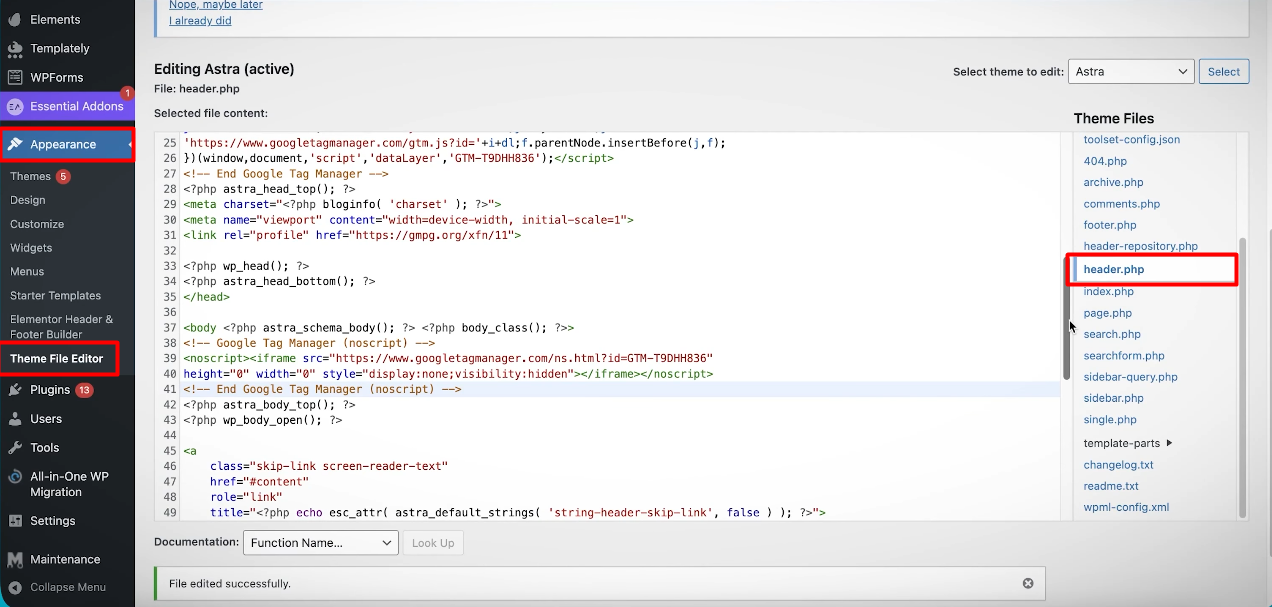
Here in the place, you have to add your code after <head> the section or before closing </head> the section.
After adding the code to the head section, it will start working on every page of the website. However, consider that if you create a new landing page on your website without including the head section, the GA4 script will not function.
Therefore, you must ensure that every single page of the website includes the header. Similarly, before starting the work, you need to understand the types of benefits available to you; this will make it easier to decide the best way to integrate GA4 effectively.
Google Tag Manager
With Google Tag Manager, you can complete the setup of the GA4 installation. All smart marketers use this method to complete the GA4 installation. Your site’s technology doesn’t matter. For example, consider that your website may be built using WordPress, Shopify, custom coding, or any other content management system (CMS).
As I told you, WordPress definitely has the option of plugins. Also, we can use the direct option to install your code on the website. But the advanced method we will use here is Google Tag Manager.
If first we add the GTM (Google Tag Manager) to our website, then there is no problem; we can easily add the GA4 (Google Analytics 4) to our website. All smart marketers use this method because Google Tag Manager offers us a lot more control than all of the other processes.
The main reason for the use of GTM is that marketers need to track many different types of events. So, each time a different event tag has to be fired in GA4 on a different condition. With Google Tag Manager, marketers can perform all these tasks flawlessly.
This is because Google Tag Manager enables marketers to trigger certain modify-type events based on specific conditions, such as user interactions or page views, without requiring them to directly modify the website’s code. This feature eliminates the need for constant assistance from the developer.
That’s why every smart marketer wants to use GTM: once it is set up with the website, they will not have to work hard again. After completing this one single setup, they can complete everything else so easily.
So just work hard in a time that talks to your developer and says, “Please connect the code in front of every page.” That means placing the code in the header.
So
After that, you can easily set up any platform tag with the GTM, whether it’s GA4, Google Ads, or LinkedIn.
By the way, if we look at WordPress, we can see that it gives us two different options for setting up this GTM.
- GTM – Plugins.
- Appearance > header.php > install.
Additionally, for Shopify, we can use apps to install GTM; However, are you aware that, similar to WordPress, Shopify also provides a direct method to insert the code?
If your website is custom-made, the only option is to directly install the code in the header section, either by yourself or with the help of a developer.
You can connect GA4 or GTM to your website for other CMS platforms, so don’t worry.
But be careful; if you already installed the GA4 tag on the website directly, don’t do it again through the GTM. This will cause your data to mismatch.
GA4 Setup Methods Side-by-Side Comparison
| Setup Method | Control | Scalability | Ads Ready |
| gtag.js | Low | Low | Low |
| CMS Plugin | Medium | Low | Weak |
| GTM (Client-side) | High | High | Yes |
| Server-side GTM | Very High | Very High | Yes |
In the table, you can see that the controllability in the gtag tag is very low. Also, the scalability is awful. Additionally, this method is ineffective for ads because it requires many actions that cannot be performed.
Similarly, the CMS plugin is not very effective for control. Additionally, the scalability is limited because the plugin or apps do not provide a default option for creating multiple events, which restricts users from efficiently managing and tracking various marketing campaigns simultaneously.
But GTM is the place where you can do many things as per your requirements, such as creating custom events, tracking user interactions, and managing tags efficiently. That’s why the control section, along with all the other sections, is highly effective.
Finally, the server side performs very well for all functions. This is due to the high level of control and its scalability. At a time when first-party tracking holds significant importance, the daily use of ad blockers or browsers can pose significant challenges to the placement of cookies. Server-side, resolve the tracking issues, and accurately send data to GA4.
In this time when every single country is creating many different laws about data tracking, it is getting really hard to understand if our client-side tracking will work or not. Day-to-day, many systems are causing additional challenges for us in tracking the data.
The server side can solve all the problems and is able to transfer the data consistently; that’s why it’s the best way of setting up tracing. GTM also handles this task.








