
Globally, Google Tag Manager is one of the greatest tracking and tag management platforms. With these platforms, we can simply manage and deploy every marketing tag, like the GA4 script, Facebook pixel, etc., without requiring code changes on your website.
You can improve data accuracy, optimize your marketing efforts, and centralize all of your tracking solutions with GTM. It is a vital tool for contemporary digital marketers since it increases flexibility, speeds up load times, and makes debugging simple.
So every time whenever we start tracking, we use dataLayer to get the regulated data easily every time. To get your dataLayer, first go to your tag manager.
Data Layer Explanation
The Data Layer in Google Tag Manager is a JavaScript object that serves as storage for dynamic data on your website or app. It stores information, be it user actions, details about the product, or transaction data for GTM tags, triggers & variables to use.
In principle, it connects your website’s code to GTM—in a way that you can handle tracking/analyzing well without directly modifying anything about the website’s actual code. With the data layer, you can monitor and push accurate information to different marketing or analytics systems comfortably.
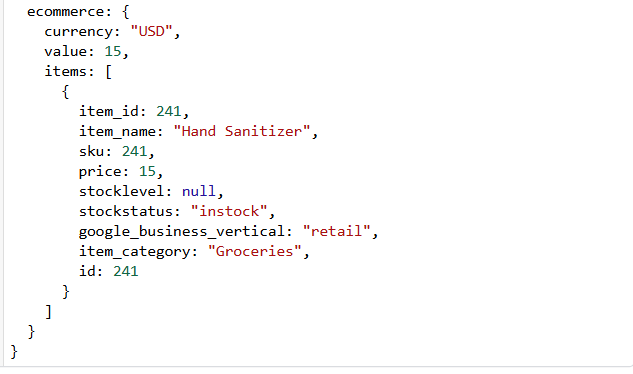
Your data layer will look like that. To get this type of dataLayer view, first you have to go to your GTM interface.
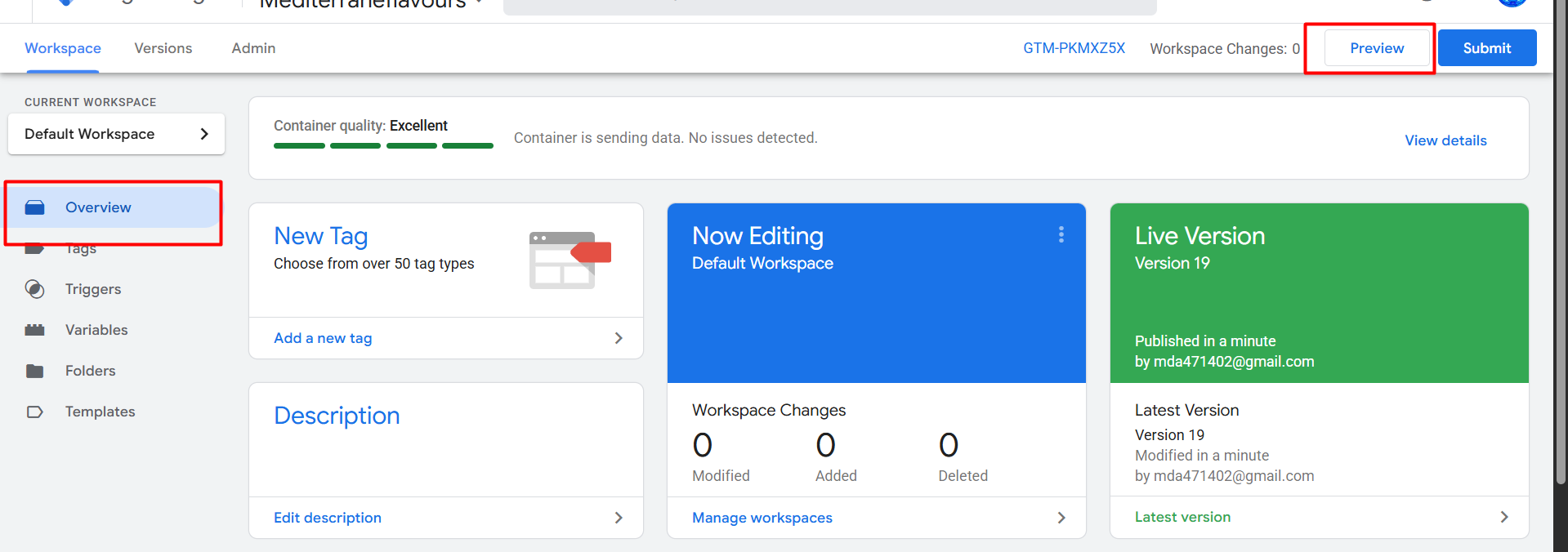
After clicking on the preview, you will be on the next page.
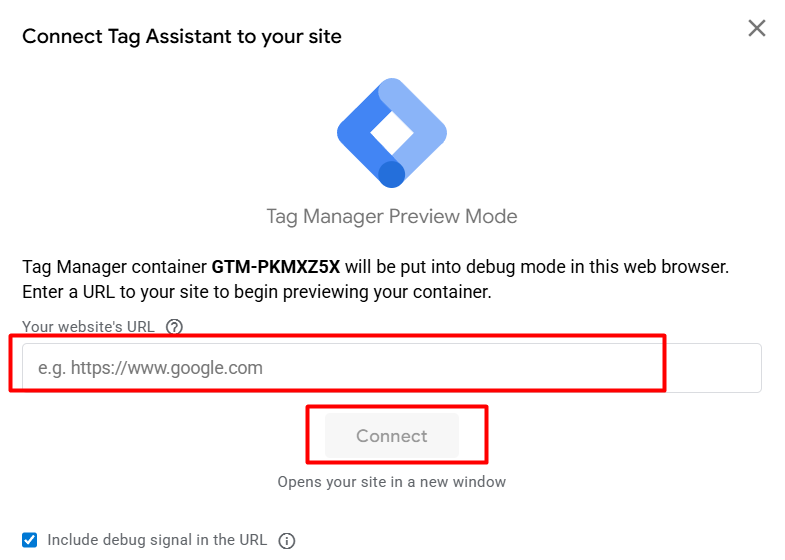
Now here, paste your website link and continue. Then one new tab will be open with your website URL.
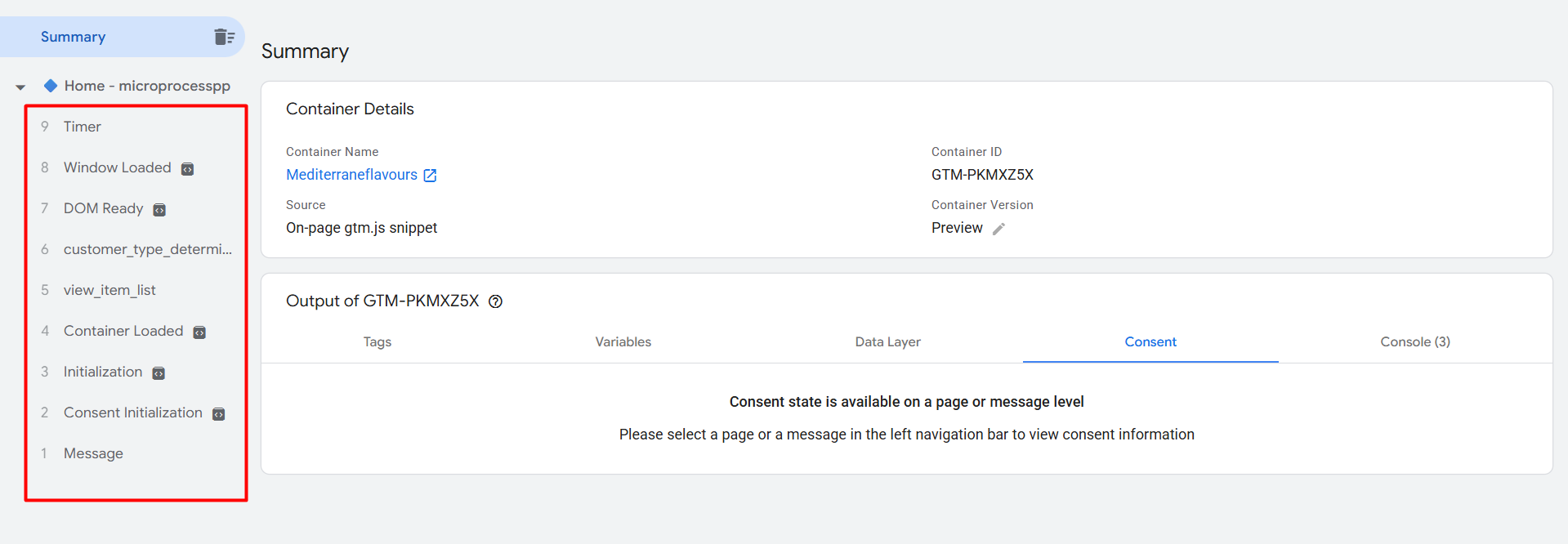
This is the interface of your “Tag Assistant” after successfully opening your website in the new tab. This is the place where you can check your data layer and the data collected by the data layer.
But at first let’s view one product to get a more accurate view for you.
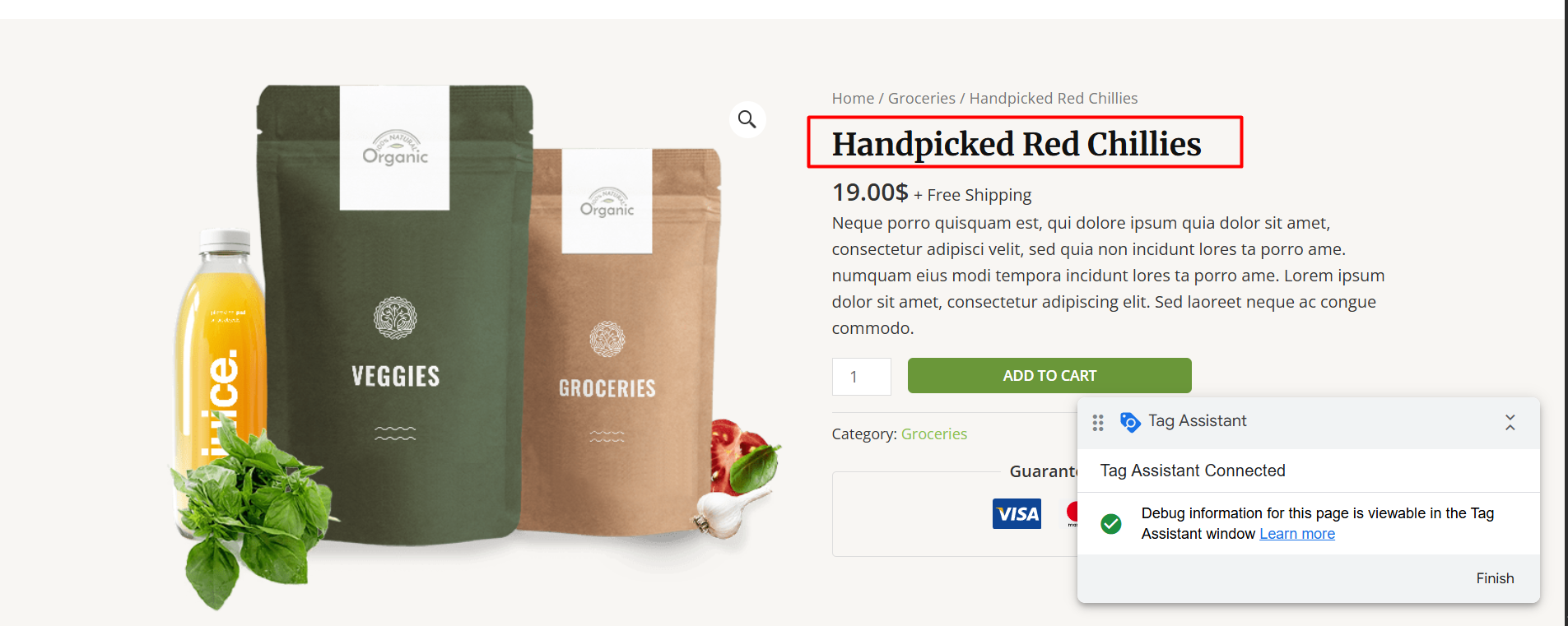
Here you can see the time we viewed this product. So let’s go to the data layer, and let’s see how the data layer is working for us to give us data about this new product view.
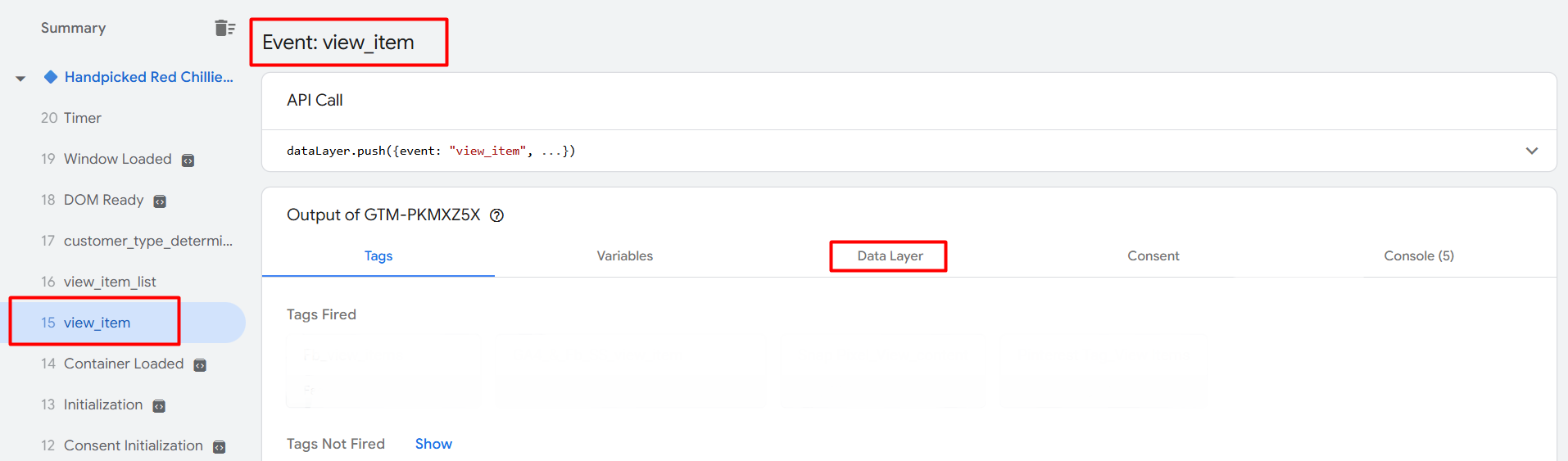
Great, here you can see in the “Tag Assistant” that after viewing our product, “Tag Assistant” pushed one new event in the name of “view_item.” Now let’s go to the “Data Layer” and click on the option to check the collected data for us through “Tag Assistant.”
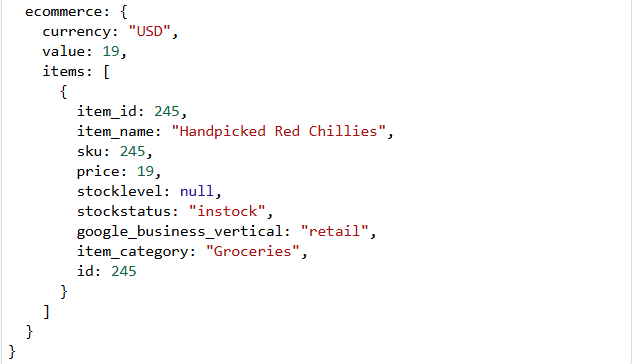
Here you can see the collected data through the data layer. Here you can see the exact data about our viewed product some time ago. In this way, every time someone views your product page, you will get this type of data, and even when someone “adds_to_cart” or “checks out” or “purchases” your product, then your “Tag Assistant” will collect a data layer for you to easily work with this data.
This is the format of the data layer. Now from here we can collect this data and send this data to your targeted platform as per their standard format.
But to collect the data from the data layer first, you have to understand the data layer structures. Because without the knowledge of the data structure, you are not going to be able to collect the data.
Data Layer Structure
Okay, here’s the explanation of the structure.
- Ecommerce (Object): This is the primary container which carries all the transaction details. Inside this object, we store.
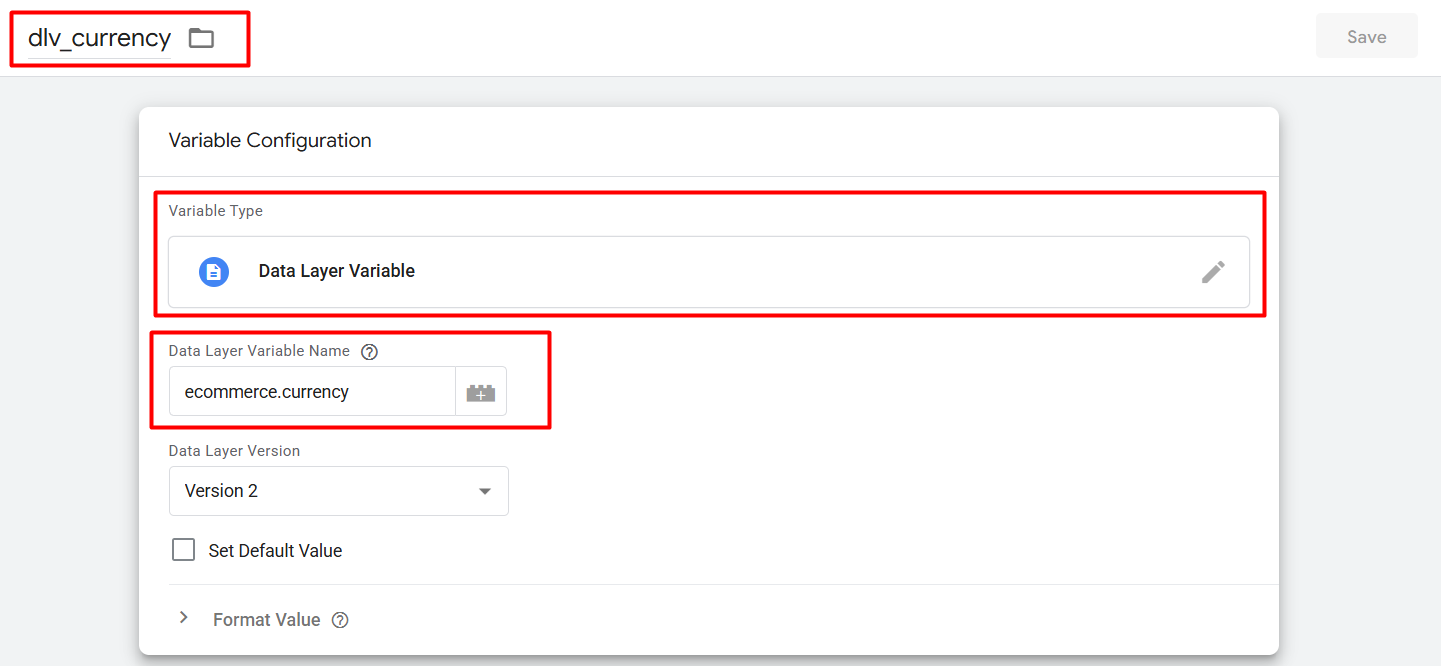
- Currency (Value): The currency that is used for the transaction (USD here).
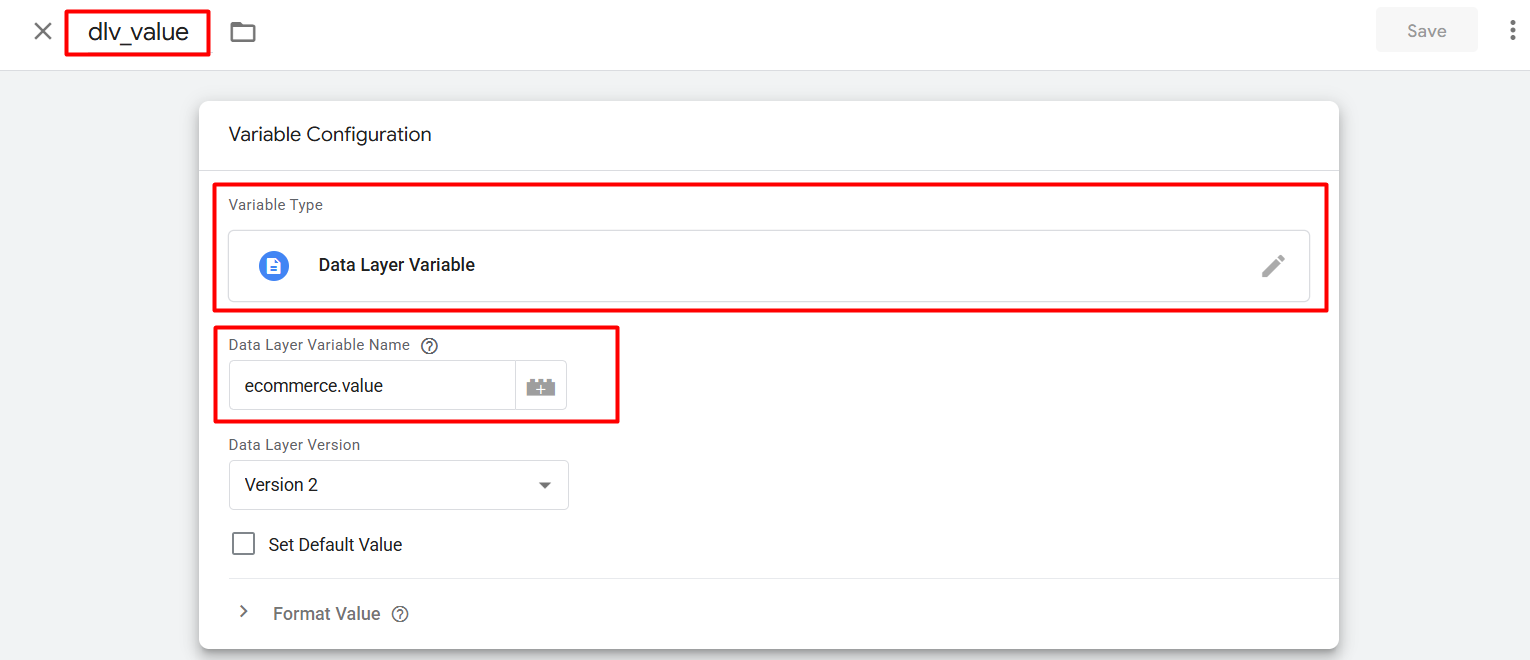
- Value (value): Regardless of your transaction amounts, this is the final value for a product (19 USD here).
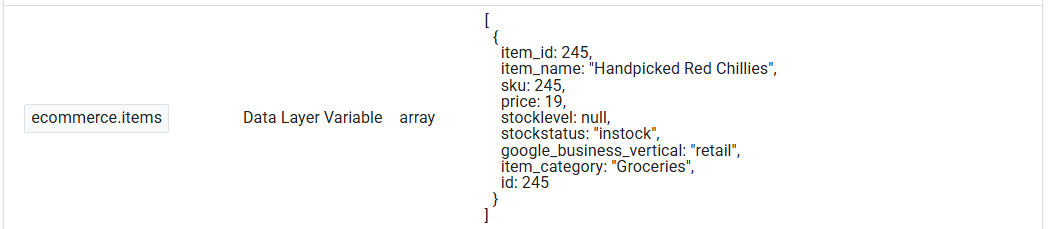
items (Array): There is an array within the ecommerce object called items. This array contains all the products that are part of this transaction. In this case.
You’ll see that some values in the data layer structure are independent, while others are nested beneath an object. Arrays and values can be found within an object. Because of this arrangement, the data can be arranged hierarchically, which facilitates tracking and access to particular information.
For instance, the items array within the e-commerce object may hold information about specific products, while the e-commerce object itself may contain details such as the transaction value and currency. With tools like Google Tag Manager, this tiered structure keeps the data accessible and well-organized for tracking.
In a simple line Objects are enclosed in curly braces {} and contain key-value pairs.
Arrays are enclosed in square brackets [] and can contain multiple values. Each value enclosed within {} is recognized as an object, while values enclosed in [] are considered arrays. and under this [], it will be recognized as a value. Any value that is outside these two symbols is recognized as an independent value.
Way to collect data from DataLayer
We create variables in Google Tag Manager (GTM) to track data from the data layer. These variables assist us in extracting particular data from the data layer, such as transaction or product details.
For instance, you would make a variable called ecommerce.items if you wanted to access the entire list of products in the items array. This will provide you with all of the product details.
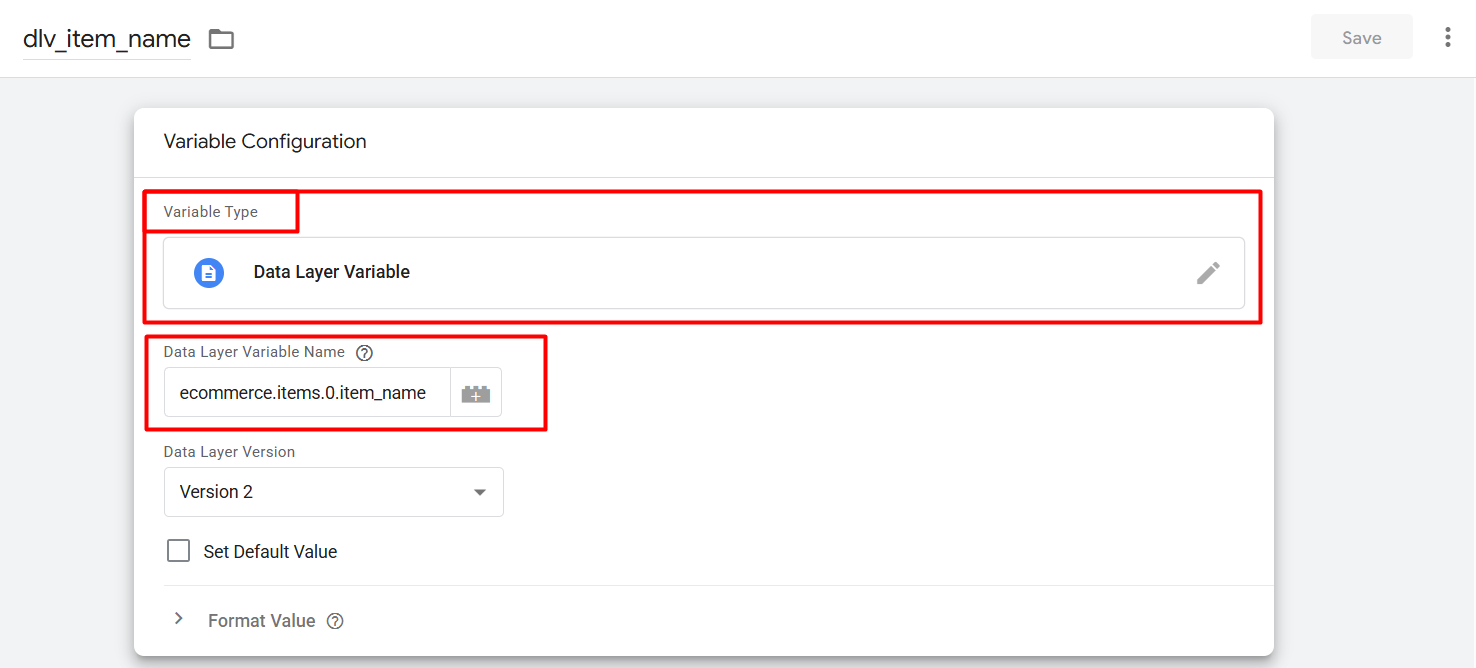
You must specify the item’s index in the array in order to track particular product information, such as its name or ID. The product ID for the first product would be ecommerce.items.0.item_id, and the product name would be ecommerce.items.0.item_name.
To put it briefly, the format ecommerce.items.0.item_name indicates that you are pulling the name of the first product in the list. Whether it’s a specific product or the entire transaction, this method helps you keep track of exactly what you need.
So to collect all the data that are under one object, you have to start your work from the object.array. If you want to collect data from the array, then object.array.0.name.
Simply we follow the rule “ecommerce.items.0.item_id” to access specific data in a nested structure. The format specifies the object (ecommerce), the array (items), the first item (0), and the desired value (item_id), making it easy to pull specific information from a complex data layer.
Like we are saying to the GTM, bro, first from the object target the array, then from the array collect the item name or ID, whatever.
But the “0” in “ecommerce.items.0.item_id” refers to the index of the item in the array. In arrays, the first item starts at index 0. So, “0” means we’re accessing the first product in the items array. If there were more products, you’d use 1 for the second item, 2 for the third, and so on.
But if your data isnt under any object or array, then
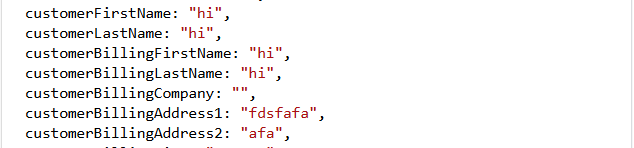
To collect data from here, you can simply take the name, like CustomerFirstName or CustomerBillingCompany.
Create Variable in Google Tag Manager
To create a variable, go to your GTM and click on the variable section.
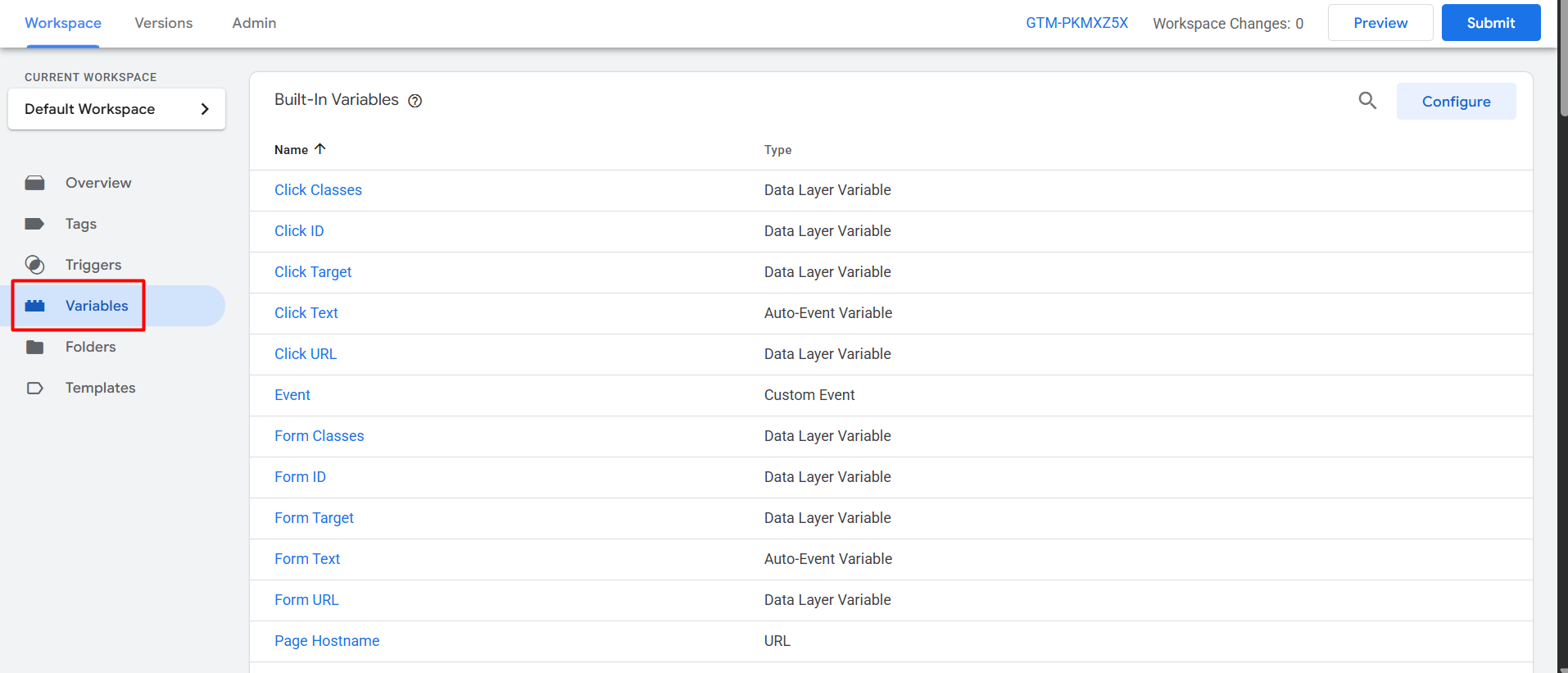

Now scroll down and click on “New” to create one more user-defined variable.
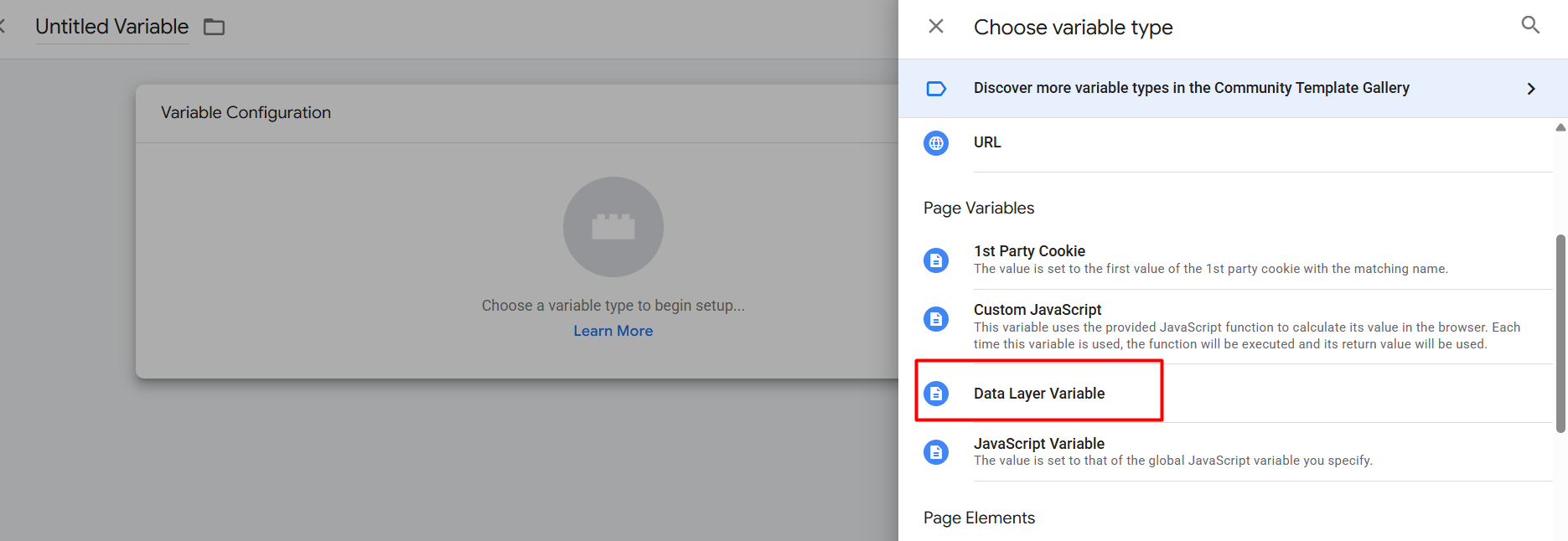
Now from here select “Data Layer Variable” as a variable type. We are using this variable because we are going to take data from the data layer.
Right now, think of one that you want to collect the total items array data for your GA4 Enhanced tracking for, so it’s really easy to create one variable in the way.
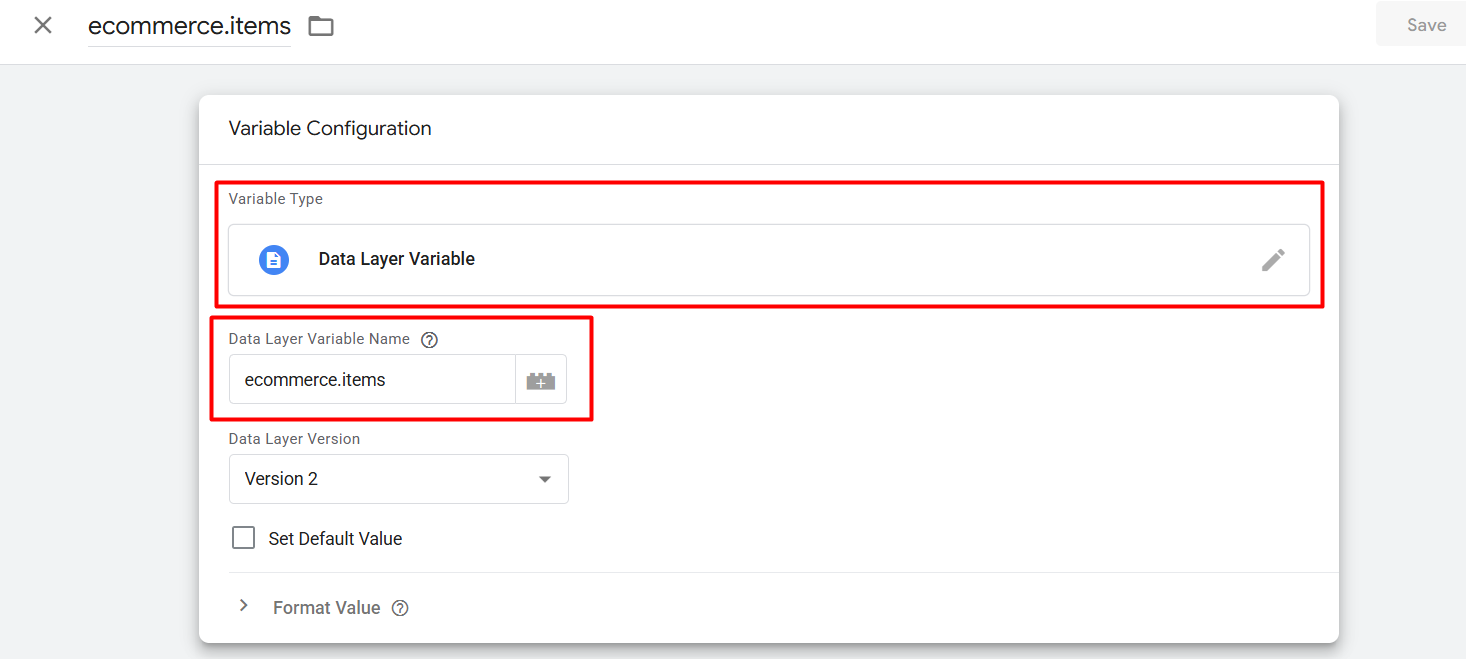
Hereafter, click the variable type and put your “DataLayer Variable Name.” If you use it, then you will be able to get the full items array.
For your GA4, if you want to collect the item’s value, then use it the way
If you want to collect the currency, then do it like this way.
If you are trying to get the item’s name, then you do it in this way
In the same way, you can collect item ID or anything as per your need. But if you are trying to collect any independent value, then use this way.
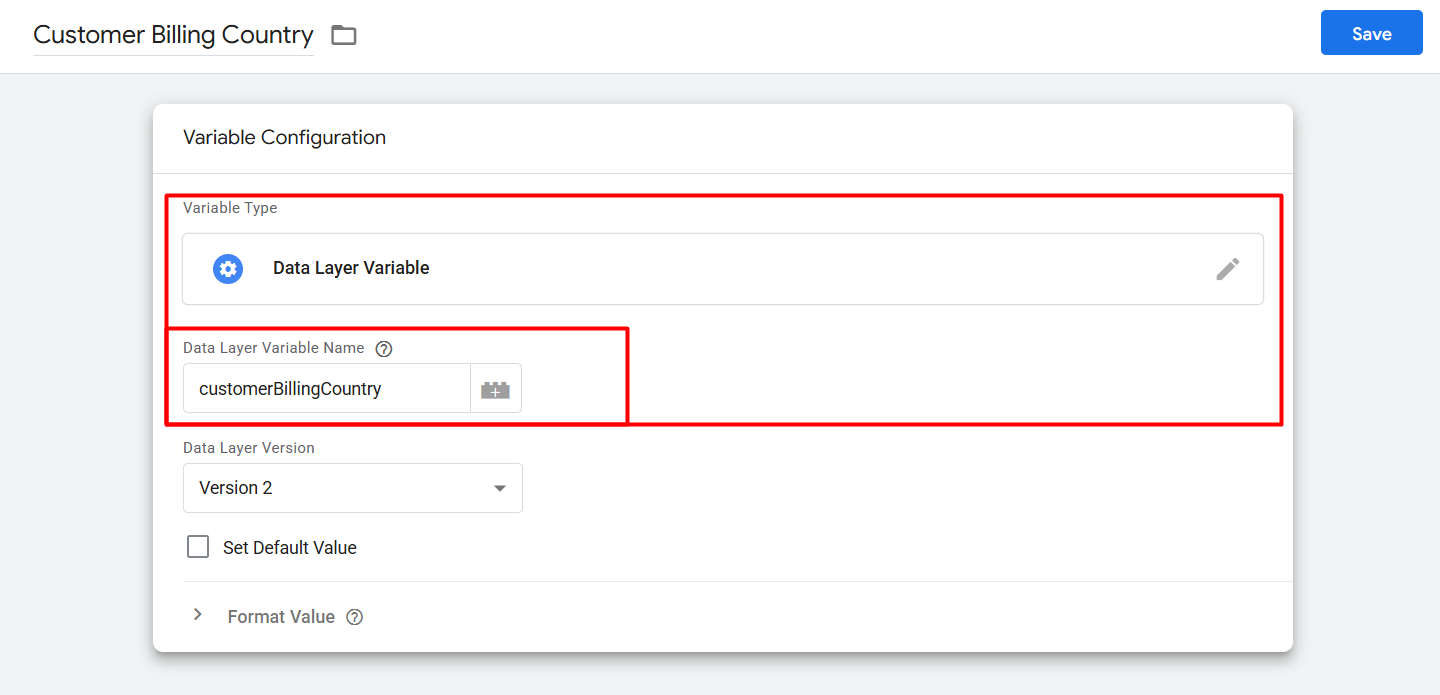
So it’s really easy farm work. To collect your target data as per your need, first of all, you simply have to watch your data layer. Where is your targeted data?
Is it under any object? If it is, then is it in a value way or under an array? If it is under object and in a value way, then your variable will be like “object.value,” or if it is under array, then “object.array.0.value.” In the same way, you can collect all of the data from the array just by simply writing “object.array.” Simple.
And after that we are here to talk to you live or face-to-face to clear up any confusion. So don’t forget to talk to us if you want to share anything or you want to know.








