
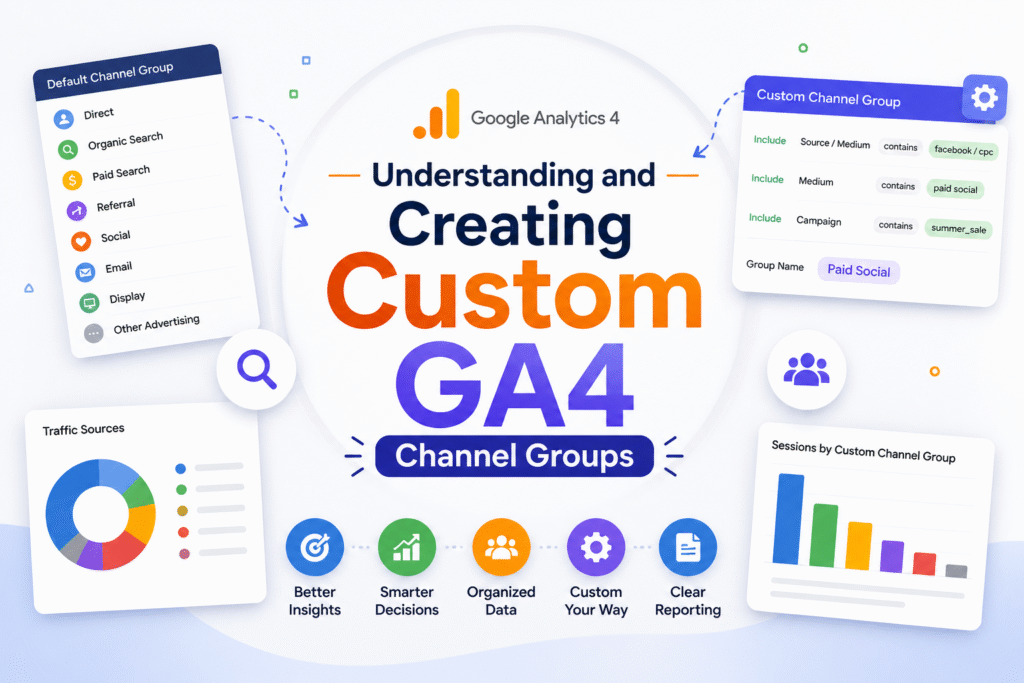
Welcome back to our new article from the GA4 series. If you are following our work, then definitely you know that we are going through a GA4 series, where we are covering every single thing for GA4 from the beginning.
In our previous article, we explained the acquisition section of the GA4 reports. Where you can check from which source you’re getting which amount of traffic.
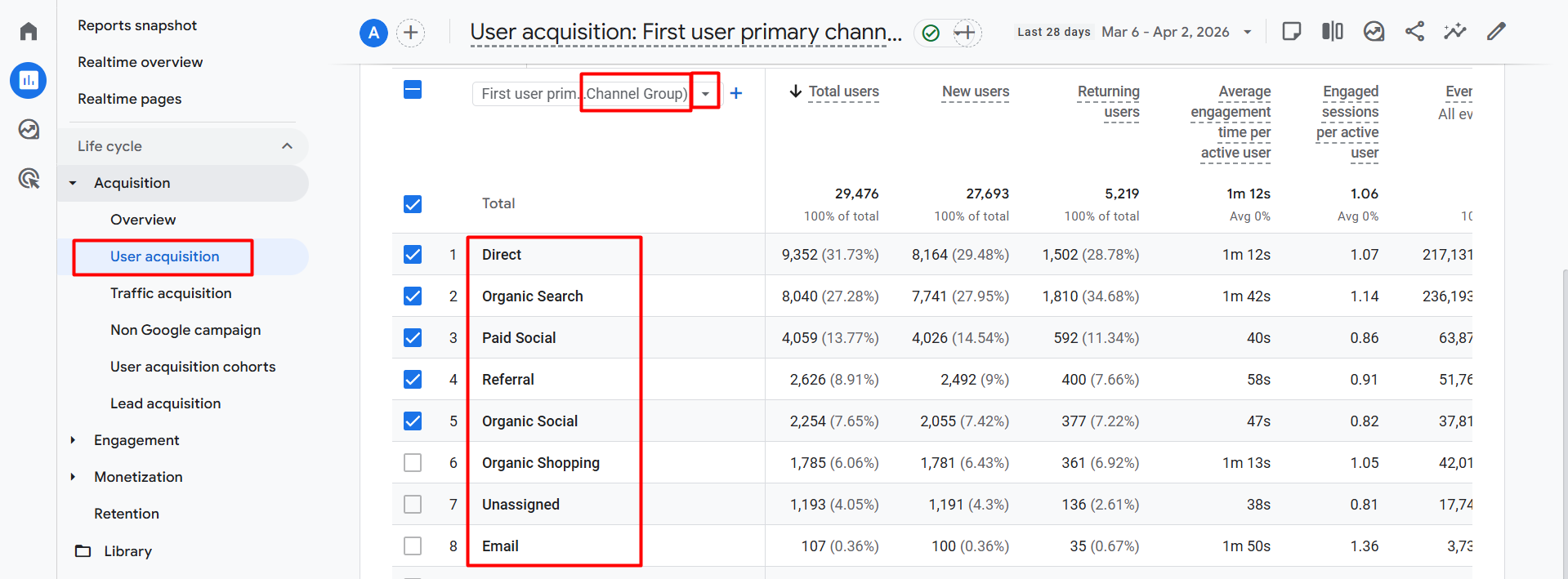
In this picture, you can see that we received a lot of traffic from different sources, all categorized under one name: “Channel group”. By the way, do you know what the GA4 channel groups are?
What is the GA4 Channel Group?
GA4 Channel groups are a method by which Google Analytics divides your website visitors into smaller categories based on where they are coming from. Under this channel, you can see that GA4 already provides you with some pre-created categories. Let’s explore them, because in the future, if you want to create one custom channel, then this information will help you.
Know about the common GA4 channel groups.
Direct: When someone enters your website link directly in the browser or clicks from the browser’s bookmarks. Also, if the source cannot be tracked, Google considers it as direct.
Organic Search: When people search for something on Google, Bing, or any other search engine, they can click on your site for free from the results. (You don’t have to pay for these clicks.)
Paid Social
When you run **paid ads** on social media like Facebook, Instagram or LinkedIn, those who click on that ad fall into this group.
Referral
If a link to your site is given from another website (such as a news site or blog) and someone clicks there, it is called referral traffic.
Organic Social
If you post something on social media (Facebook, Twitter, etc.) and people click on that post and come to your site for free (i.e., without any ads).
Organic Shopping
If someone clicks on your product link from Google’s ‘Shopping’ tab or shopping results for free (without ads).
Unassigned
When Google doesn’t understand where the visitor came from (the source could not be tracked correctly), it is placed in the unassigned group.
If you do email marketing and someone comes to your site by clicking on the link inside the email.
Based on your GA4 accounts, categories can be decorated in different ways. But some types of categories are common. If you are using UTM for your campaign or marketing, here in this position you can verify the data. To get the data more perfectly, change the channel.
Change the Channel Group in GA4
GA4 not only shows pre-defined categories within the channel, but you will find many more options that help you analyse traffic sources in more depth.
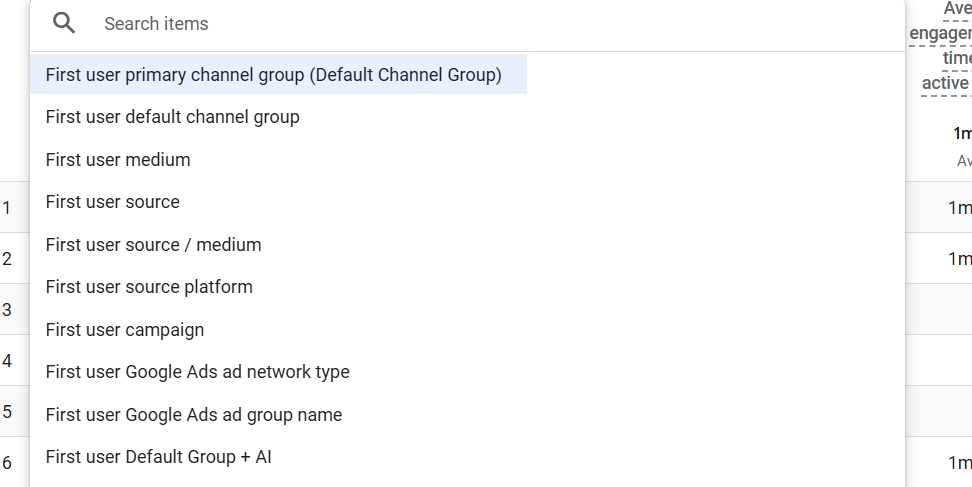
If you look at your screenshot, you will see that there are many options here, such as ‘First user source’, ‘First user medium’, ‘First user’, and more.
There’s not just one way to track traffic sources in GA4. You can view data from different perspectives:
Channel Group List
First user medium : This field tells you what type or medium the traffic came from. For example: organic (free search), CPC (paid ads), referral (coming from another site), or email. This term basically refers to the “category” of the traffic. So from here you can analyse your data according to the “medium”.
First user source: This specifies which platform the traffic came from, such as Google, Facebook, Bing, or a newsletter. So from this channel you can understand from which source you are getting how much traffic.
First user source / medium: This is the combination of source and medium. If i give you an example, “Google / CPC” indicates that it came from Google Ads, and this is the most popular dimension for data analysis. I hope you will love it.
First user source platform: This basically refers to the technology or platform that helped send the traffic. For example: `Google Ads`, `Manual` (if UTM is set), or `Shopping Free Listings` (from Google Shopping). This is very useful for campaign management.
First user campaign: Also, if you are running a special offer or sales campaign (for example: `Winter_Sale_2026`), the name of that campaign will be displayed here. This one will help you to understand which specific campaign is receiving the most response.
First user Google Ads ad network type: There are many parts to Google Ads. From here, you can understand whether the traffic came from `Google Search`, `Display Network`, `YouTube`, or `Cross-network` (for example: Performance Max).
First user Google Ads ad group name: There can be many ad groups within a campaign. From here, you can see exactly which ad group’s ad the user first came to your site after seeing.
But Channel Group
The last one, “First User Default Group + AI”, is not from Google; we created it. Through this channel we can gather knowledge; the amount of traffic coming in on-site is through the AI. If you want, you can also create something as per your need.
Custom Channel Group Creation in GA4
When you run multiple campaigns and marketing projects on different platforms for your brand or product, the most important thing is to constantly monitor the exact results or outputs coming from each medium.
However, the problem is that the default or pre-created channels of Google Analytics 4 (GA4) cannot always meet all our needs. Many times, it is seen that traffic coming from different sources is not categorised correctly, or it remains as ‘Unassigned’.
Have you ever wondered
> “What if I had a specific channel of my own creation, under which I could analyze all my special campaigns and marketing activities together?”
The good news is, since you use **UTM (Urchin Tracking Module)** with each of your campaigns or marketing objectives, this task is very easy for you to do!
Benefits of creating a custom channel:
If you want, you can easily create a custom channel in Google Analytics to gain better control over your marketing insights. By utilizing UTM parameters (Source, Medium, and Campaign), you will be able to filter data with precision and isolate your most important campaigns from the surrounding noise. This clarity makes it simple to evaluate which specific promotions or partnerships are driving the highest return on investment (ROI).
Simply put, custom channel groups give you full control over your marketing data, which will play a much more effective role in making the next decisions for your business. To create the new channel, first go to your settings in GA4.
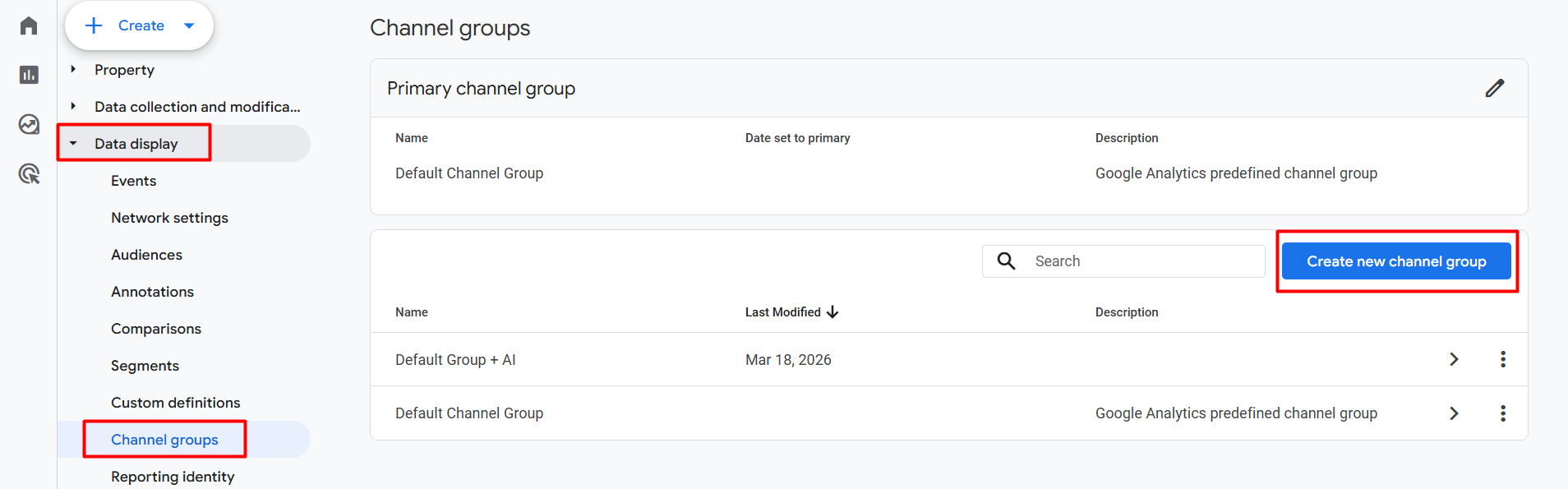
Then click on the button “Create new channel group.”
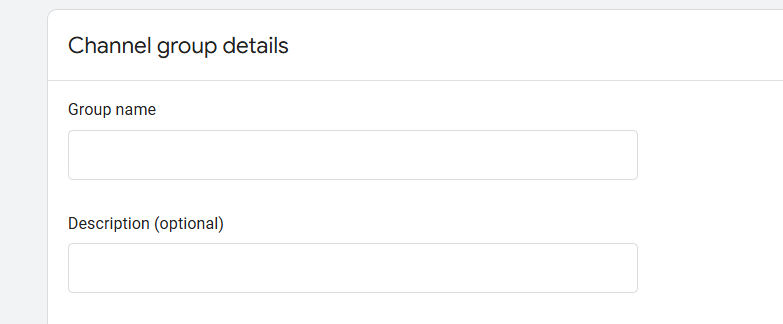
First, write down the name for this channel group.
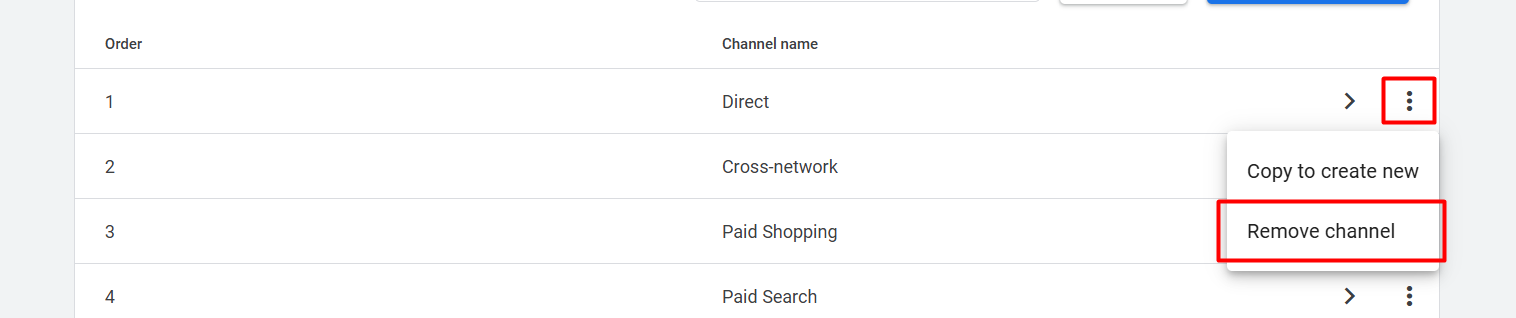
One thing when creating a new custom channel group is that it’s a beneficial idea to remove the previous default channels from the list.
This is because the new list you create, this one, only should contain the specific channels you set up. Because if you don’t remove the previous default channels from your list, then it can lead to a mix-up between your custom data and Google’s automatic data, to complicating your analysis.
When you remove unnecessary channels from your list and keep only the rules you create, then your dashboard will be clean and accurate. This will help you to understand exactly what kind of output is coming from your marketing campaigns and which sources are working best in a simple way. But if you like anything from the list, you can keep them in your new channel group.

Now click on the button “Add new channel.”
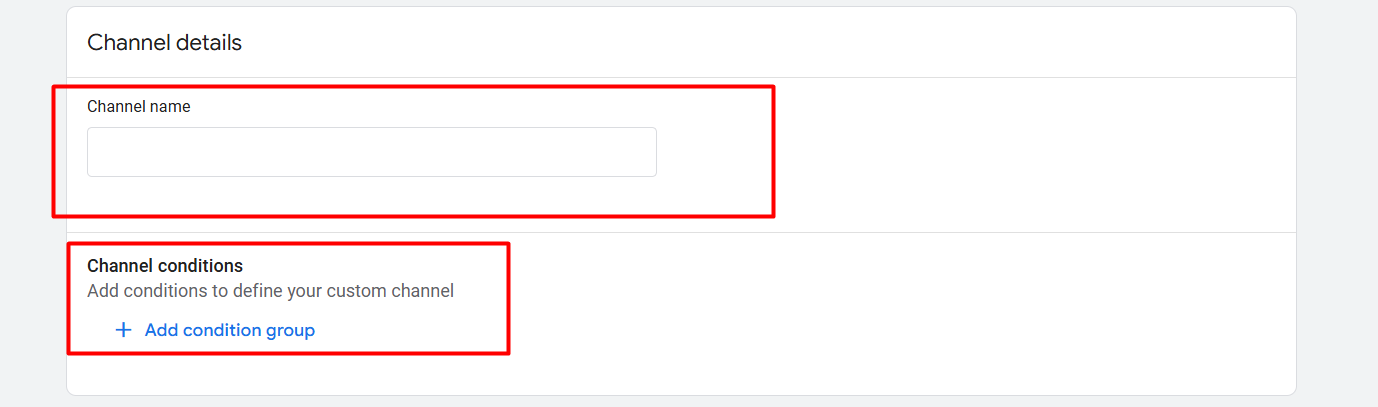
Now, please write down one more name for this channel. Then click on the conditions.
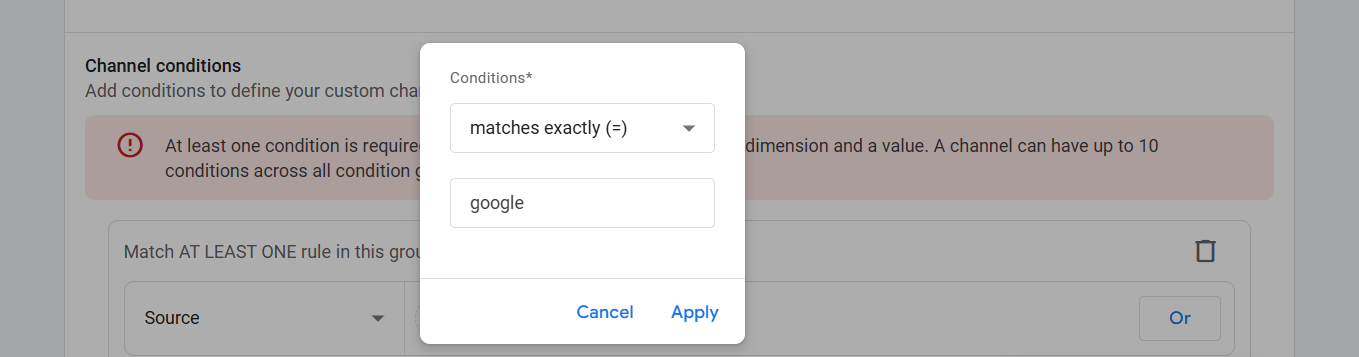
Now Select the main thing to create a channel
At this stage, you can select any one of the dimensions—source, medium, campaign ID, or campaign name—from the dropdown box as per your requirement.
After selecting, you need to set specific conditions. As shown in your screenshot, if you select ‘matches exactly (=)’ and enter the value, then only the specific traffic coming from there will be included in your custom channel.
In this way, you can create different rules for each of your campaigns. Using this method, you can organize your messy data according to your preferences, which will help you see the exact results of your marketing project. Finally, click on the ‘Apply’ button, and your custom condition will be set.
At the beginning of this article, we learned about GA4 channel groups. In the world of digital marketing, making decisions without the right data means walking blindly. Instead of relying solely on GA4’s default channels, you need to create your own custom channel groups.
Remember, data analysis is not just about looking at numbers but about finding the right path to grow your business from those numbers. Go to your GA4 property today to set up your GA4 channel groups and take full control of your marketing project.








