

The “Provide new customer data” option in Google Ads (through GTM) is there so Google can know whether a purchase or lead came from a new customer or an existing one. Google asks for this because it helps improve your conversion tracking and makes your ads smarter — especially if your goal is to get new customers. By sharing this data (safely and in a privacy-friendly way), Google can give you more accurate reports and optimize your campaigns better.
So, let’s move forward together! It’s the perfect time to set up advanced tracking and start collecting the right customer data. To achieve this, we’ll use a custom tracking method that ensures accuracy and efficiency. Don’t worry — we’ll provide you with a universal tracking code to handle this job seamlessly.
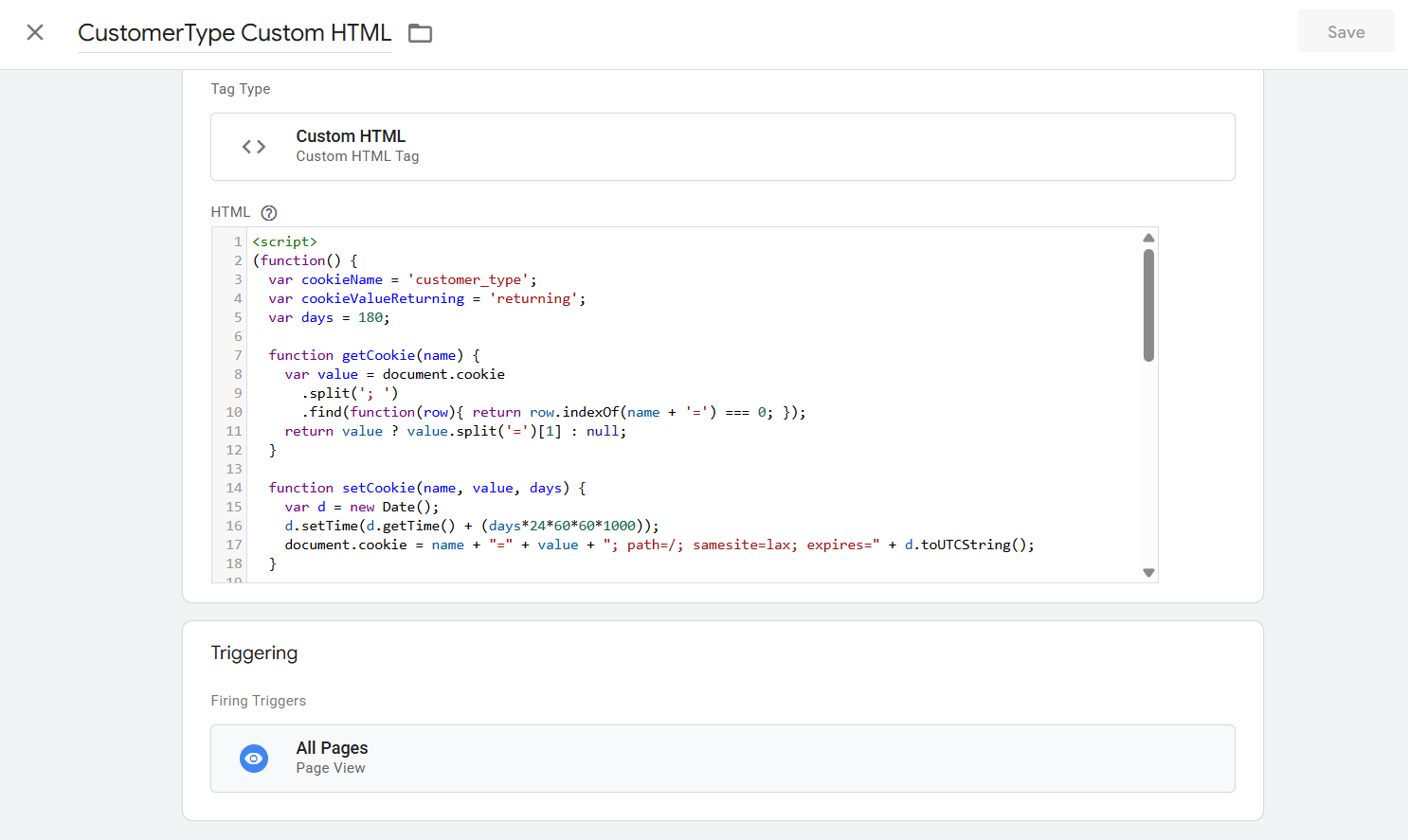
To begin, head over to Google Tag Manager (GTM), create a new tag, and select Custom HTML as the tag type. Then, configure it to fire on All Pages for complete and reliable tracking across your website.
<script>

(function() {

  var cookieName = 'customer_type';

  var cookieValueReturning = 'returning';

  var days = 180;


  function getCookie(name) {

    var value = document.cookie

      .split('; ')

      .find(function(row){ return row.indexOf(name + '=') === 0; });

    return value ? value.split('=')[1] : null;

  }


  function setCookie(name, value, days) {

    var d = new Date();

    d.setTime(d.getTime() + (days*24*60*60*1000));

    document.cookie = name + "=" + value + "; path=/; samesite=lax; expires=" + d.toUTCString();

  }


  function hasLocalStorageFlag() {

    try {

      return !!localStorage.getItem(cookieName);

    } catch(e) {

      return false;

    }

  }


  function setLocalStorageFlag() {

    try {

      localStorage.setItem(cookieName, cookieValueReturning);

    } catch(e) {}

  }


  var isReturning = !!getCookie(cookieName) || hasLocalStorageFlag();

  var type = isReturning ? 'returning' : 'new';


  setCookie(cookieName, cookieValueReturning, days);

  setLocalStorageFlag();


  window.dataLayer = window.dataLayer || [];

  window.dataLayer.push({

    event: 'customer_type_determined',

    customer_type: type

  });

})();

</script>
How does it work? Step by step:
- It checks if you’ve been here before
- The script looks for a little “note” saved in your browser (this is called a cookie or local storage) with the name customer_type.
- If it finds it, you are considered returning.
- If it doesn’t find it, you are considered new.
- It saves your visit for next time
- If you’re new, it writes that “note” in your browser saying you’re a returning visitor next time.
- That “note” lasts for 180 days (about 6 months).
- It tells Google Tag Manager (dataLayer)
- After deciding if you’re new or returning, the script sends that info into something called the dataLayer.
- Example:
{
event: ‘customer_type_determined’,
customer_type: ‘new’
}
or
{
event: ‘customer_type_determined’,
customer_type: ‘returning’
}
Google Tag Manager (or Google Ads, Analytics, etc.) can then use this info for tracking, reporting, or advertising.
In plain words:
The code is like a doorman at a shop.
- First time you come in: “Ah, you’re new!” (and it saves your info for next time).
- Next time you come back: “Welcome back, returning customer!”
- Then it whispers this info to Google so you can track in reports or show different ads.
Great! With this method, our Custom HTML tag setup is now complete. The next step is to run a preview in Google Tag Manager. Once the preview is active, you’ll be able to see the new interface where valuable insights about your customer type (new or returning) will appear. This helps ensure your tracking is working correctly and gives you clear visibility into your customer data.








